This article explains how to load a snapshot into an existing sub-account. Snapshots allow you to copy pre-built workflows, funnels and other assets into a sub-account without starting from scratch. This article walks you through the step-by-step process and highlights how to select specific assets, manage conflicts, and confirm your data load.
TABLE OF CONTENTS
- What is Loading a Snapshot into an Existing Account?
- Key Benefits of Loading a Snapshot into an Existing Account
- How To Load a Snapshot into an Existing Sub-Account
- Frequently Asked Questions
- Related Articles
What is Loading a Snapshot into an Existing Account?
Loading a snapshot into an existing account means importing prebuilt HighLevel assets like workflows, funnels, emails, and more into a sub-account that is already active. This approach allows agencies to quickly deploy standardized systems to clients without recreating them manually. Unlike creating a new account with a snapshot, this method preserves existing client data and adds or updates selected assets.
Key Benefits of Loading a Snapshot into an Existing Account
Loading a snapshot is a strategic way to duplicate assets across multiple clients.
Efficiency: Speeds up setup by reusing workflows, forms, and other assets
Consistency: Ensures that sub-accounts follow the same structure and processes
Flexibility: Gives you control over which assets are imported and which existing assets are overridden
Conflict Warnings: See what might be overridden before taking action
How To Load a Snapshot into an Existing Sub-Account
Follow this process to import a snapshot into an existing sub-account.
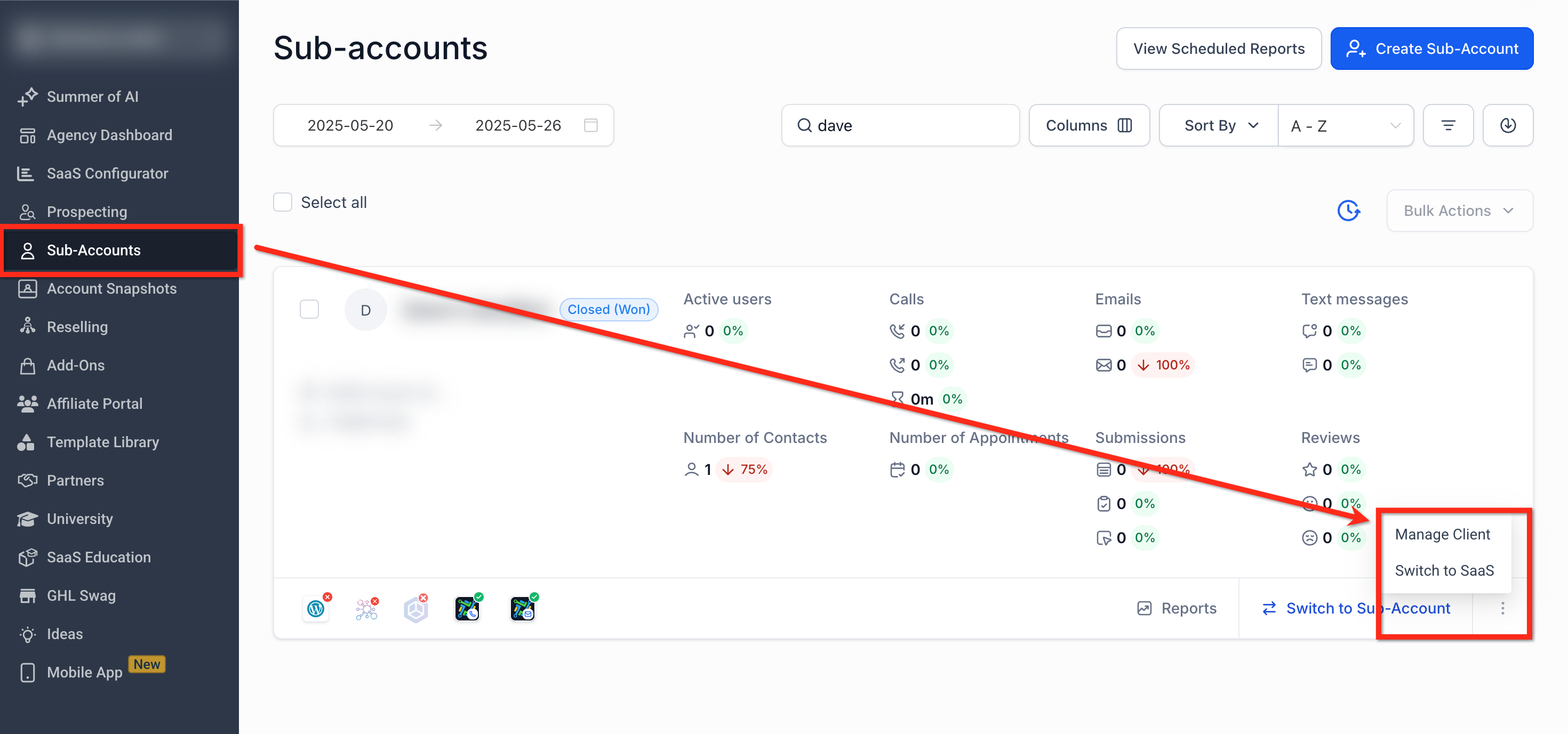
Step 1: Navigate to "Manage Client"
From the Agency Dashboard, use the left-hand menu to navigate to Sub-Accounts
Scroll down or use the search bar to locate the sub-account you would like to add the snapshot to
- Click the 3-dot icon located to the right of the sub-account. From the pop-up menu, select Manage Client
Step 2: Select and Load Snapshot
- Click the blue Actions button in the upper right corner
- From the dropdown, select Load Snapshot
Note: If you do not see "Load Snapshot", check that access to Snapshots is turned on under User > Roles and Permissions from the agency dashboard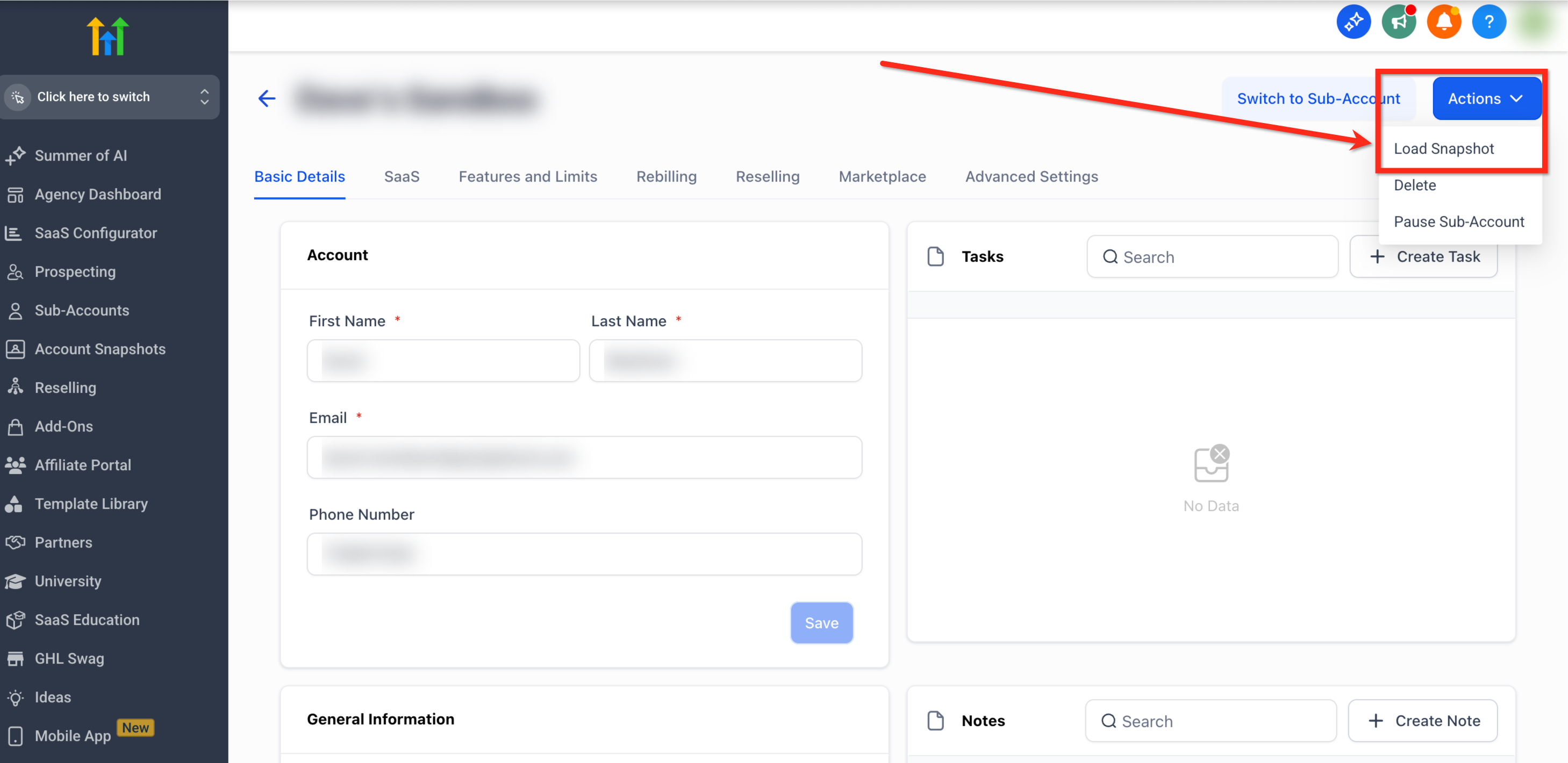
Step 3: Choose the Snapshot
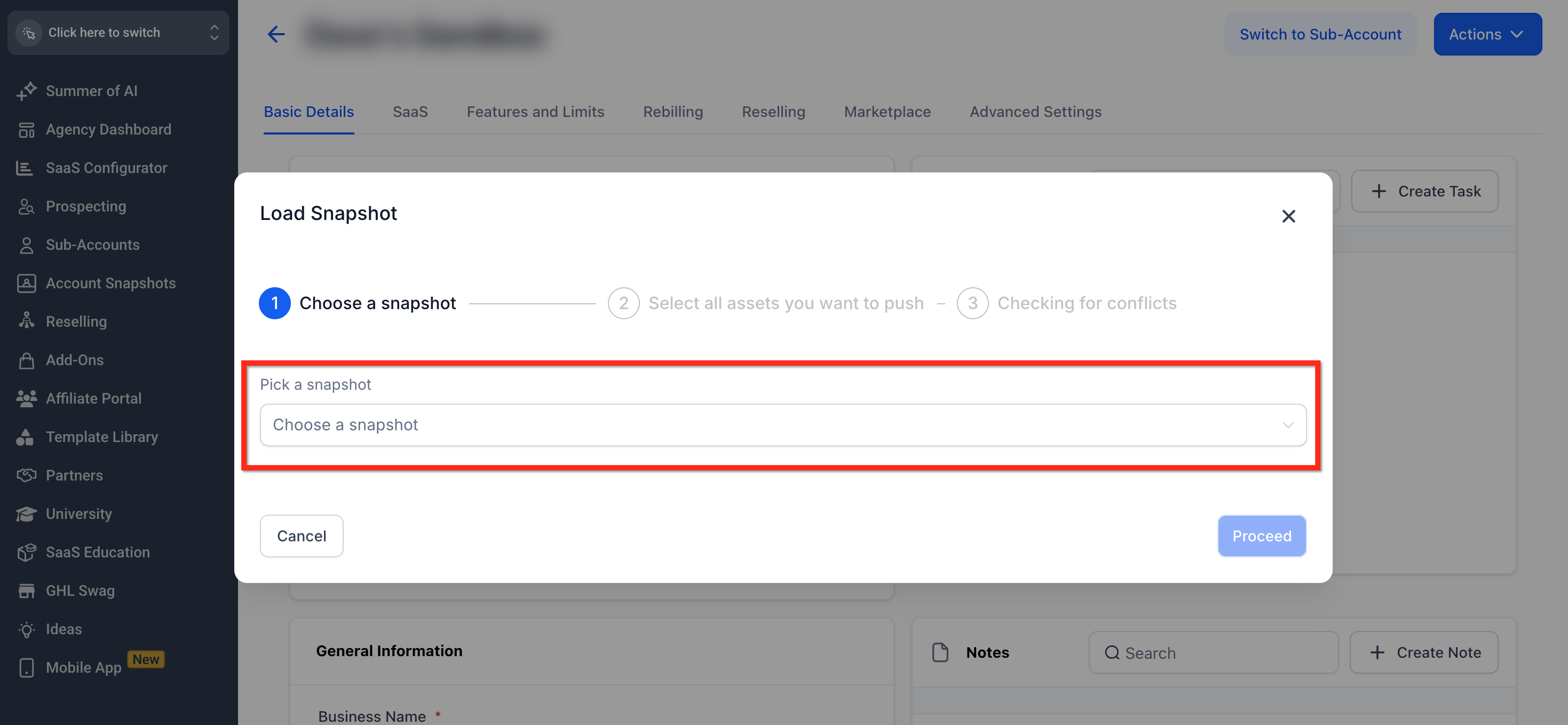
- In the “Load Snapshot” popup, click the dropdown labeled Pick a Snapshot
- Select the snapshot you'd like to load into the sub-account
- Click the blue Proceed button
Step 4: Select Assets
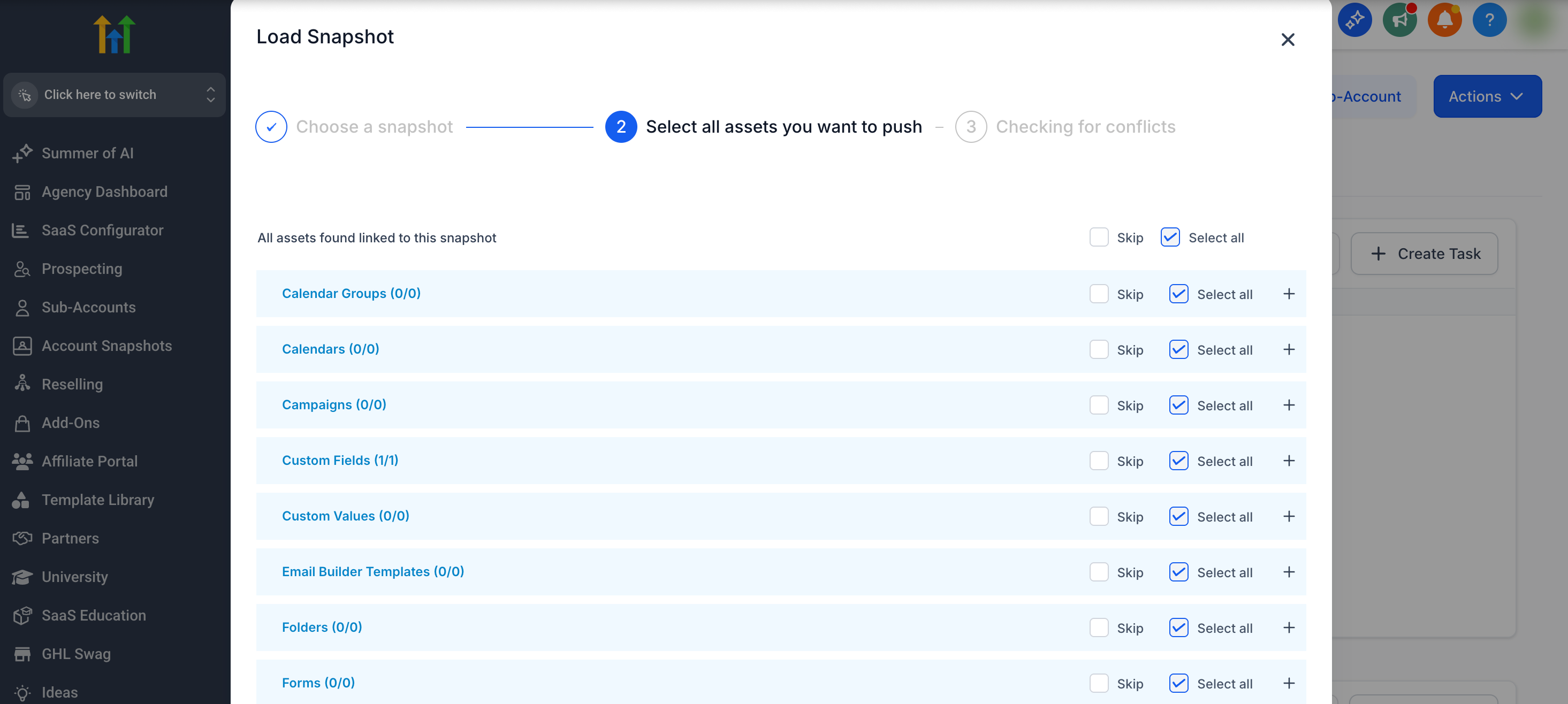
- Use the checkboxes to select the assets you want to import
- To import all available assets, click Select All
- To import by category, check only the sections you need
- Click the + icon to expand a category and select individual assets
- To import all available assets, click Select All
- Click the blue Proceed button when you are done
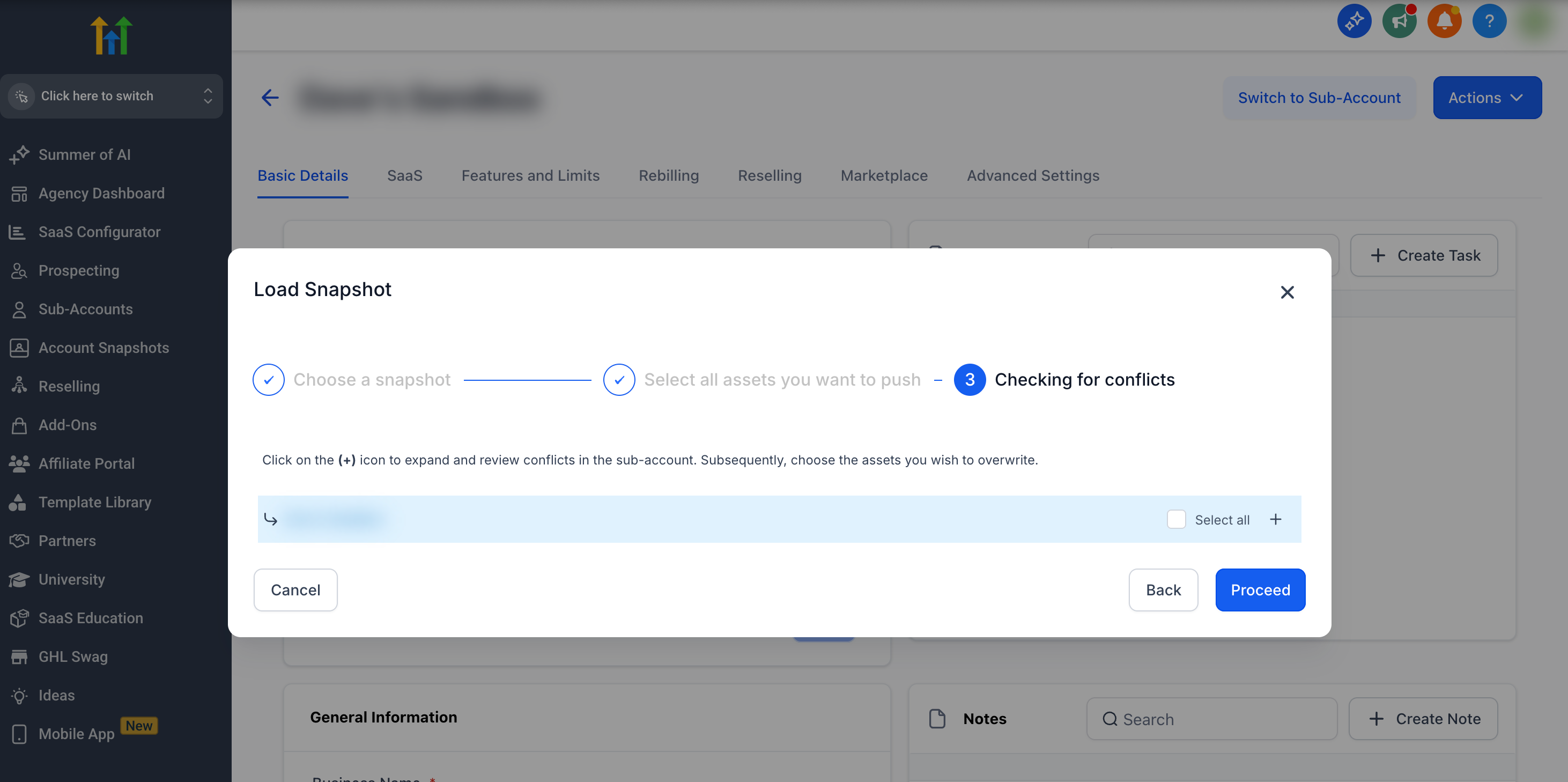
Step 5: Resolve Conflicts
- The platform will check for conflicts between existing assets and the ones in the snapshot. You’ll have two options for each conflict:
- Override: Replaces the existing sub-account item with the snapshot version
- Skip: Keeps the current version and excludes the conflicting snapshot item
- Override: Replaces the existing sub-account item with the snapshot version
- After reviewing, click the blue Proceed button
Step 6: Confirm the Import
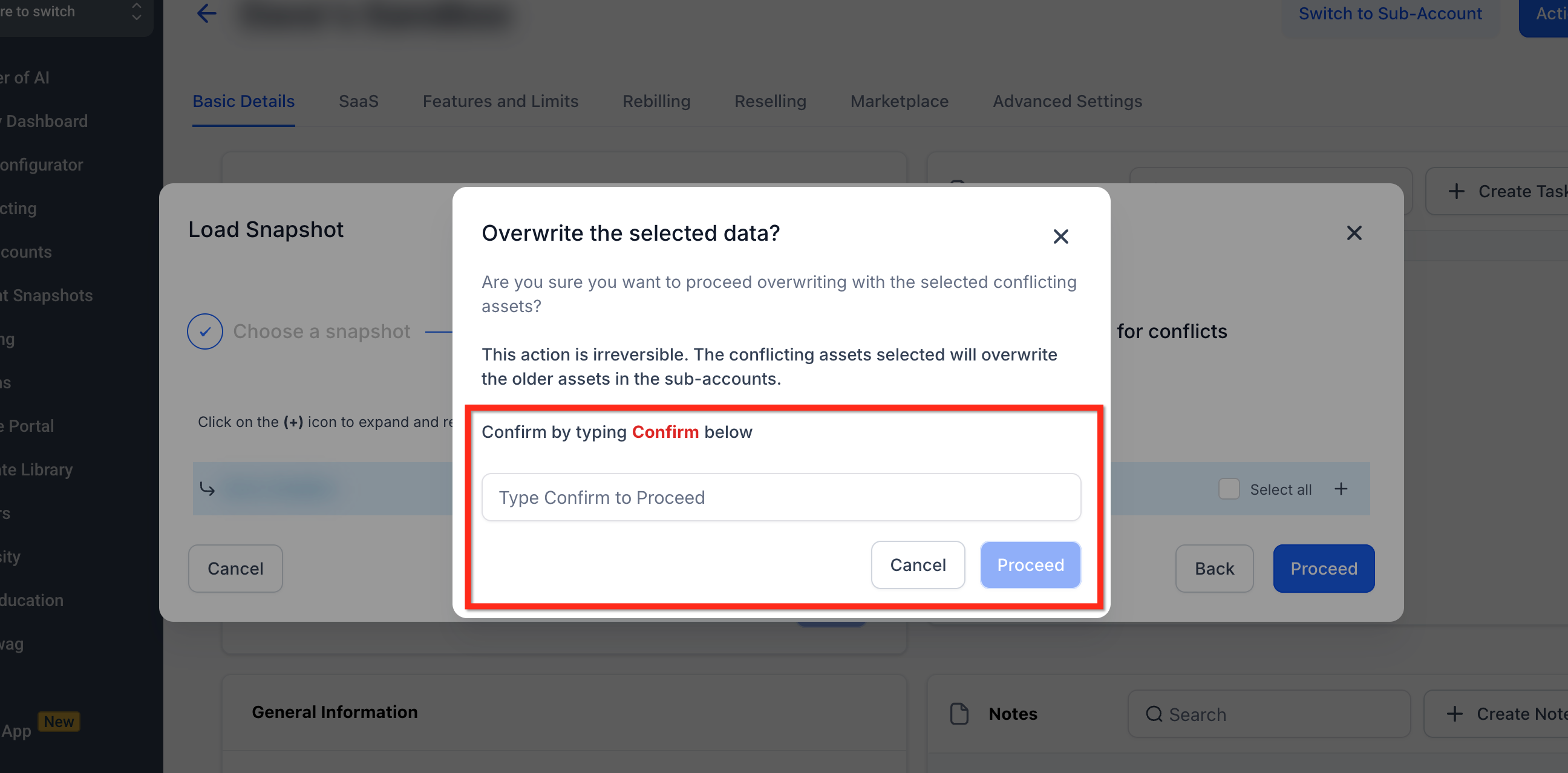
- You’ll be asked to type the word confirm to approve the changes
- After typing confirm, click the blue Proceed button
A success notification will appear, confirming that the snapshot is being pushed to the sub-account. You will receive an email notification once all information has been transferred.
Frequently Asked Questions
Q: Will loading a snapshot delete my current data?
No. Data is only replaced if you choose to override during the conflict check.
Q: Can I preview what’s in the snapshot?
Not directly. However, you can load selectively and skip assets during the process.
Q: What happens if I accidentally override an asset?
The action cannot be undone. Always review the conflict list carefully.
Q: Can I load multiple snapshots into the same sub-account?
Yes, you can load more than one snapshot into the same sub-account. Each time you load a snapshot, you’ll go through the same process. Just be aware that overlapping assets may trigger conflicts, so review your selections carefully to avoid unintended overrides.