This guide explains how to reorganize SaaS plans by changing their category or plan level.
TABLE OF CONTENTS
Step 1: Open Edit Plan
Go to SaaS Configurator → Plans.
Select the plan you want to edit.
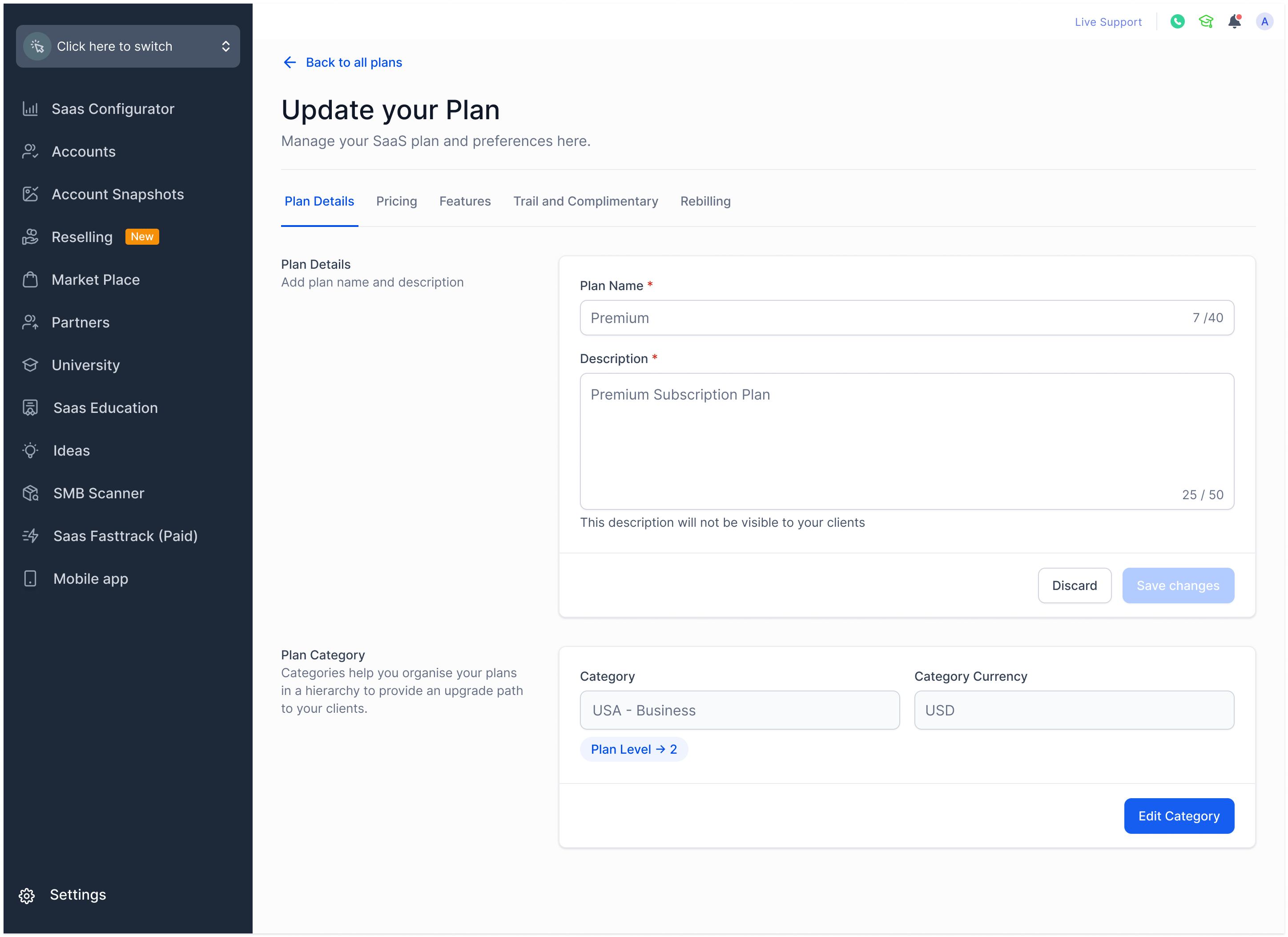
Step 2: Update Category & Plan Level
Under Category Settings, click Edit.
To move to a new category:
Select a category from the dropdown (only same-currency categories will appear).
To change the plan level:
Adjust its hierarchy position within the category.
Confirm your selection.
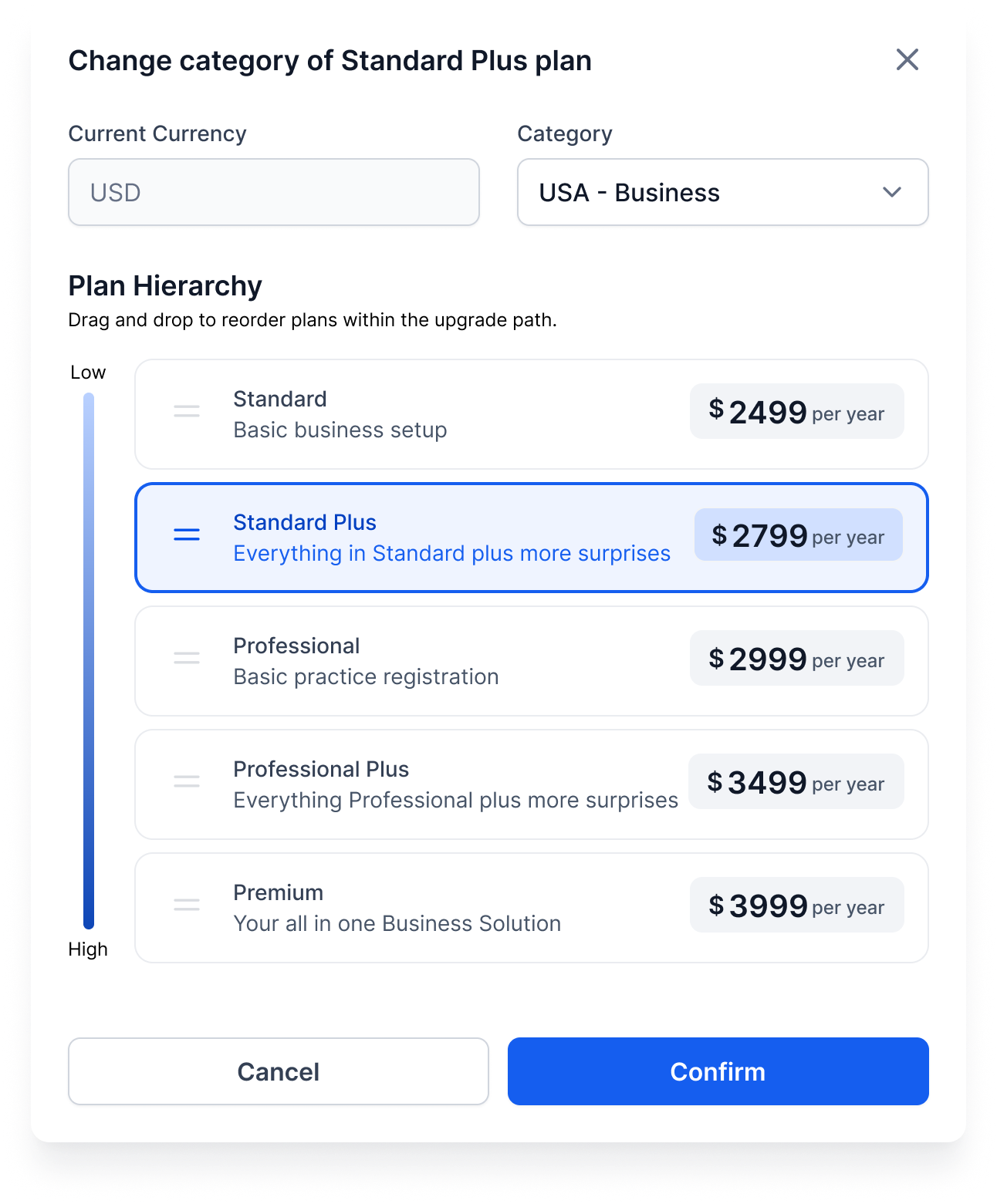
Step 3: Save & Review
Save changes.
Review the impacted plans in the new category — features from the moved plan are inherited upwards, and the moved plan itself inherits from lower levels.
Important Notes
Existing customers are not retroactively updated. Their plans remain the same, but upgrade/downgrade paths will update.
Impact on features:
Plans above inherit features from the moved plan.
Moved plan inherits features from plans below it.
Use this with care, as it may affect your pricing/positioning strategy.