This guide explains how to apply Special Prices when enabling SaaS subscriptions for existing sub-accounts.
TABLE OF CONTENTS
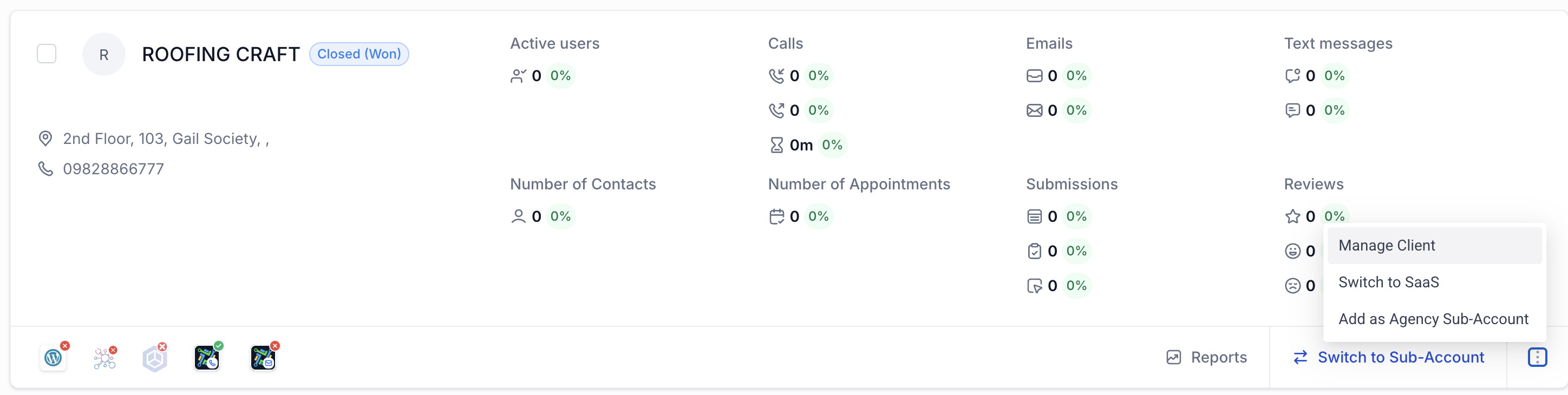
Step 1: Go to Manage Client
From Agency View, open Sub-Accounts List.
Select the sub-account.
Click Manage Client.
Step 2: Add a Subscription
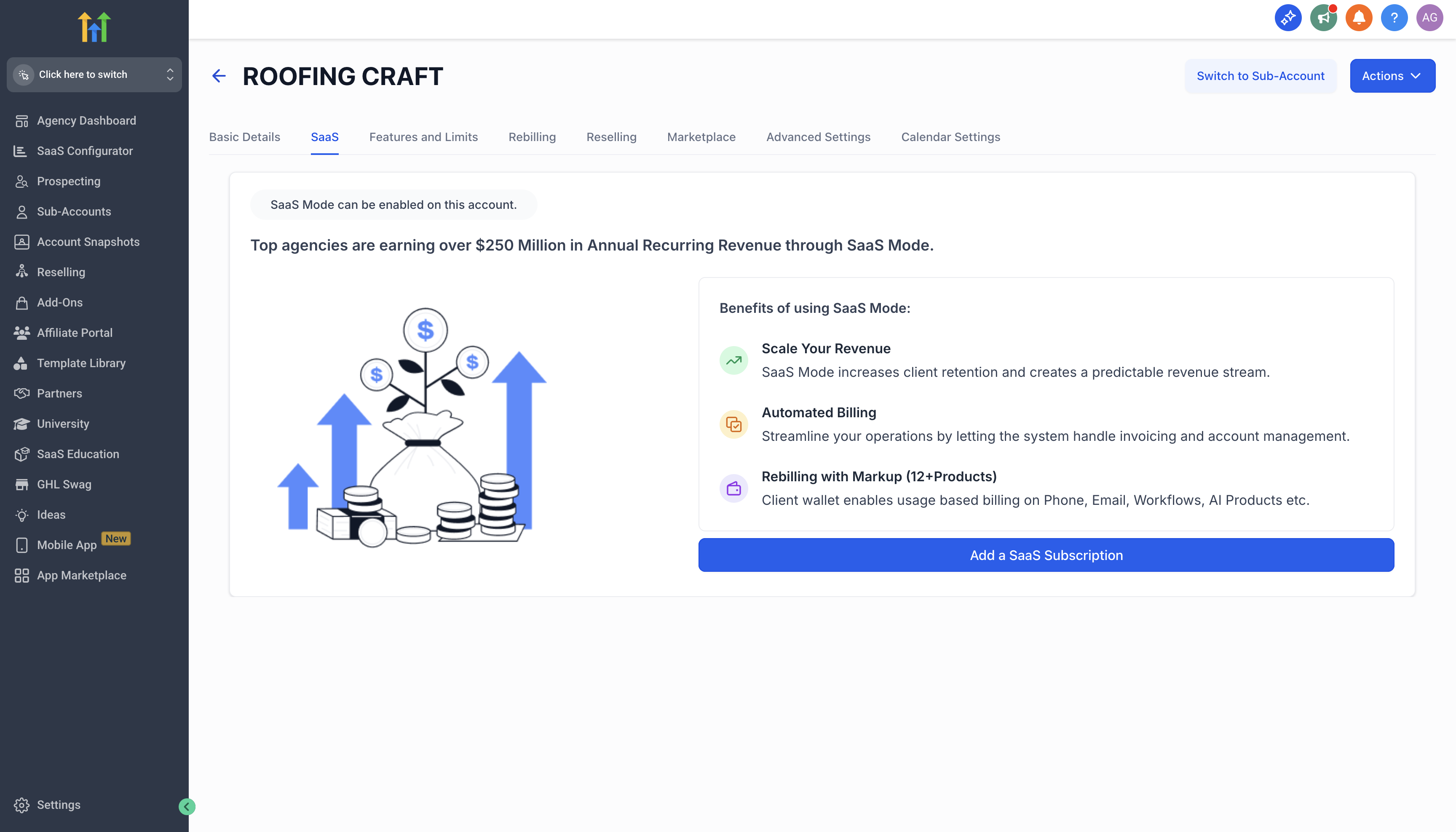
Under the SaaS tab, select Add a Subscription.
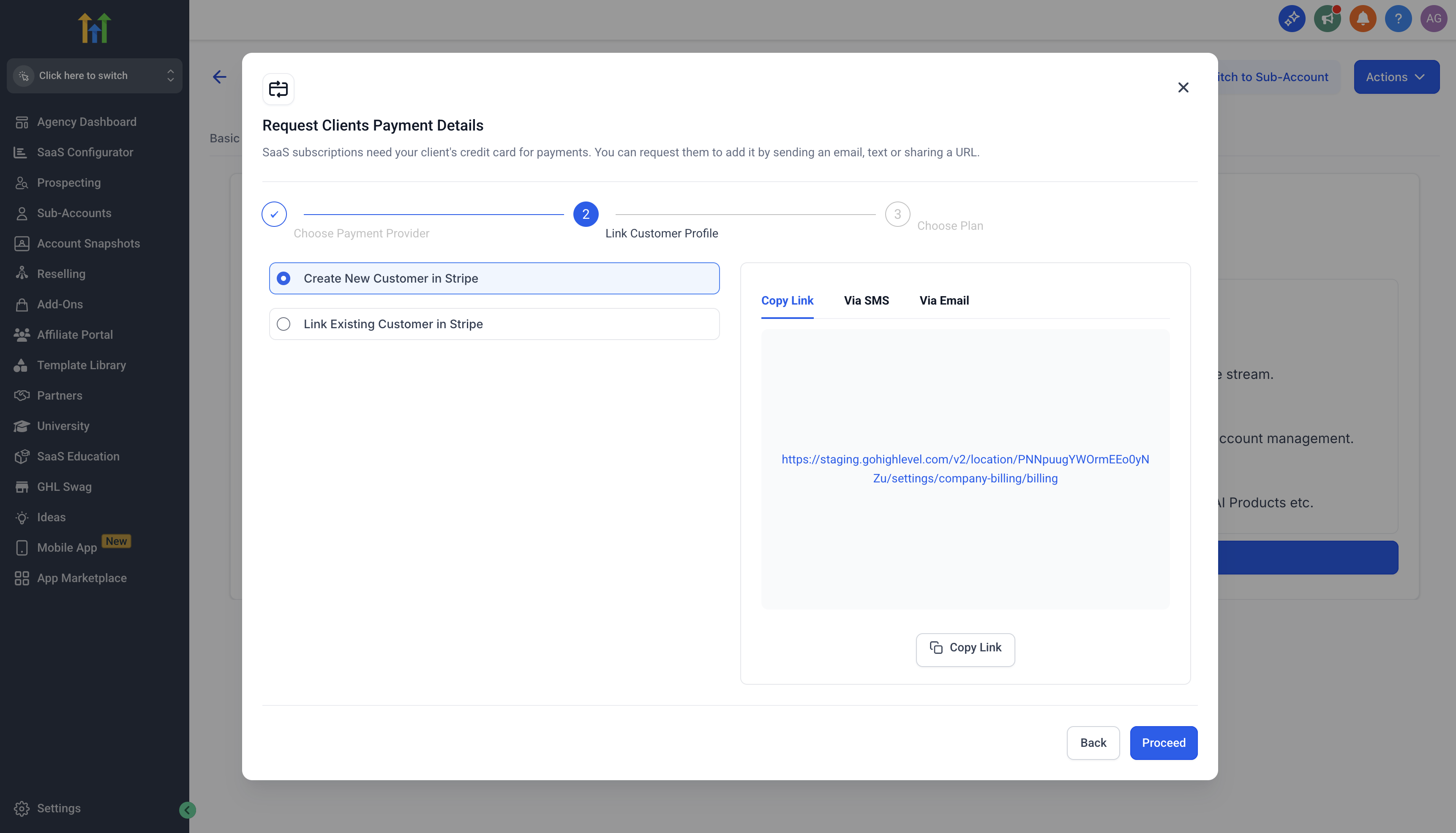
Choose the payment provider.
Select an existing customer profile or create a new one.
Step 3: Create a Special Price
In the Select Plan modal, click Create a Special Price under your desired plan.
Enter the custom price (amount, currency, interval).
Click Save Price.
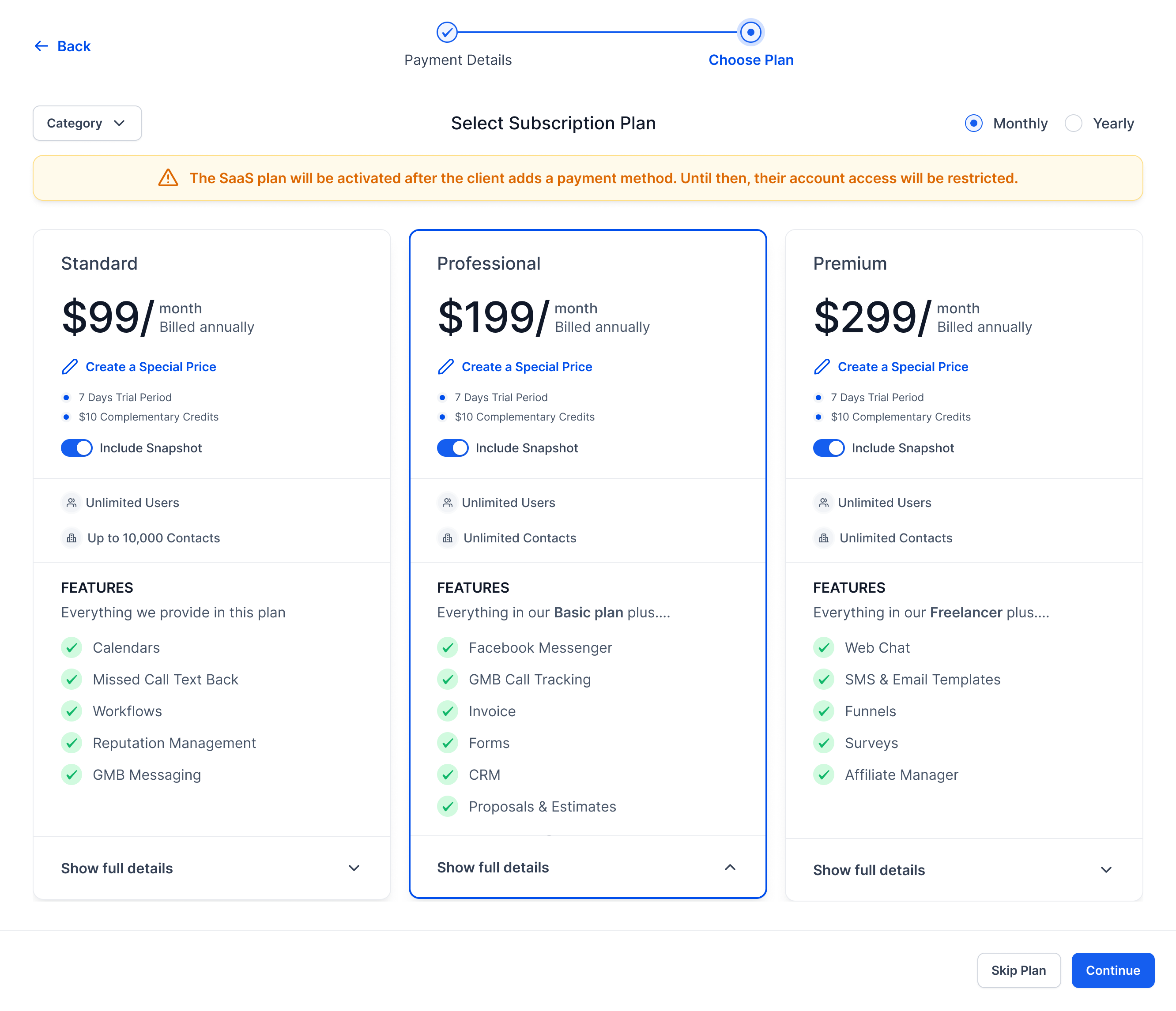
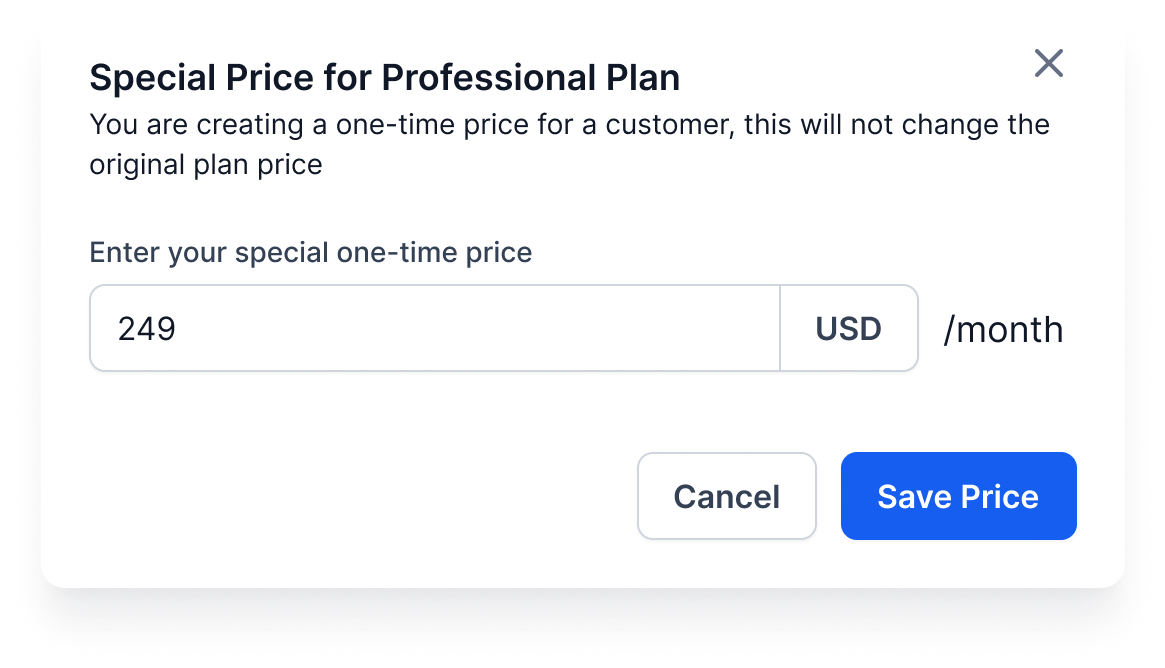
The system checks if an identical special price already exists (same product, currency, interval, and amount). If found, it will reuse it. Otherwise, a new special price will be created.
Step 4: Confirm Subscription
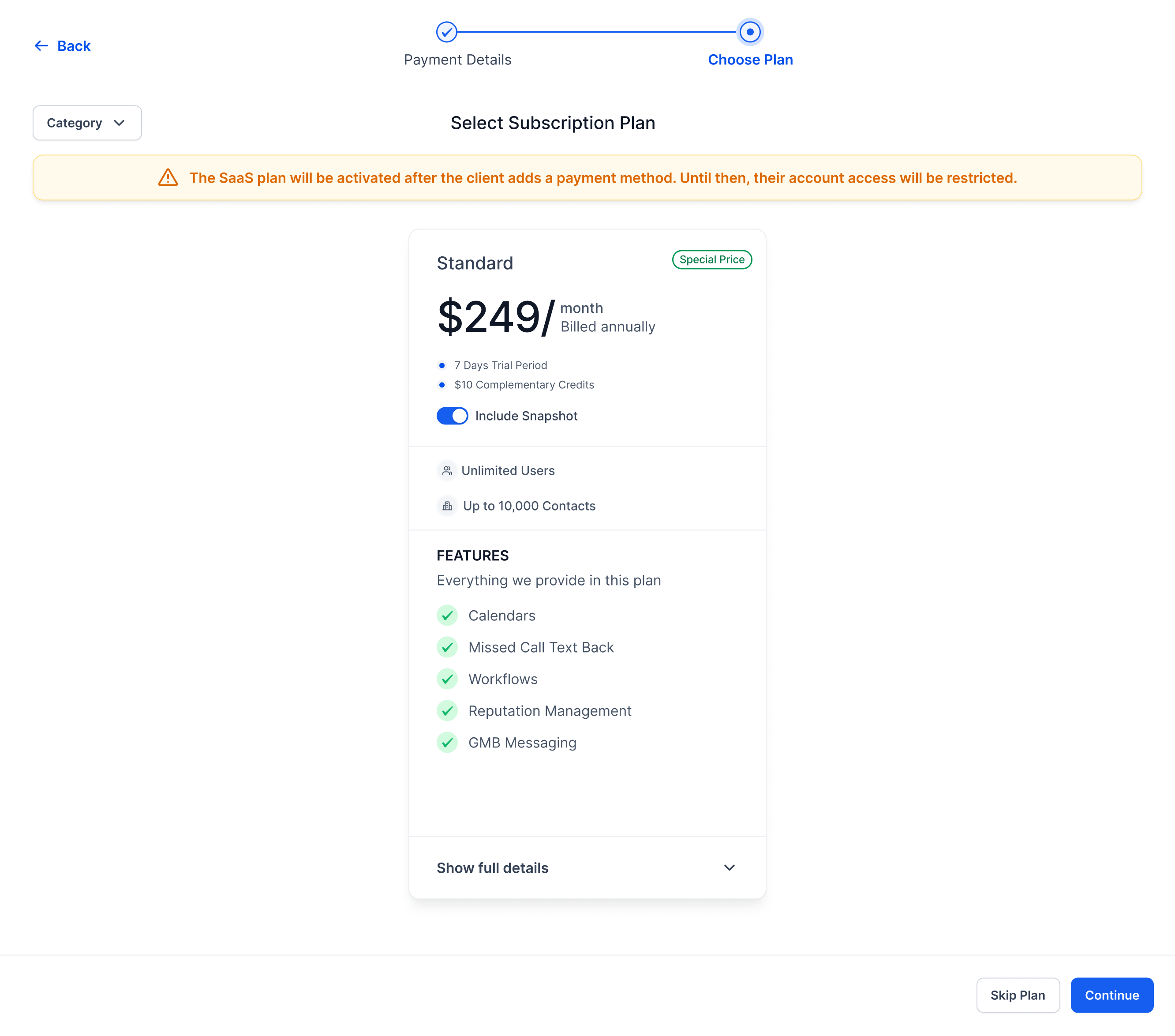
Proceed to confirm the plan with the special price applied.
The subscription is now attached to the sub-account at the special rate.
Notes:
1. Special prices currently only apply to the selected plan.
2. Future enhancements will allow full special upgrade paths and tracking of all special prices in SaaS Configurator.