Note: This is a beta feature. To enable, go to Agency Setting > Labs, and enable Import Stripe Products into SaaS Configurator.
TABLE OF CONTENTS
Step 1: Import Products from Stripe
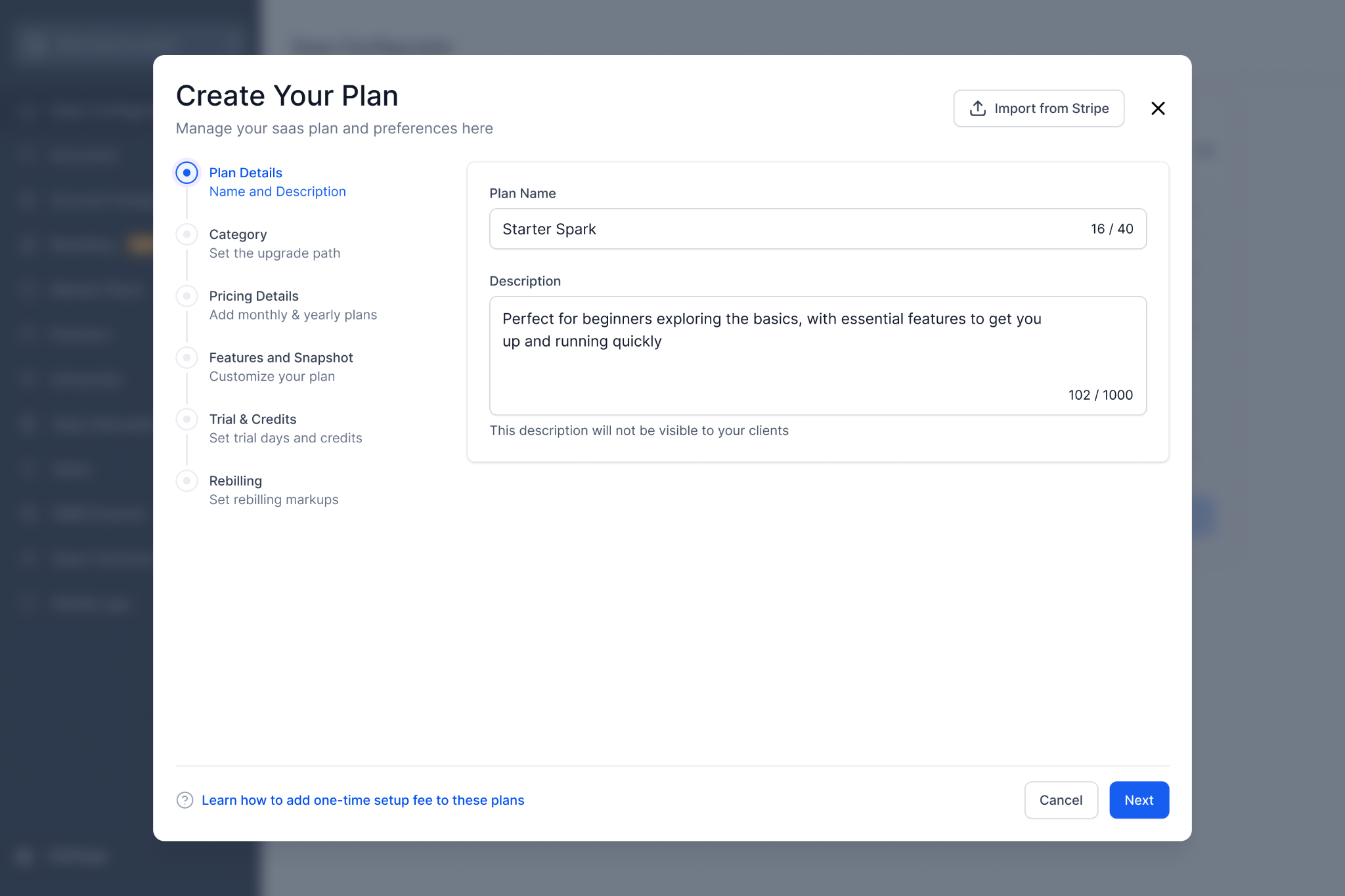
Go to SaaS Configurator → Create Plan.
Click Import from Stripe (top-right).
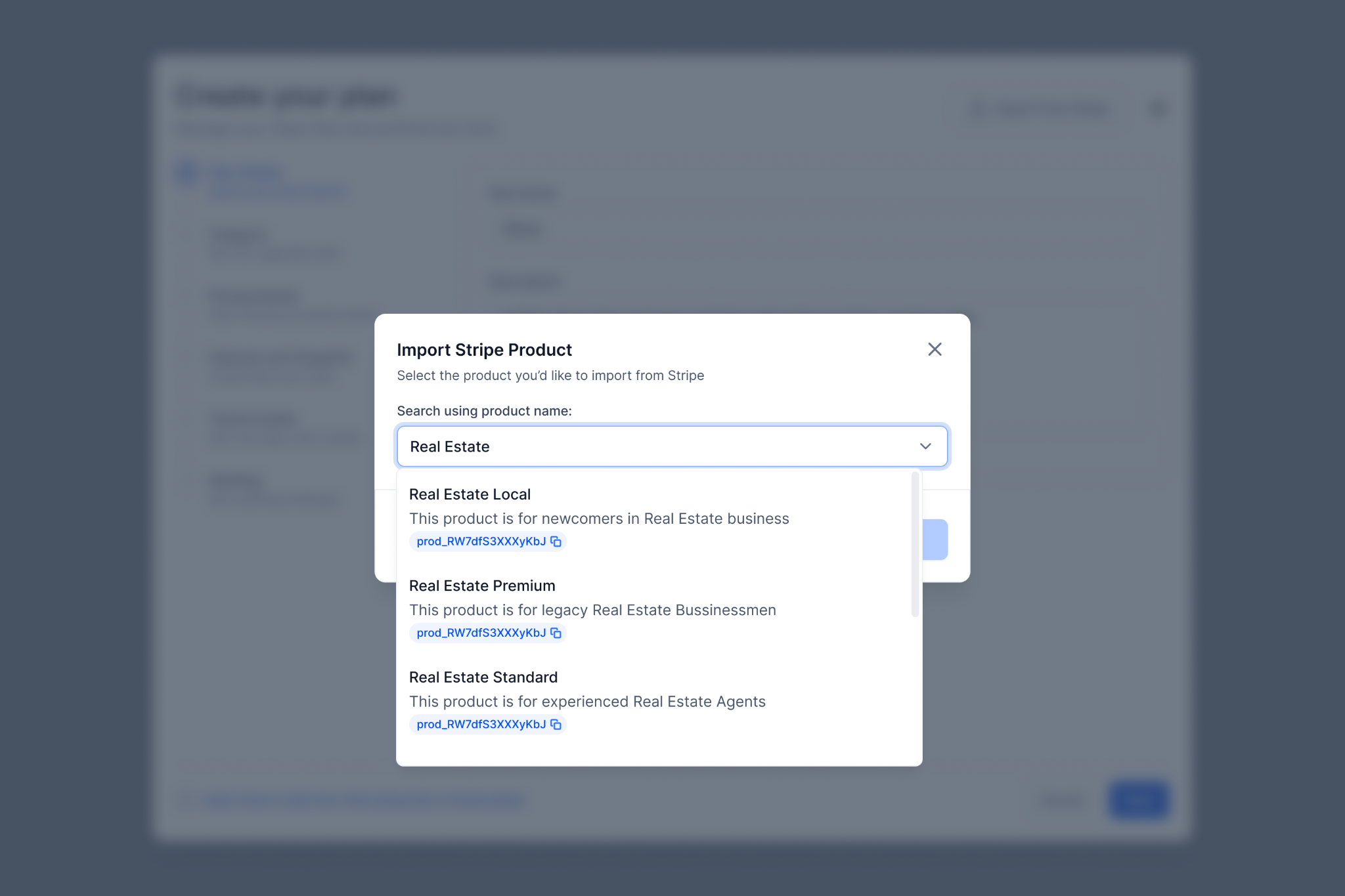
Search for the product by name.
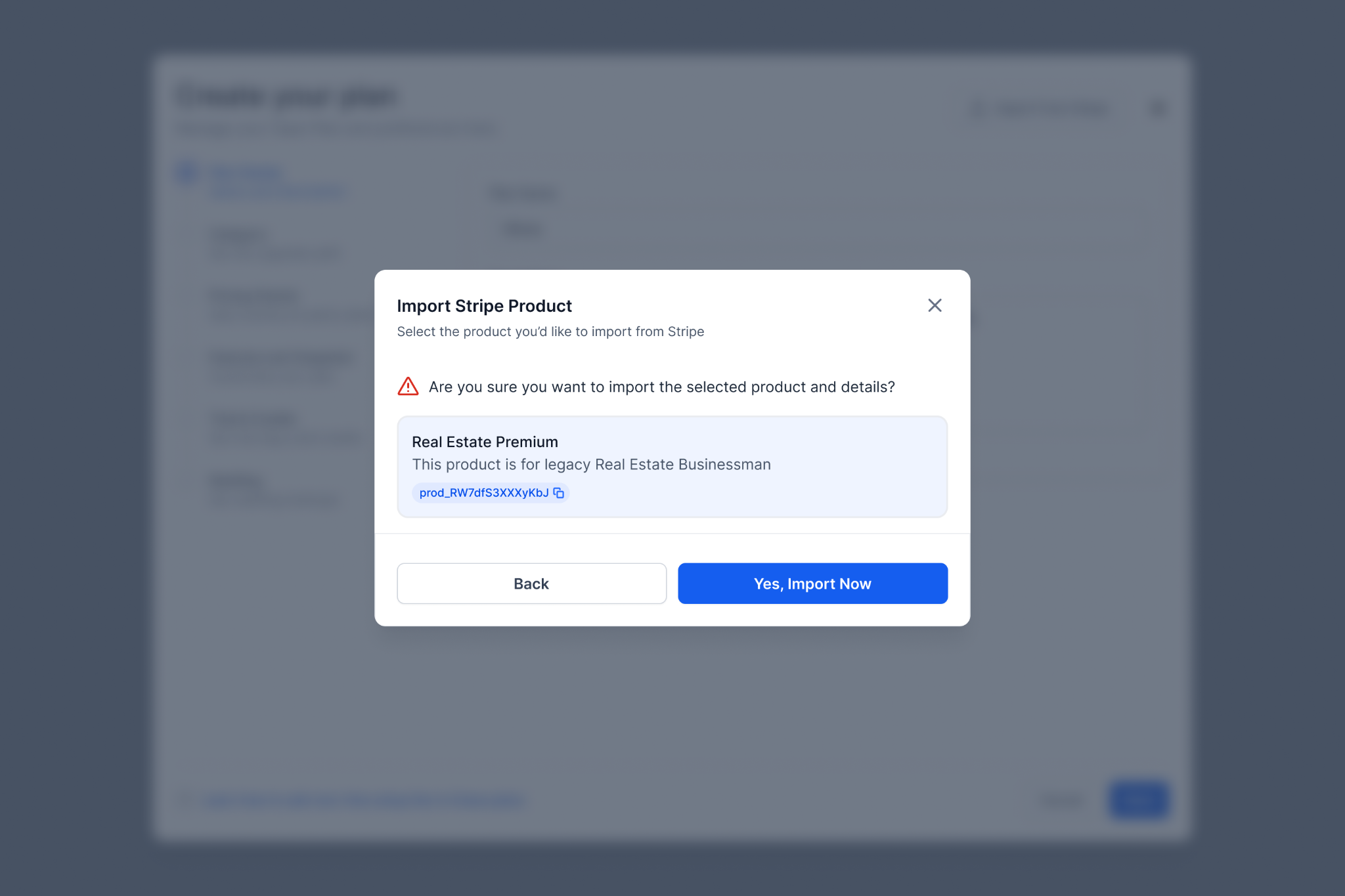
Select the product and confirm.
The product details will import into the Configurator.
Complete the remaining setup:
Category and hierarchy (for upgrade paths)
Pricing (new price IDs will be created)
Features, snapshots, trials, and rebilling
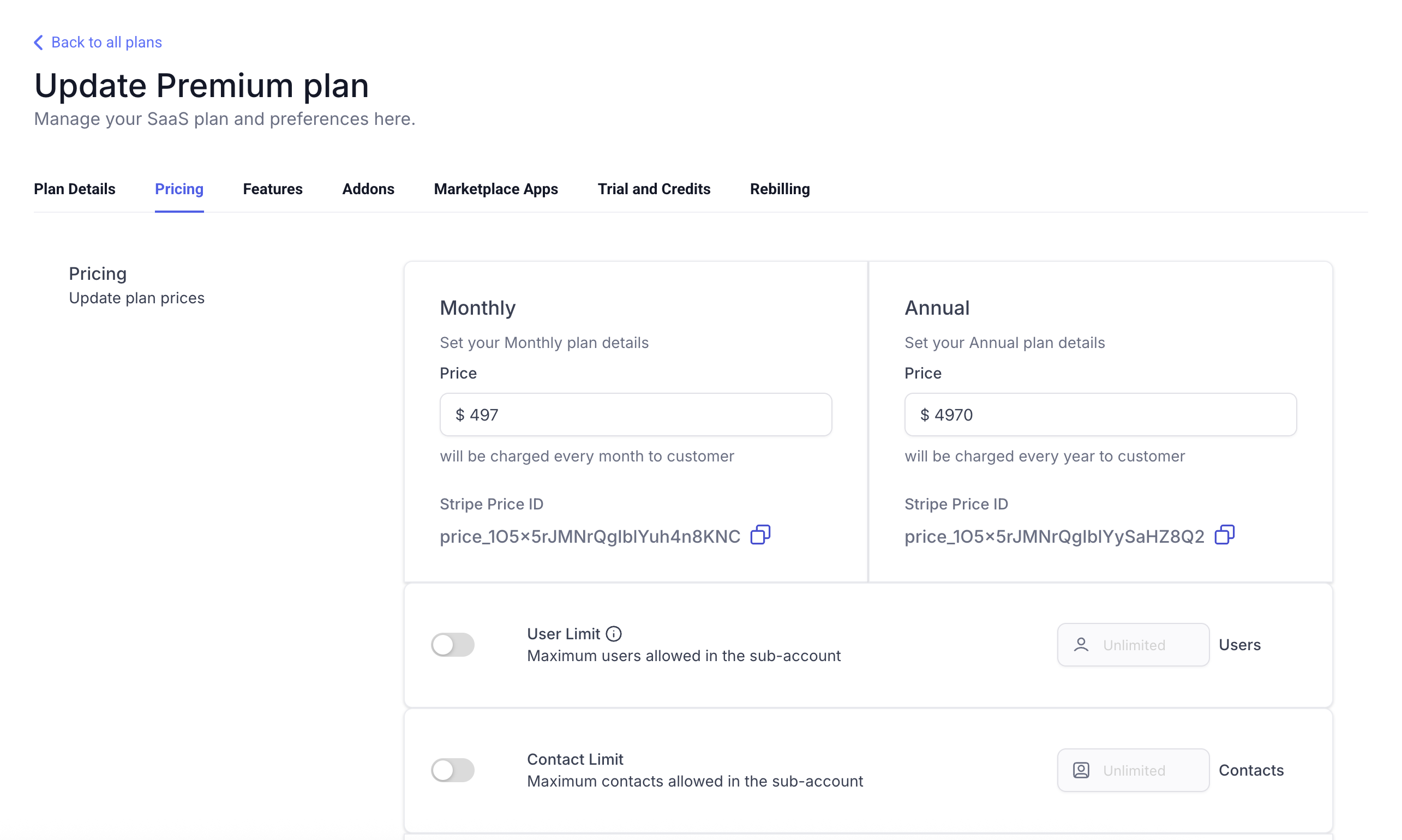
Save the plan.
Step 2: Link Existing Stripe Subscriptions to Sub-Accounts
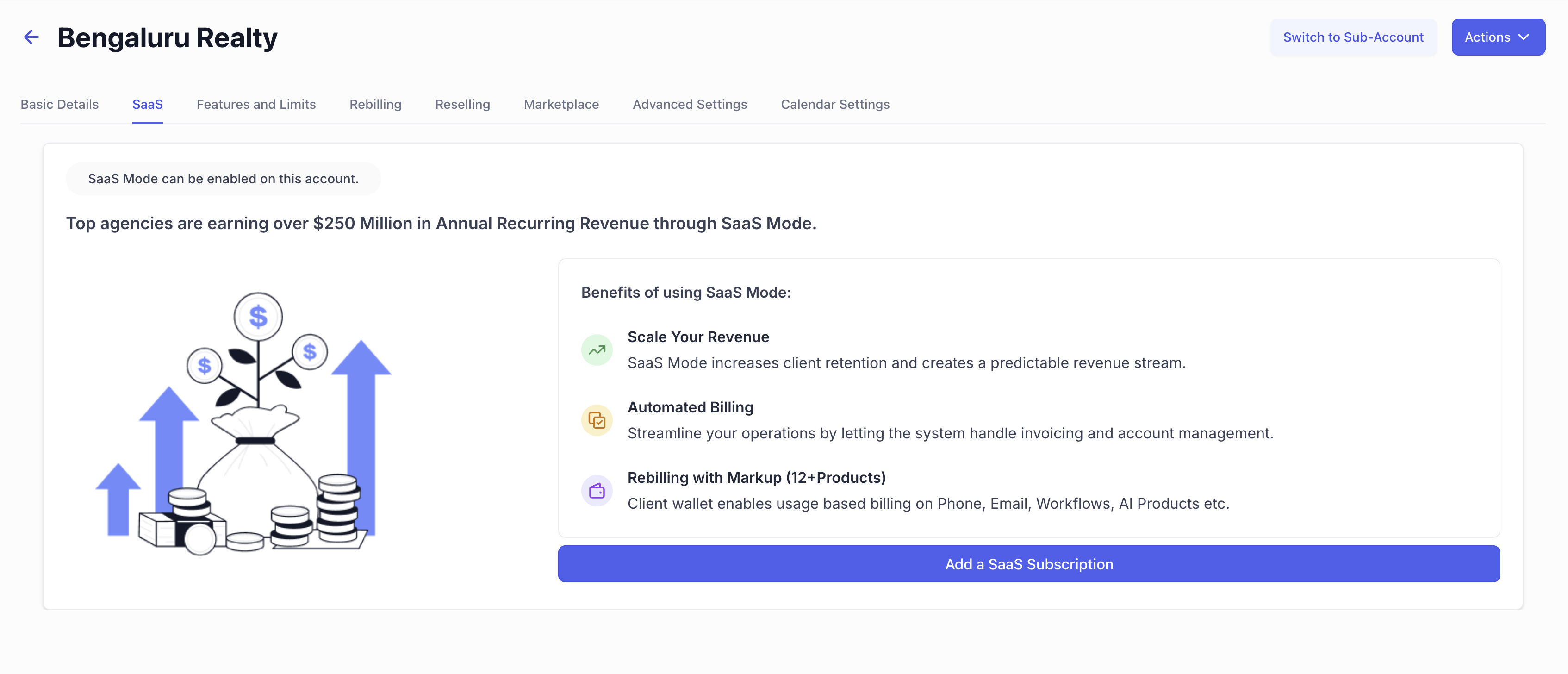
From Agency View, go to Sub-Accounts → Manage Client.
Open the SaaS tab.
Click Add a SaaS Subscription.
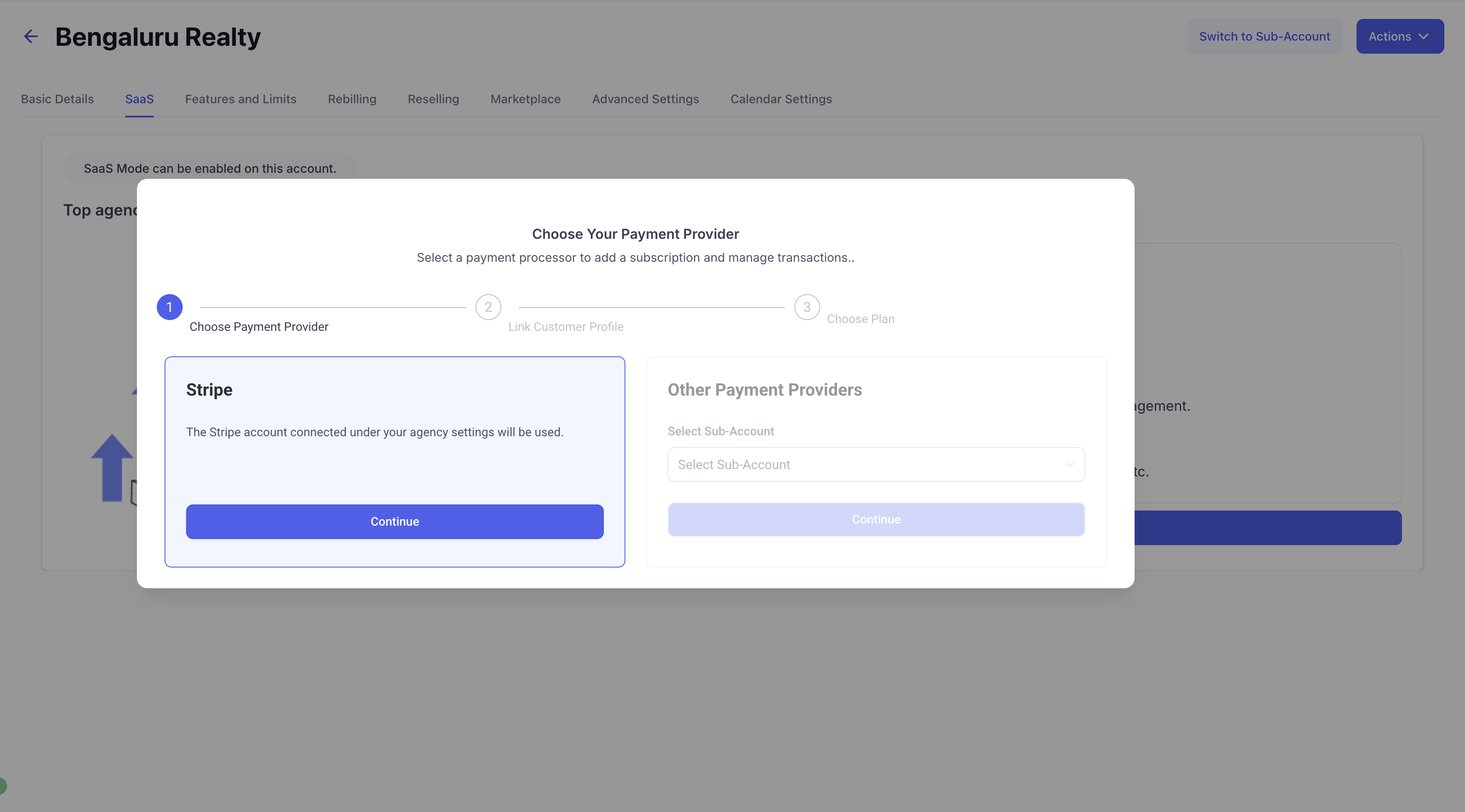
Choose Stripe as the payment provider.
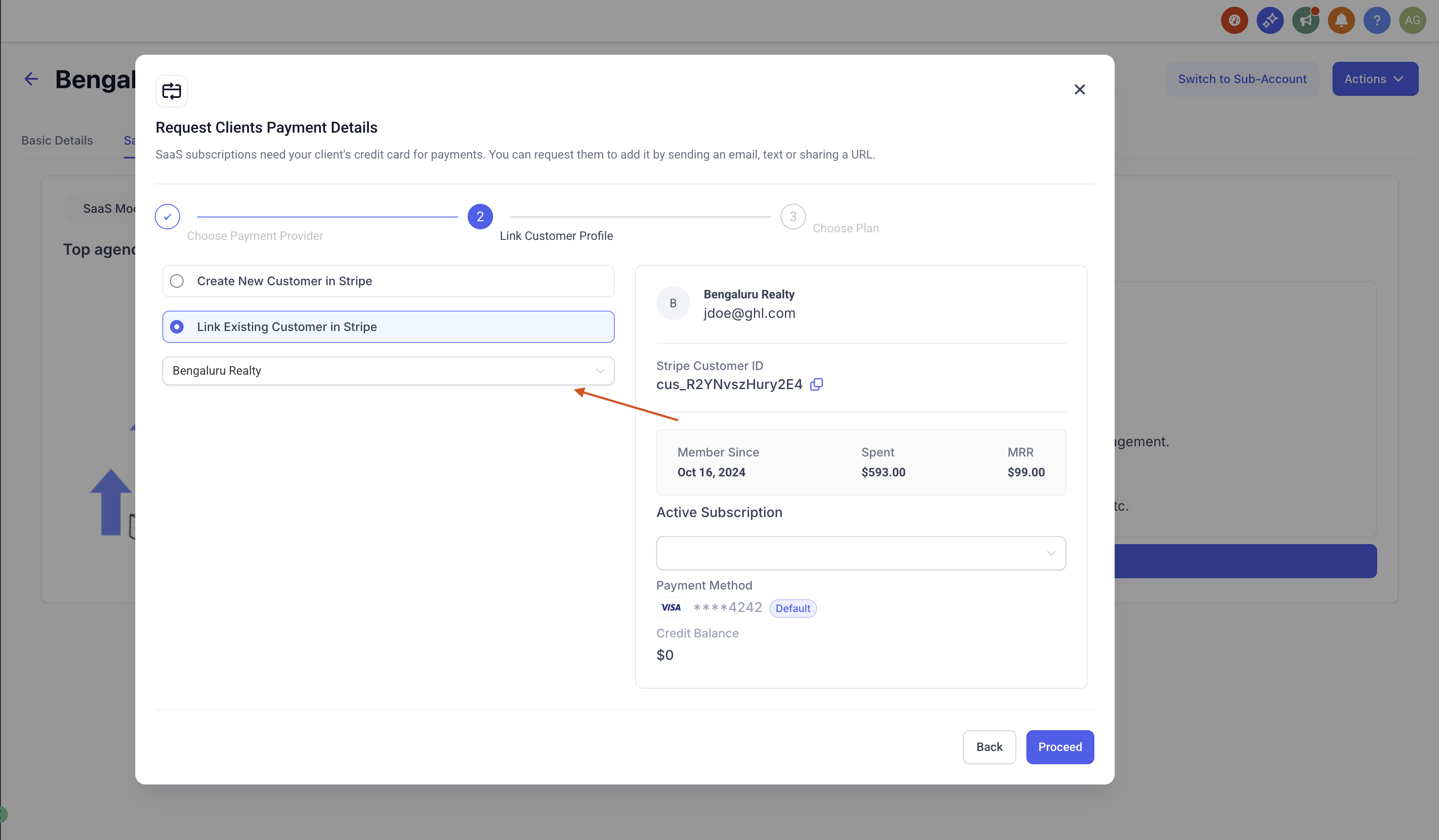
In the Request Client Payment Details modal, select Link Existing Customer in Stripe.
Choose the customer profile with an active subscription.
Select the subscription from the right-hand panel.
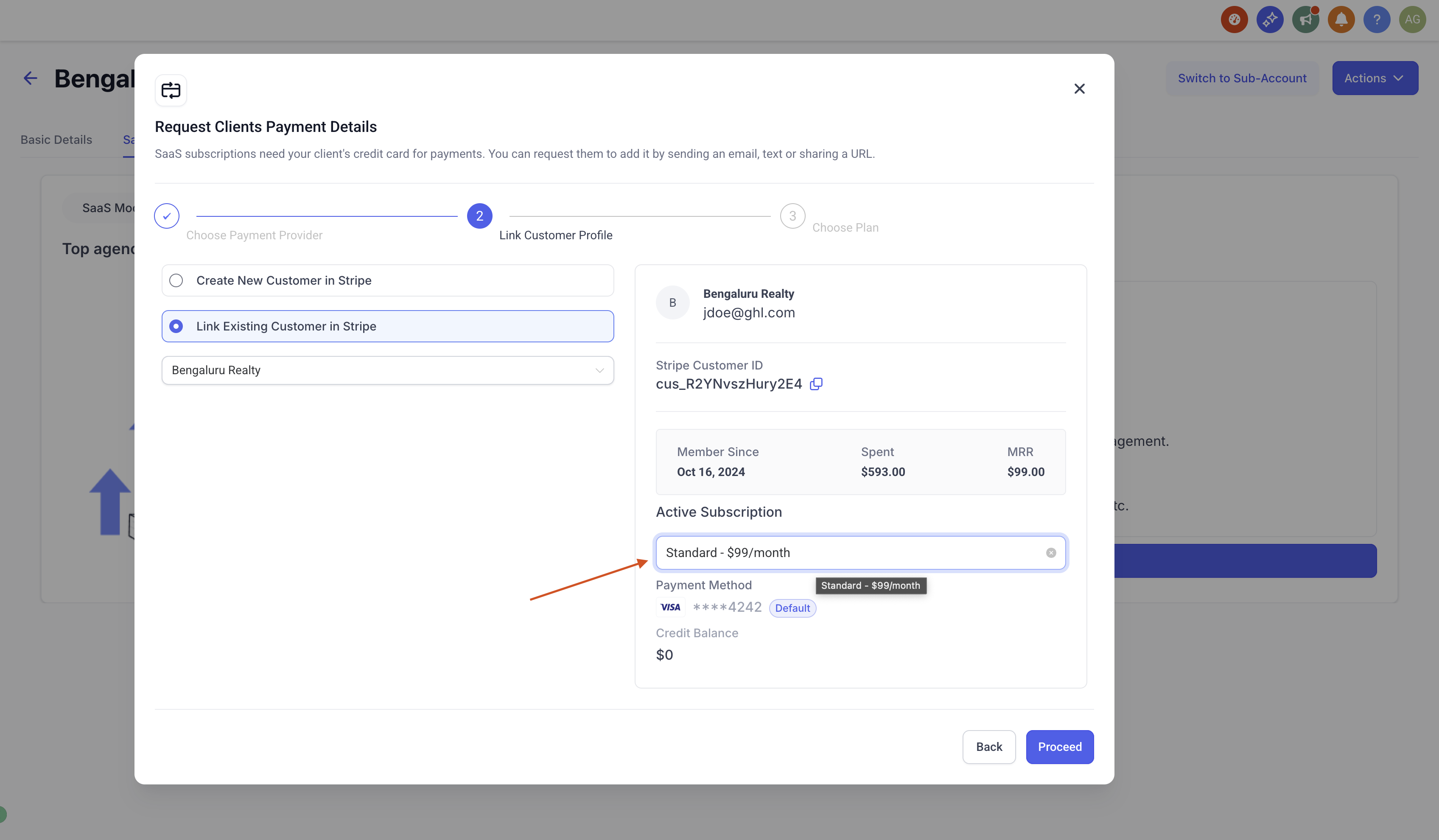
Confirm to enable SaaS on the sub-account.
Notes
Importing a product does not carry over existing Stripe price IDs. New IDs are created.
Existing clients will not be disrupted; their subscriptions can be mapped seamlessly.
Available for Legacy/V1 SaaS system only.