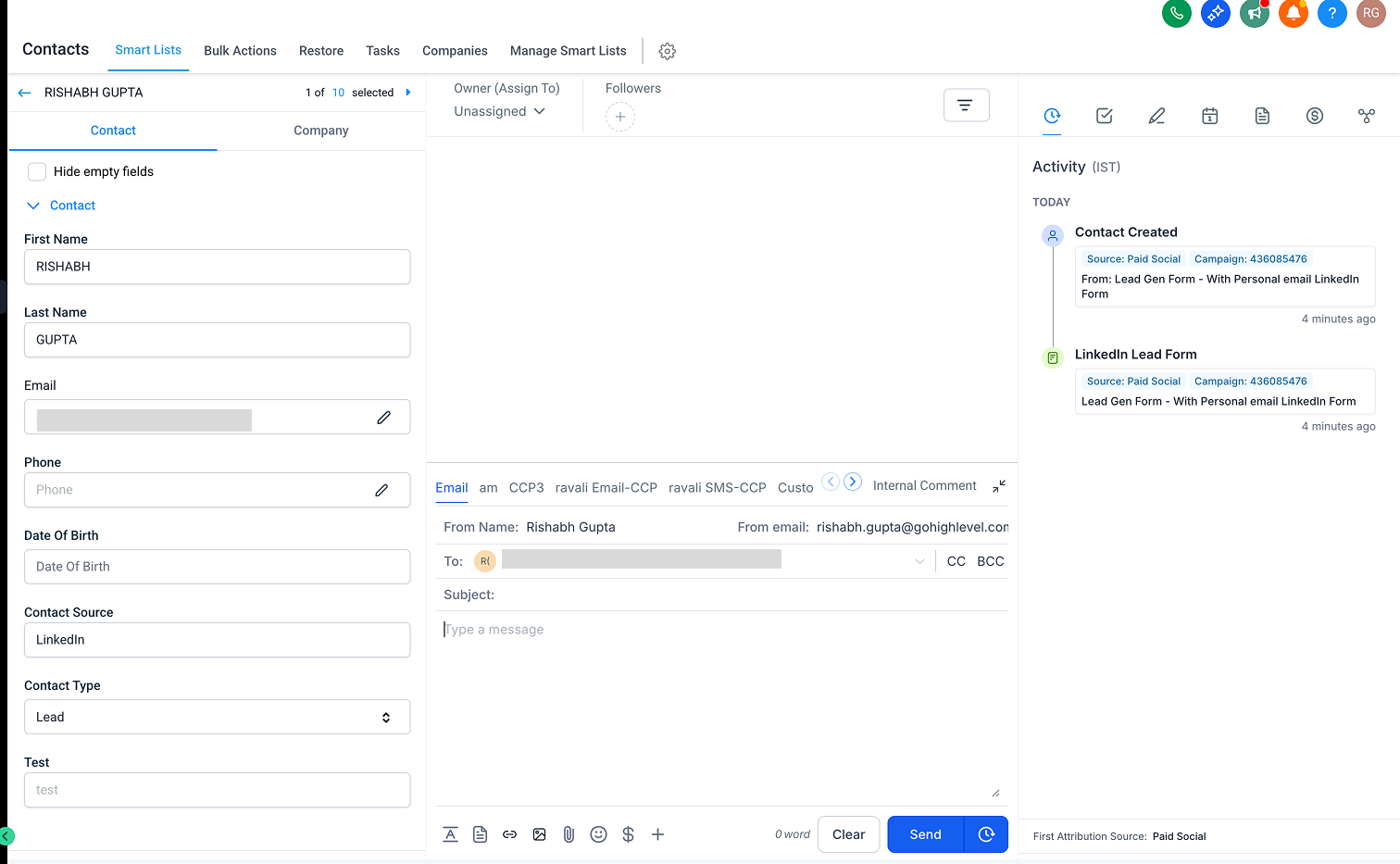
Seamlessly fetch all your leads from LinkedIn directly into your CRM with our easy integration.
TABLE OF CONTENTS
How it works?
Initiate LinkedIn Integration:
- Go to the integrations page located under the settings tab.
- Find the LinkedIn integration.
- Click on Connect to initiate the process.
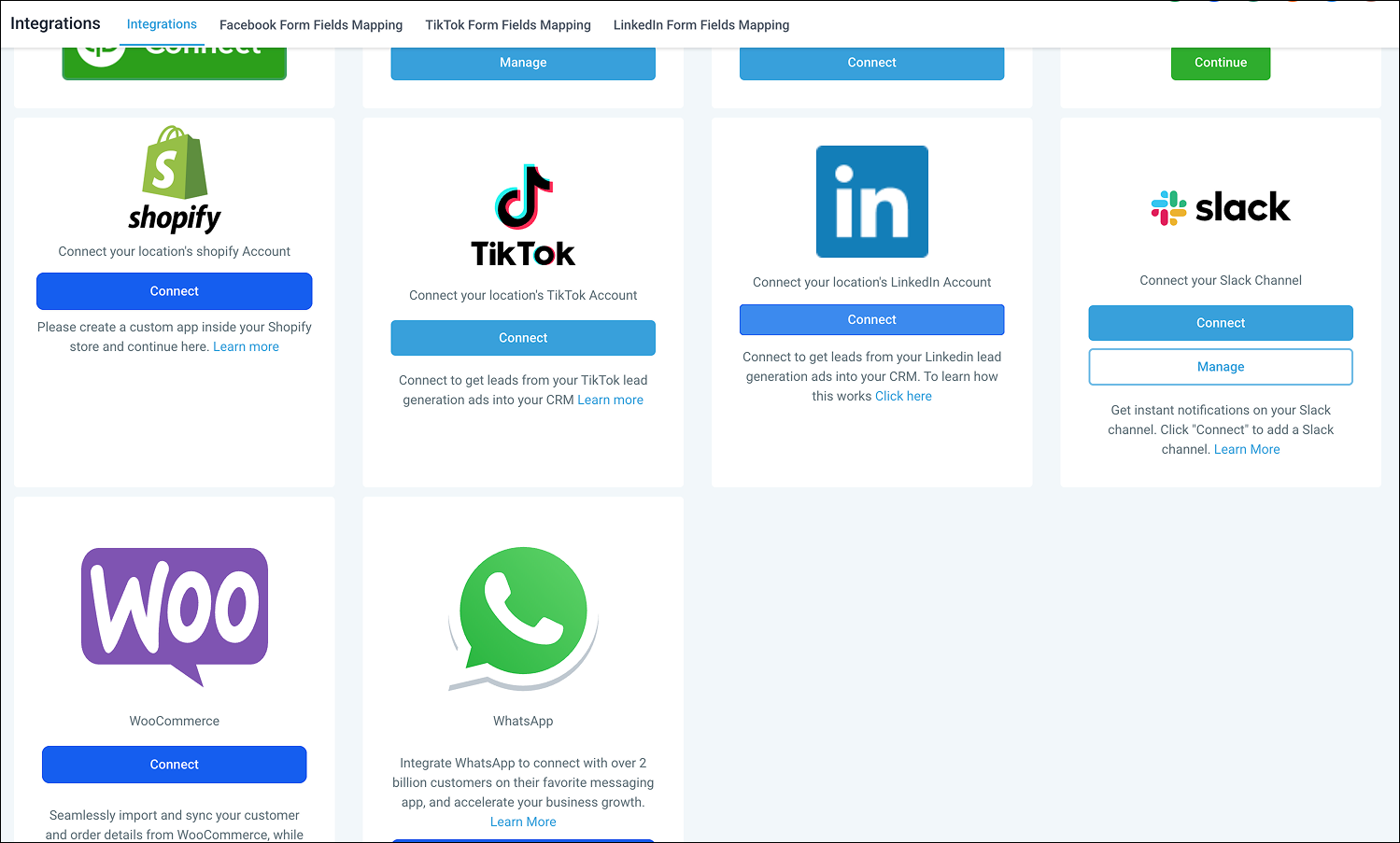
- On clicking connect, User would be asked to login to linkedin.
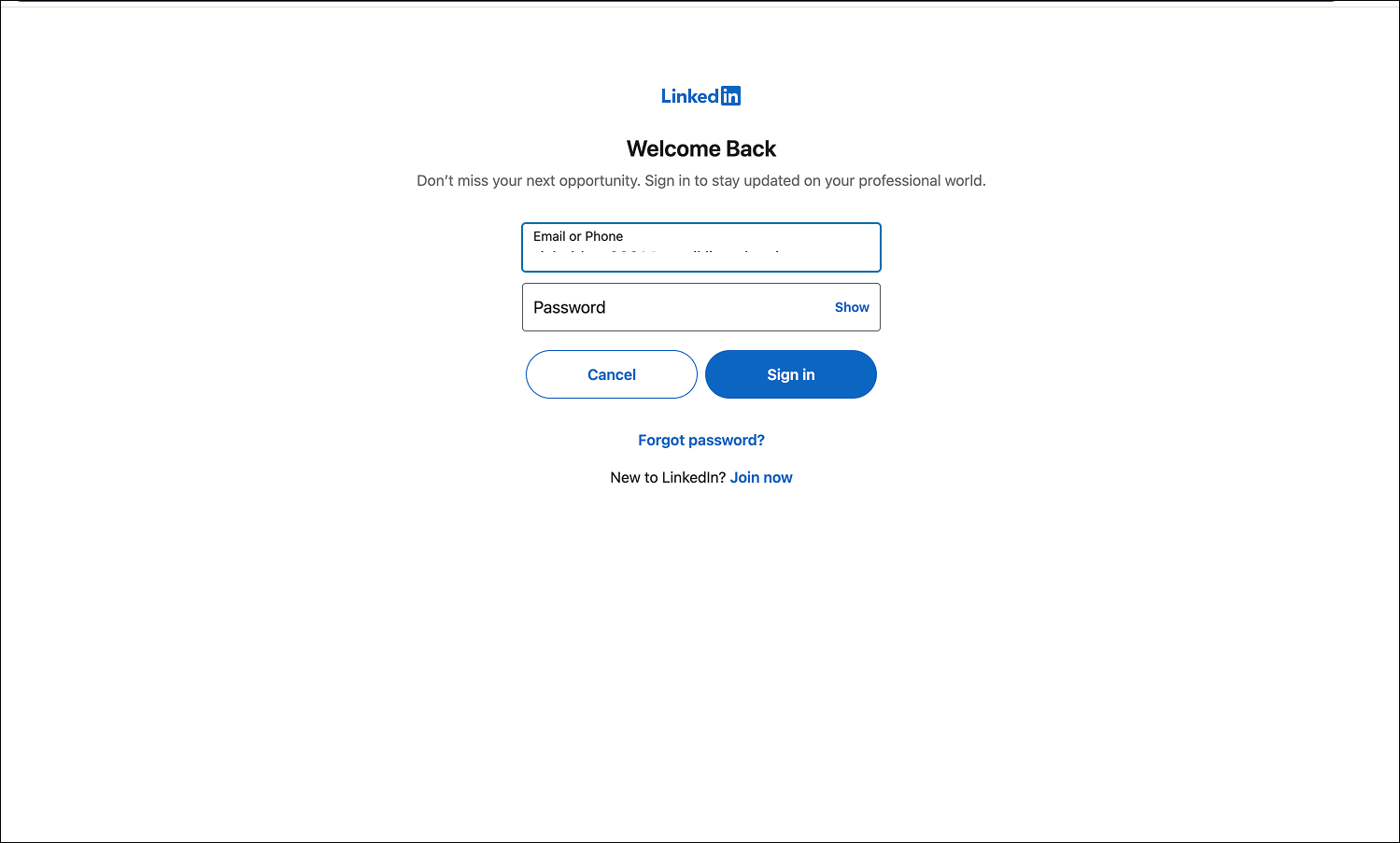
- Ensure you grant all necessary permissions for the integration to be successful.
- On successful login, Choose an ad account or multiple ad accounts to connect to your sub-account.
- Note: There's no limit to the number of ad accounts you can connect to your sub-account. Ensure the ad account you're integrating has a linked LinkedIn page. Without this, the integration won't be successful.
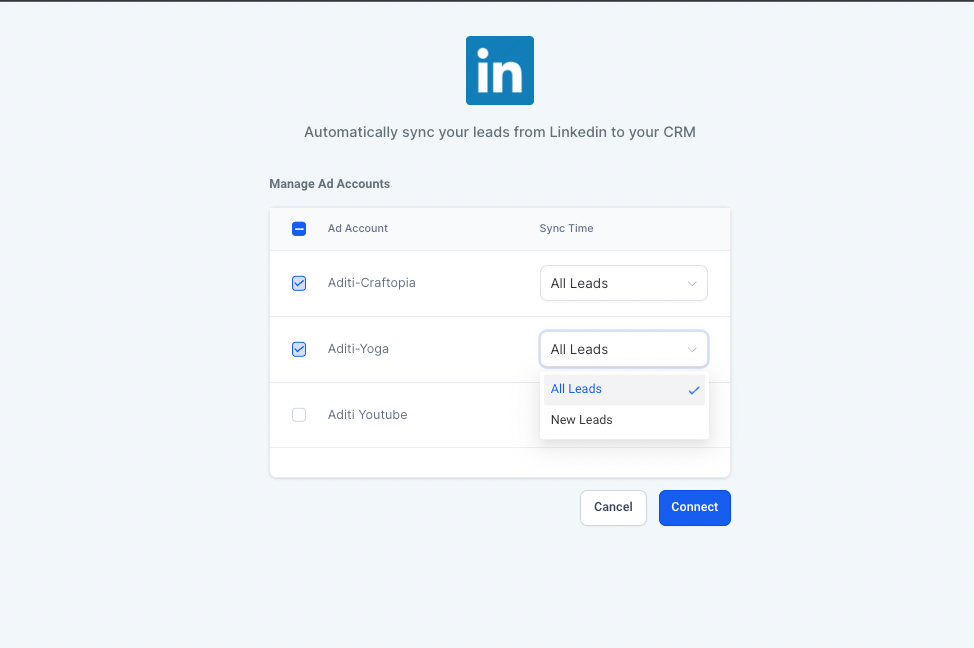
- For each ad account you're integrating, determine its sync time. Options include:
- All leads: Sync all leads from the past 90 days and all new leads.
- New leads: Only sync new leads.
- Click on Connect to proceed.

Form Field Mapping:
- Click on Configure form field mapping or go to the LinkedIn form field mapping tab at the top.
- Use the Map Fields button to align your LinkedIn form fields with CRM fields.
- Click Confirm to save and complete the integration.
- If you want to disable inbound leads from any of the forms, toggle the status off.

How to test if the connection is successful:
To test if the leads are syncing, please follow following steps:
- Go to LinkedIn Account, click on advertise

- Select the ad account, on which you want to test
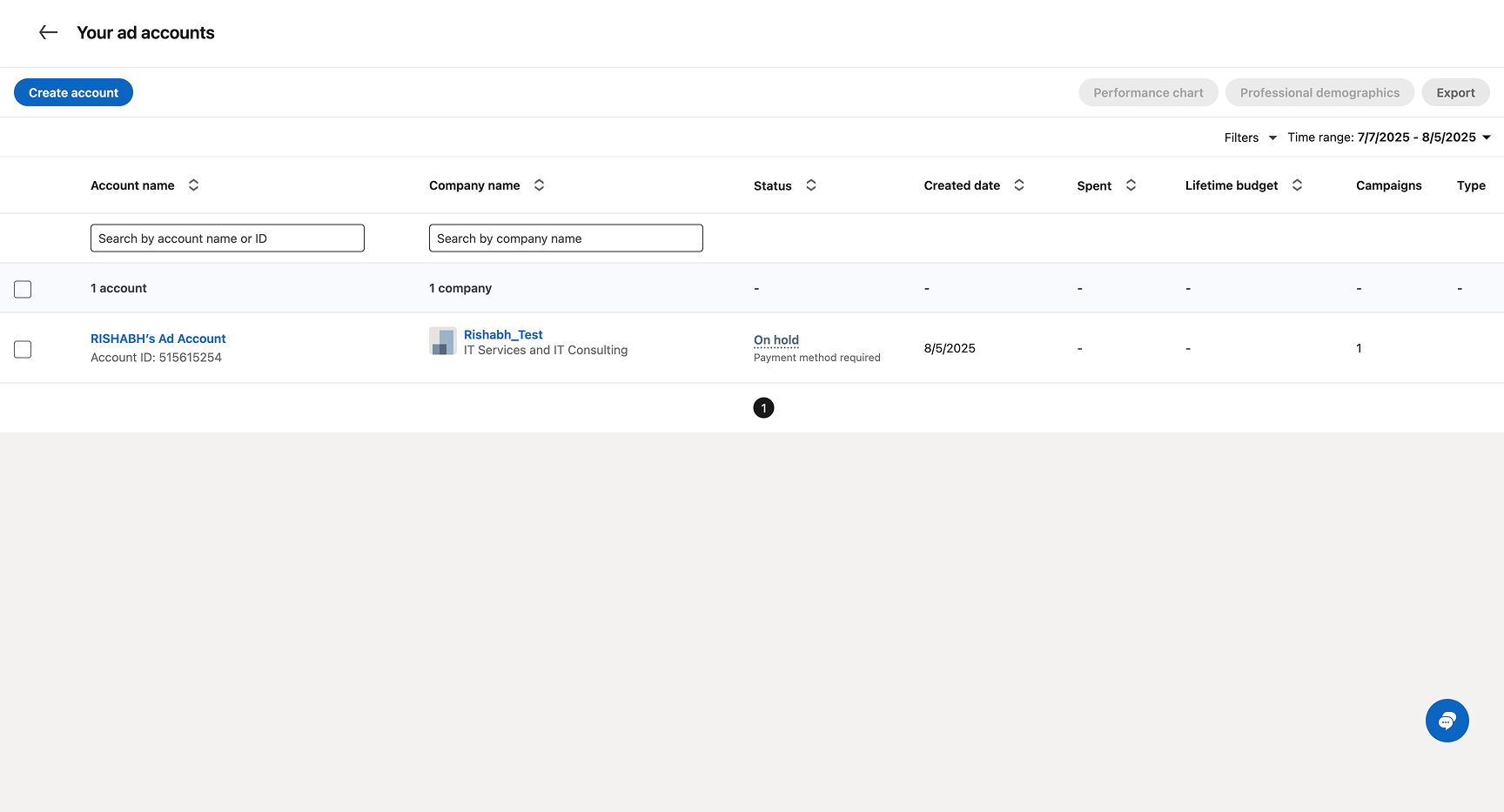
- Select campaign group & ad for which you want to send a test lead.
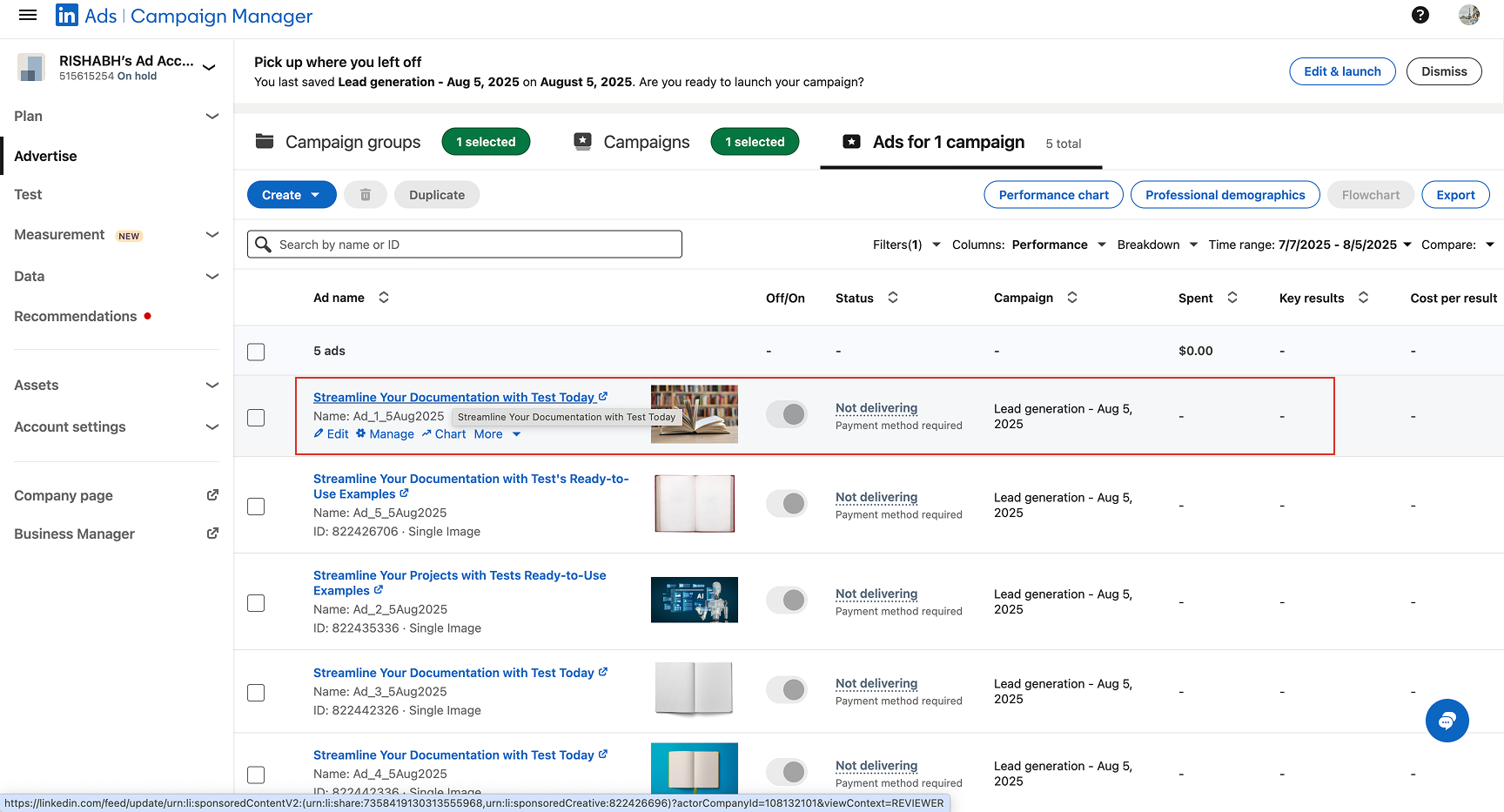
- Click on the ad name to open lead post.
- Send a lead to CRM, ensure that form is enabled and mapped.

- Check the lead on contact page.