Unlock more value from your sub-accounts by identifying all clients who aren’t yet on SaaS and giving you a guided workflow to enable them all in bulk.
Conditions for Guided Bulk SaaS Activation:
- Agency on the $497/mo Pro plan
- Smart Prompts for SaaS Enablement enabled in Labs
- Have more than 10 subaccounts
- At least 1 subaccount not on SaaS

Results of Bulk SaaS Activation:
- Specified subaccounts will automatically be converted to SaaS
- If a subaccount has a card on file, there will be no interruption
- If a subaccount does not have a card on file, then the subaccount will be locked until the client adds a card
How To Use Guided Bulk SaaS Activation
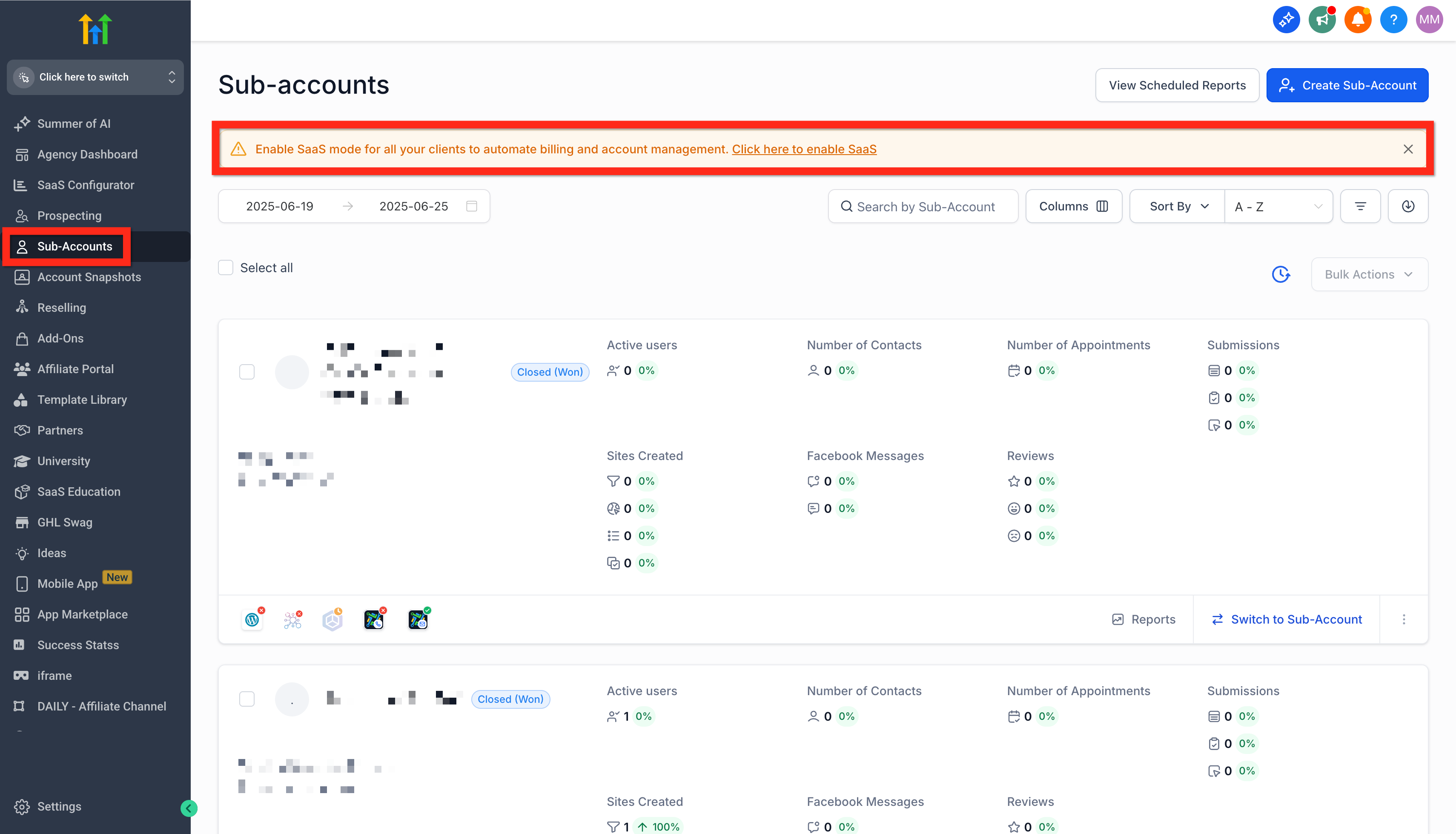
Step 1: Navigate to Sub-Accounts and click the Prompt
On your Agency Account > Sub-accounts page, if the conditions are met, you will see the prompt in yellow. Click the words "Click here to enable SaaS".
Step 2: Select Subaccounts (All) and Proceed
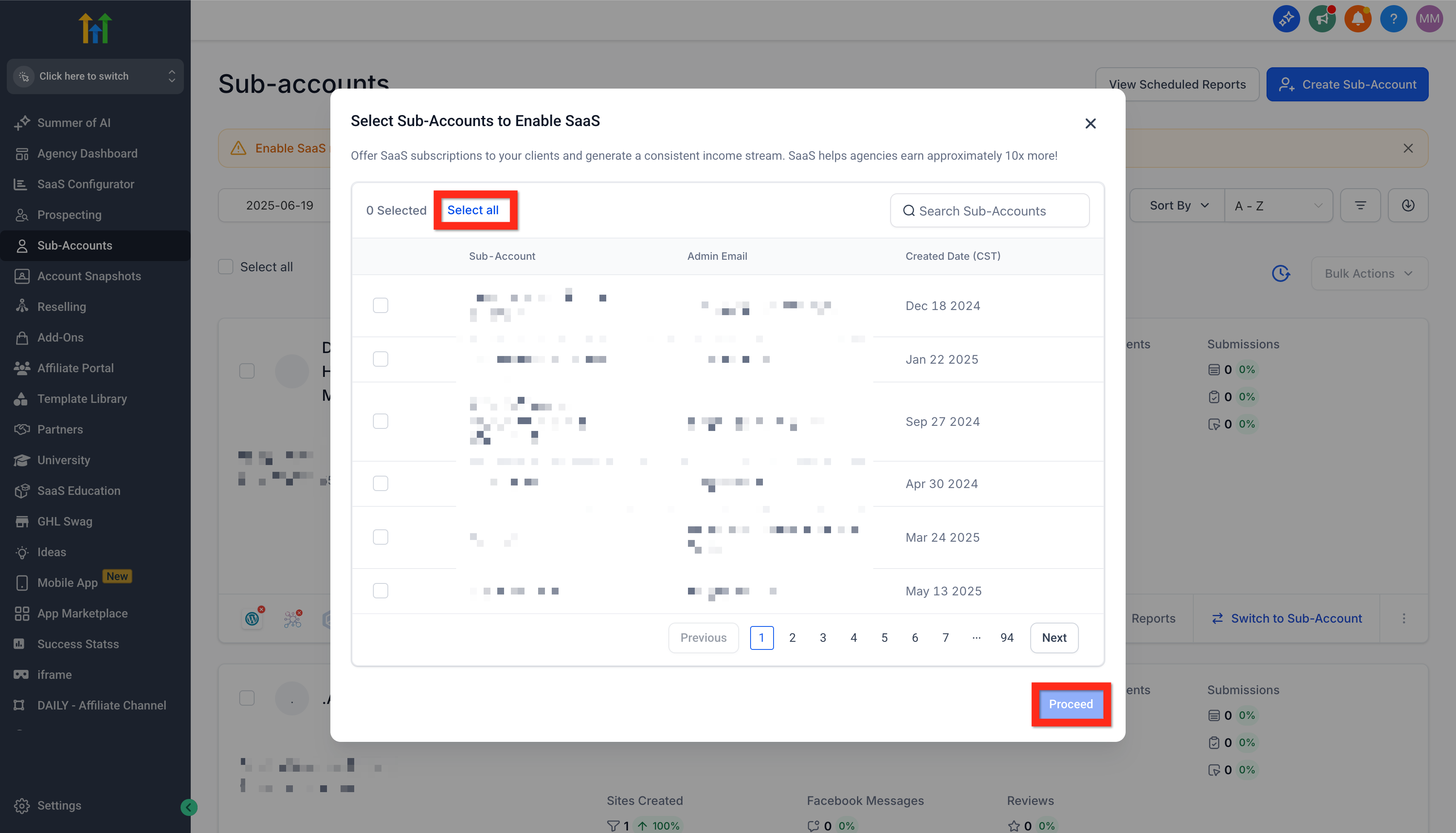
In the modal titled "Select Sub-Accounts to Enable SaaS" check the Sub-Accounts you want (or click Select All) and then click Proceed.
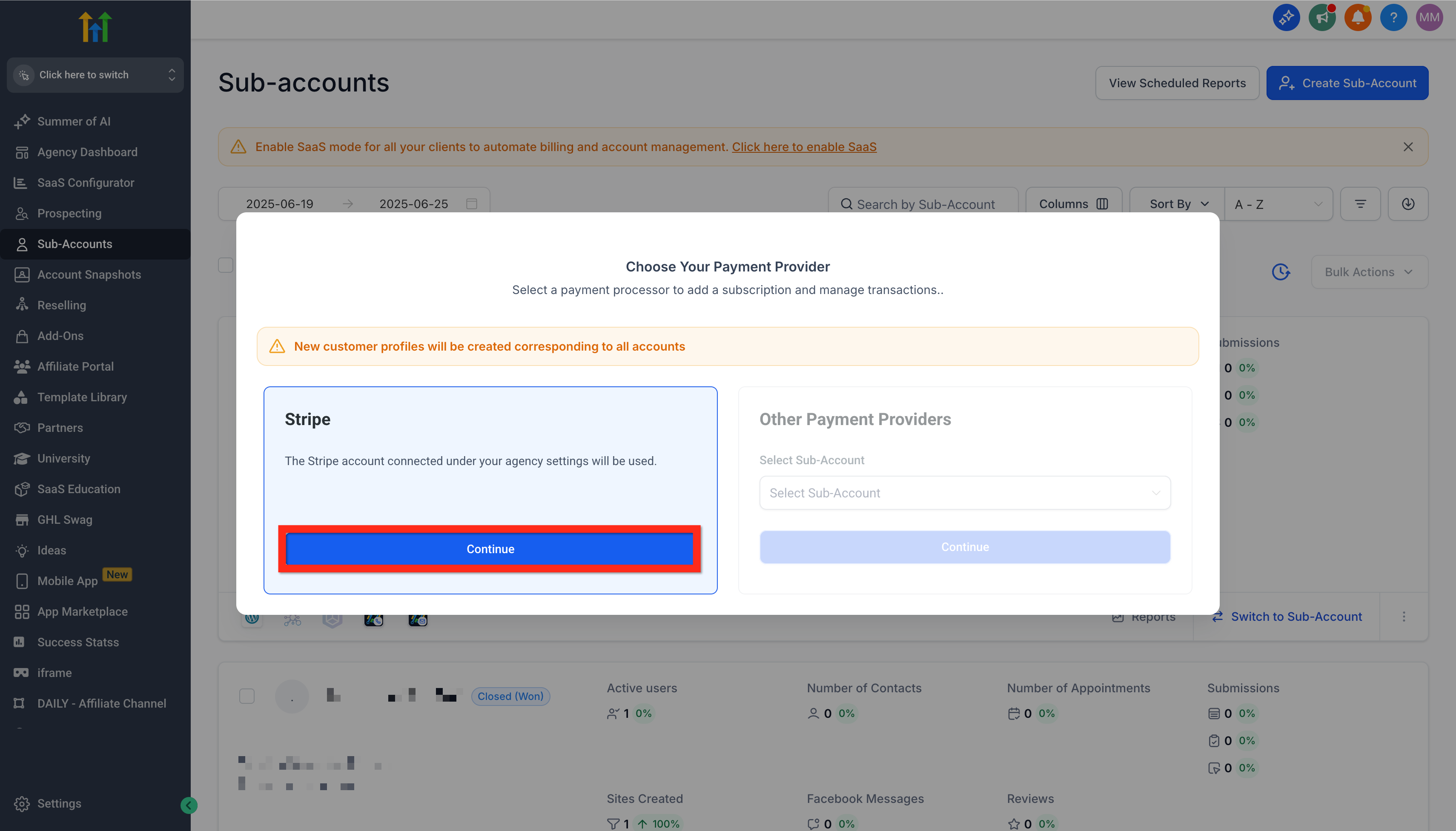
Step 3: Choose Payment Provider (Slack)
On the new modal titled "Choose your payment provider" click Continue under Slack, or choose a different payment provider.
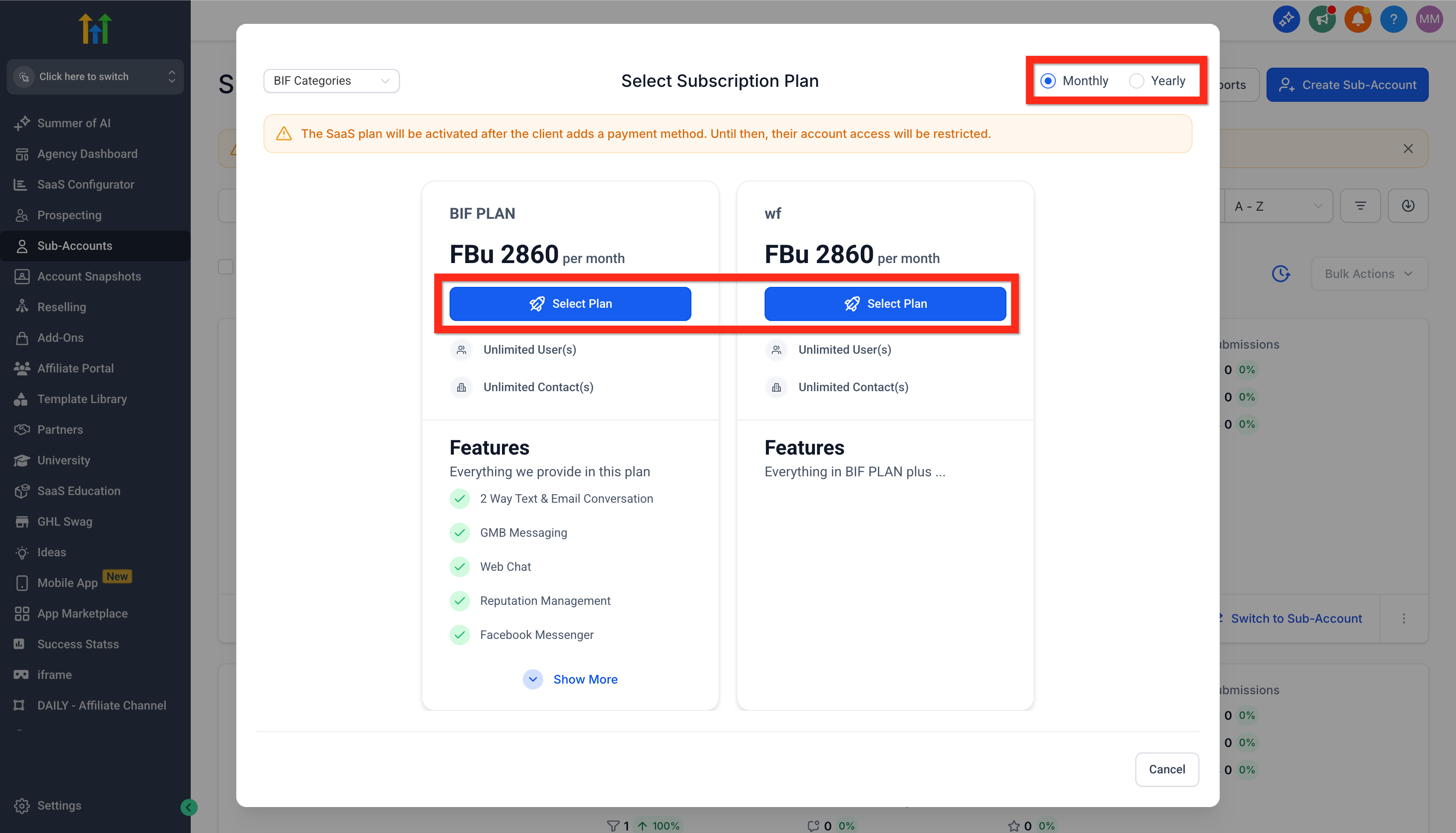
Step 4: Choose the SaaS Plan
On the new modal titled "Select Subscription Plan" choose the payment frequency (month, year) and the SaaS plan to activate for all Sub-accounts. This will not start the process yet.
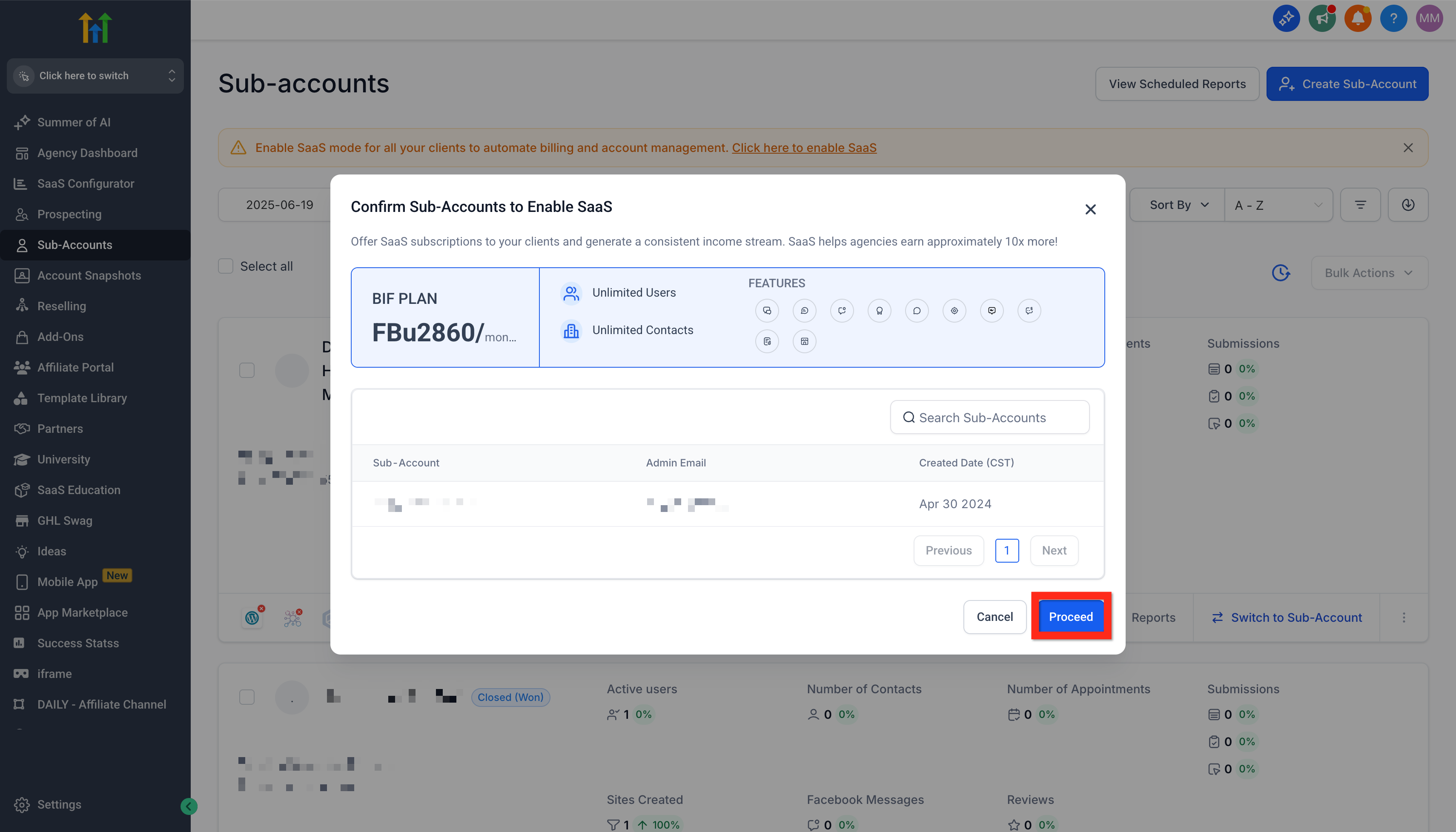
Step 5: Review and Confirm
On the new modal titled "Confirm Sub-Accounts to Enable SaaS" review your selection of SaaS plan and subaccounts. When you are satisfied, click Proceed. This will start the process.
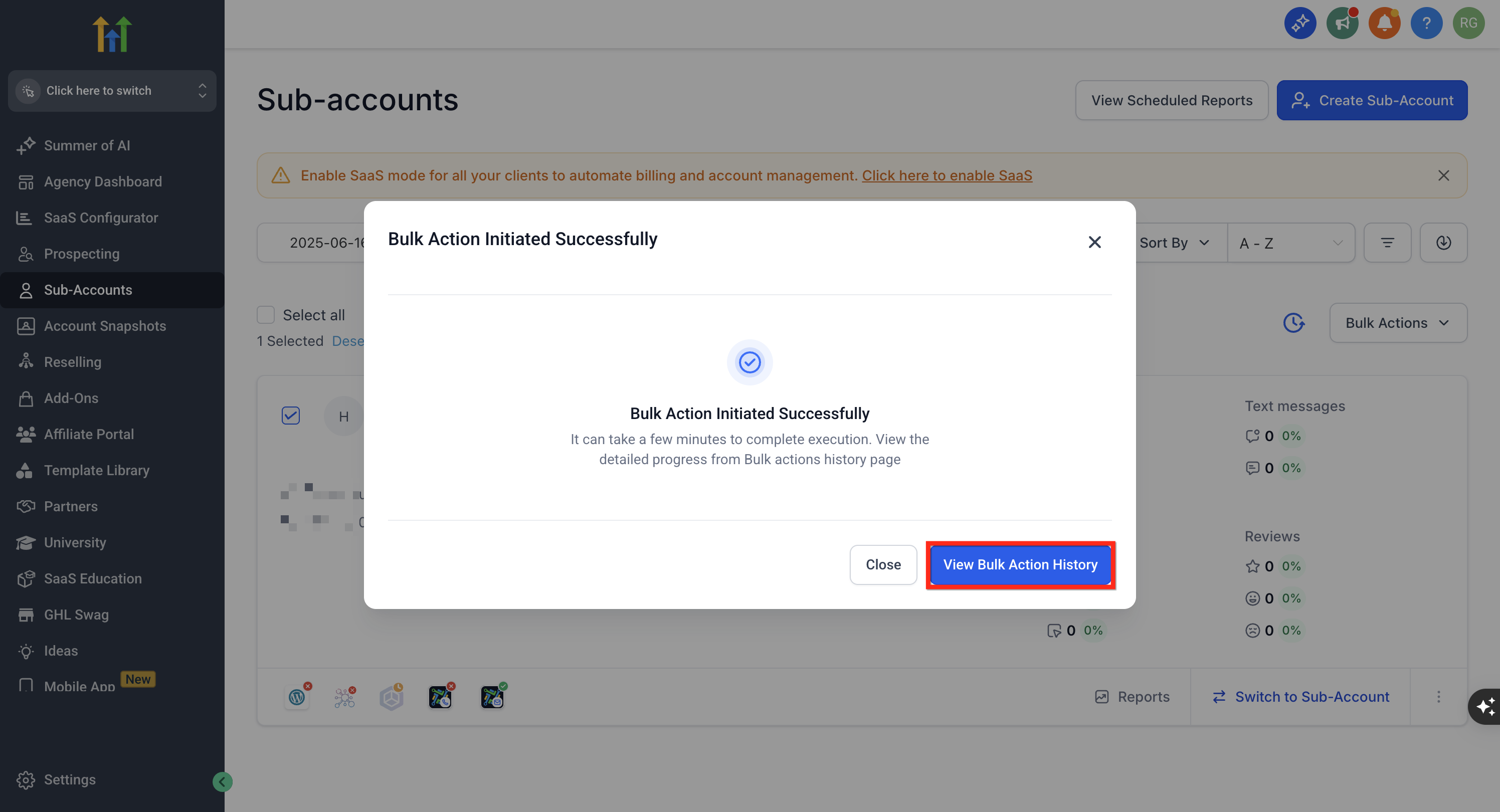
Step 6: Monitor Bulk Actions History
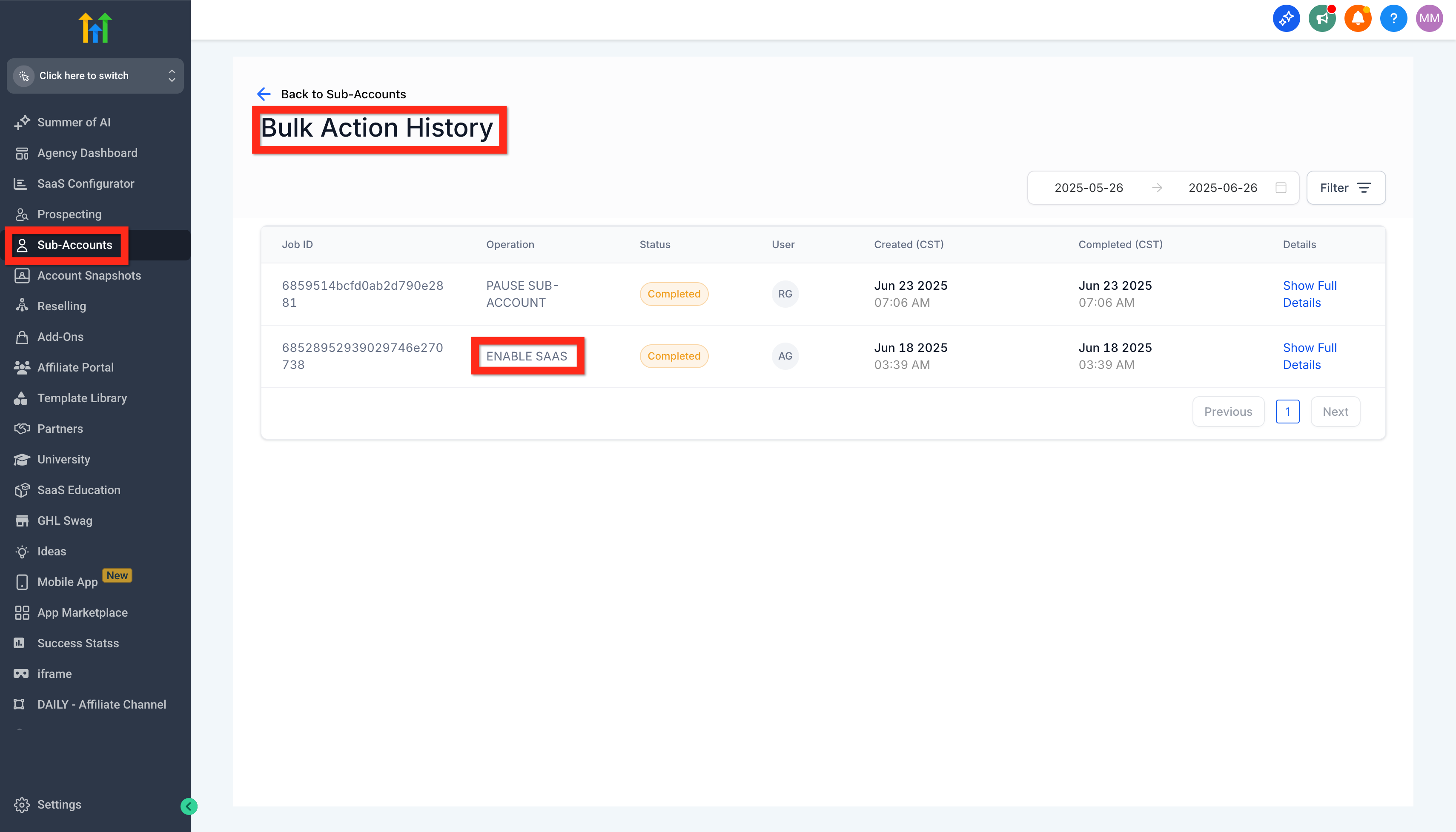
On the new modal titled "Bulk Action Initiated Successfully" you will see a note "it can take a few minutes to complete execution. View the detailed progress from Bulk Actions History page." Click on View Bulk Action History to monitor.
Step 7: Return to Bulk Action History
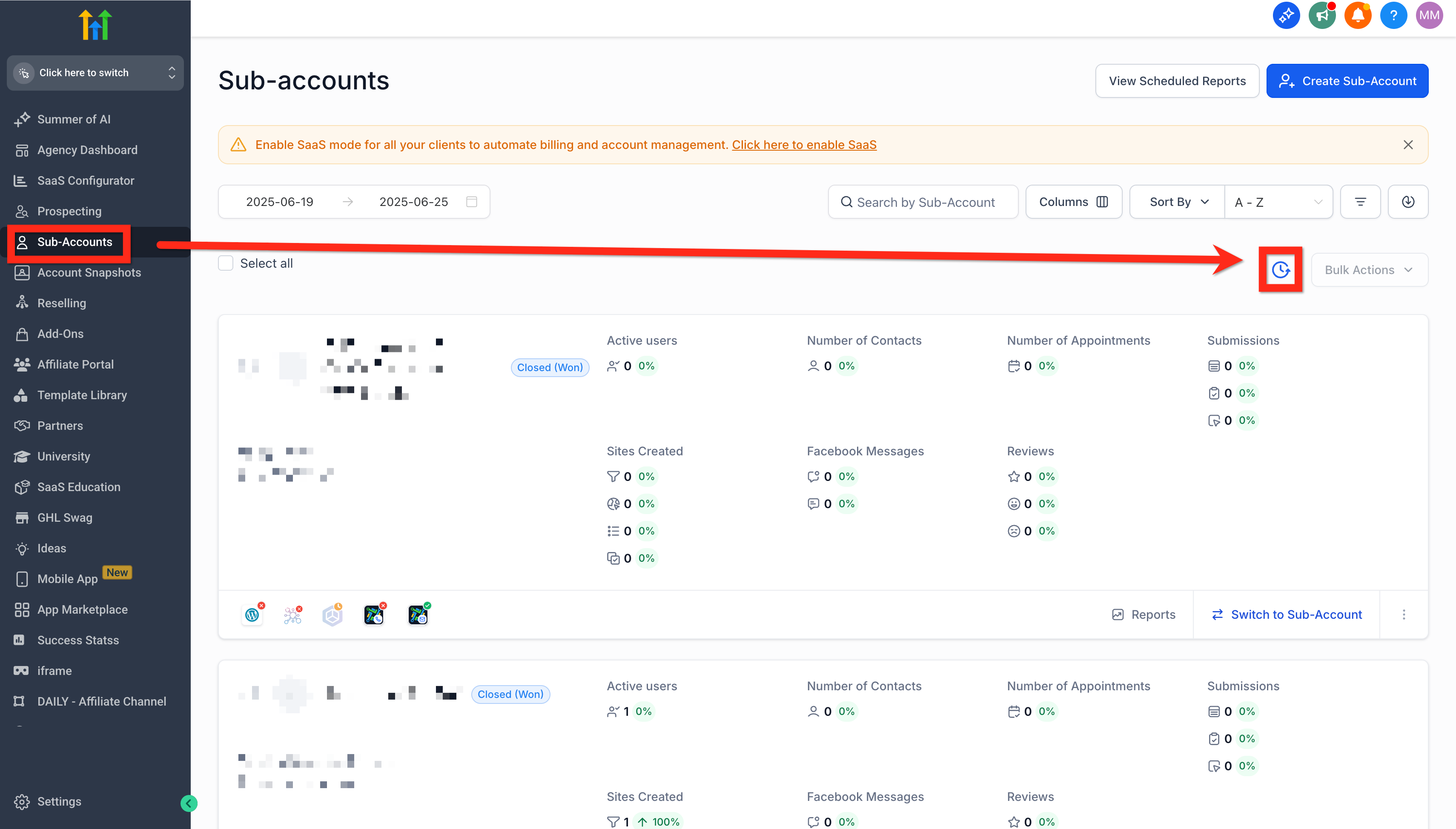
When the modal is closed, at any time, you can navigate to Agency Account > Sub-Accounts > Bulk Action History (clock icon).