What Are Association Limits?
Association limits let you control how many records can be linked together between objects. These rules ensure data remains organized, prevent over-association, and are now visually enforced in the UI.
Note: To enable this feature, go to Settings > Labs > Association Limits Handling, and toggle it on.
Please note that Custom Objects are only visible on the 497 plan.
What Are Association Limits?
Avoids over-linking between records.
Helps keep data structures clean.
Reduces user confusion when the limits are reached with clear UI feedback.
Supported Relationship Types
For multi-label associations:
One-to-One (1:1)
One-to-N (where N ≤ 1000)
One-to-Many
Many-to-Many
For single-label contact-to-contact associations:
One-to-One (1:1)
Many-to-Many
Custom N-to-N
Note: Limits are enforced per label and reflected in the user interface.
How to Set Up Association Limits
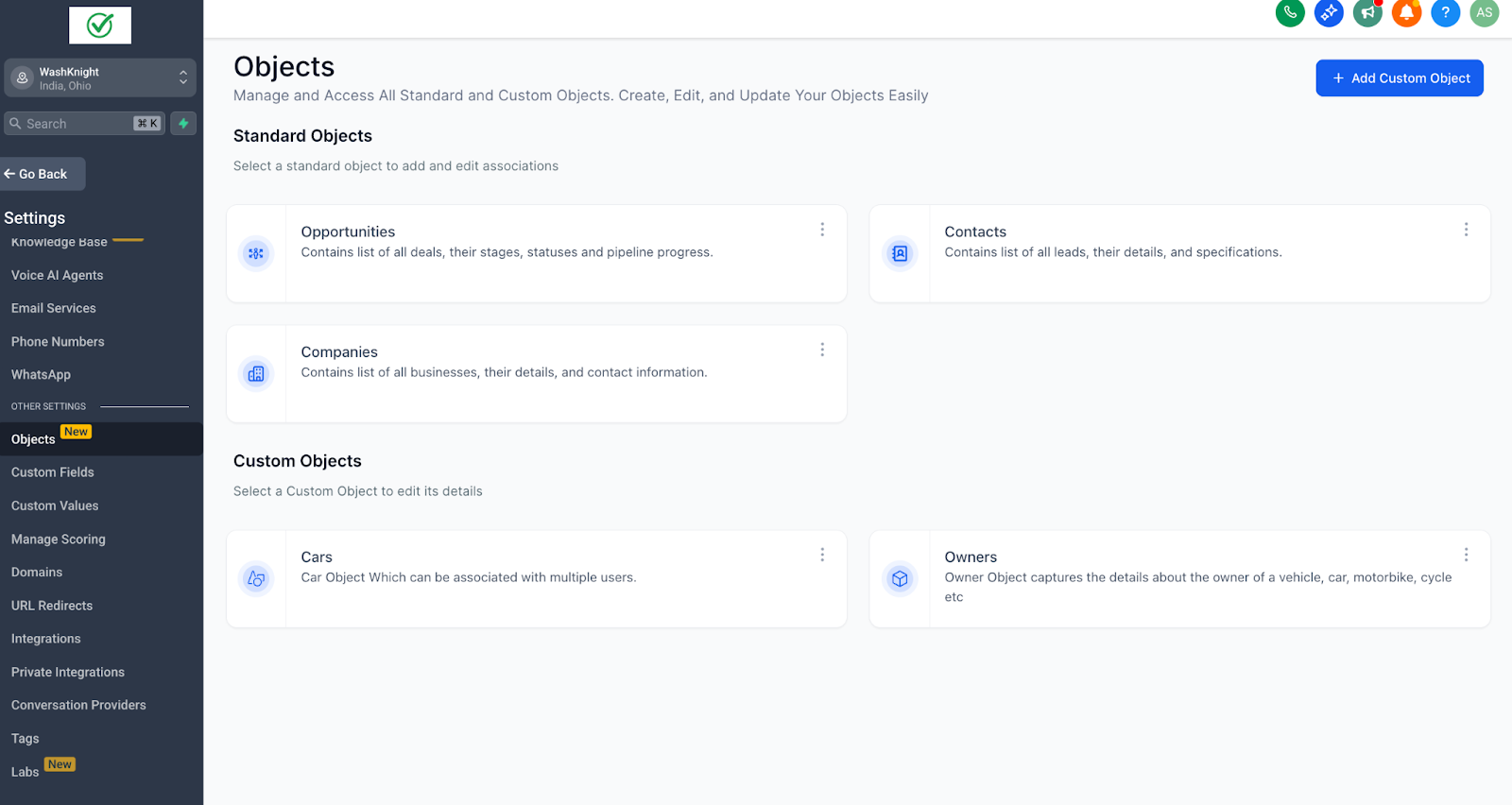
Go to your sub-account, Navigate to Settings > Objects
Select any Custom Object or Contacts
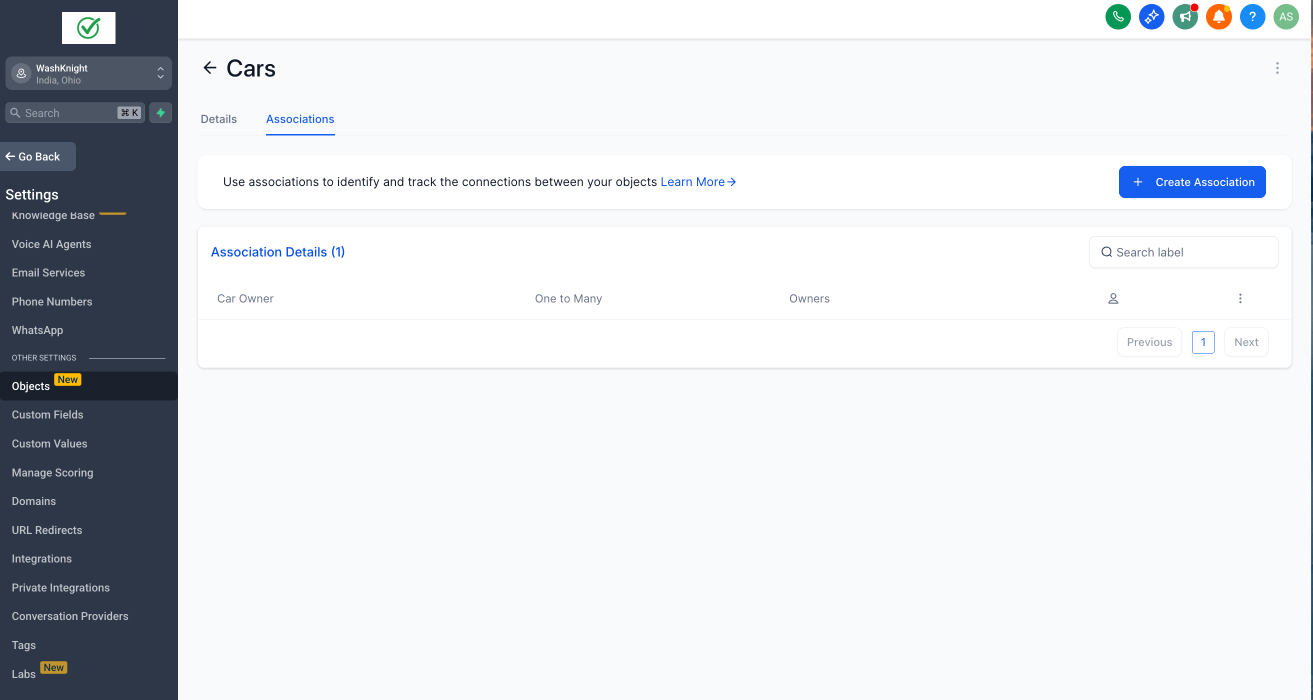
Go to the Associations tab, Click Create Association or edit an existing one
Choose either a single label or a pair of labels.
Under Configure Relationship, select the type (e.g. 1:1, 1:N) and define limits if applicable
Use the Preview section to confirm constraints before saving.
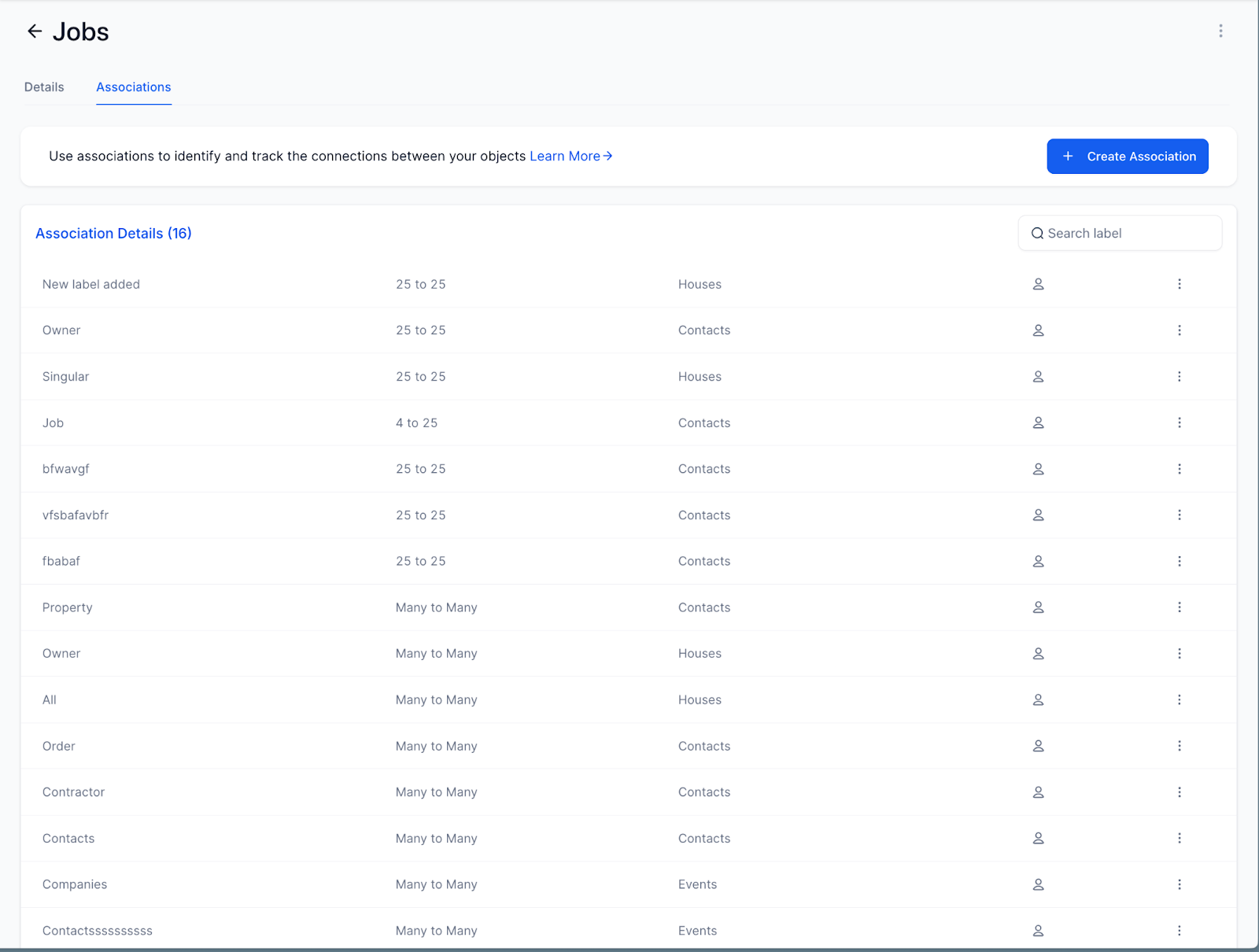
The configured associations are also shown in the associations tab.


Example: Real Estate Management
A real estate agency wants to ensure that each Agent manages no more than 50 Properties:
Create a one-to-N relationship from Agent to Property
Set the limit as N = 50
When an agent hits this cap, users will see a UI warning and can no longer assign more properties, ensuring balanced workloads.
Association Limits:
If you try to associate beyond the allowed count, an error message will be shown instantly, this helps in clear and efficient management of the data-structures