You can now add relevant insight widgets to your dashboards directly from key pages — making it easier to bring analytics into your workflow without switching context.
✨ What’s This For?
Quickly view and track key metrics by bringing dashboard analytics into your day-to-day workflow.
TABLE OF CONTENTS
- Supported Pages
- Step 1: Navigate to a supported page (see list above).
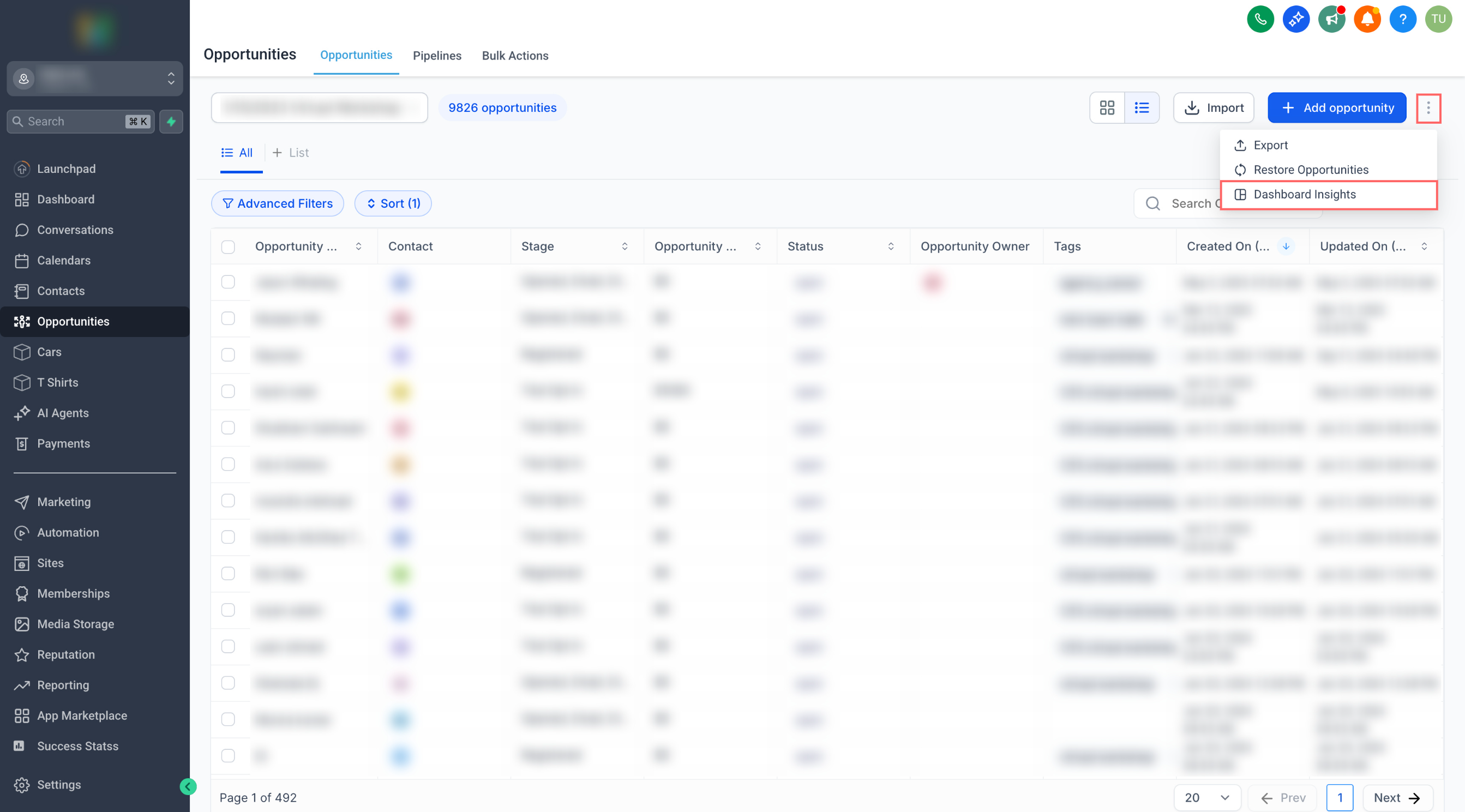
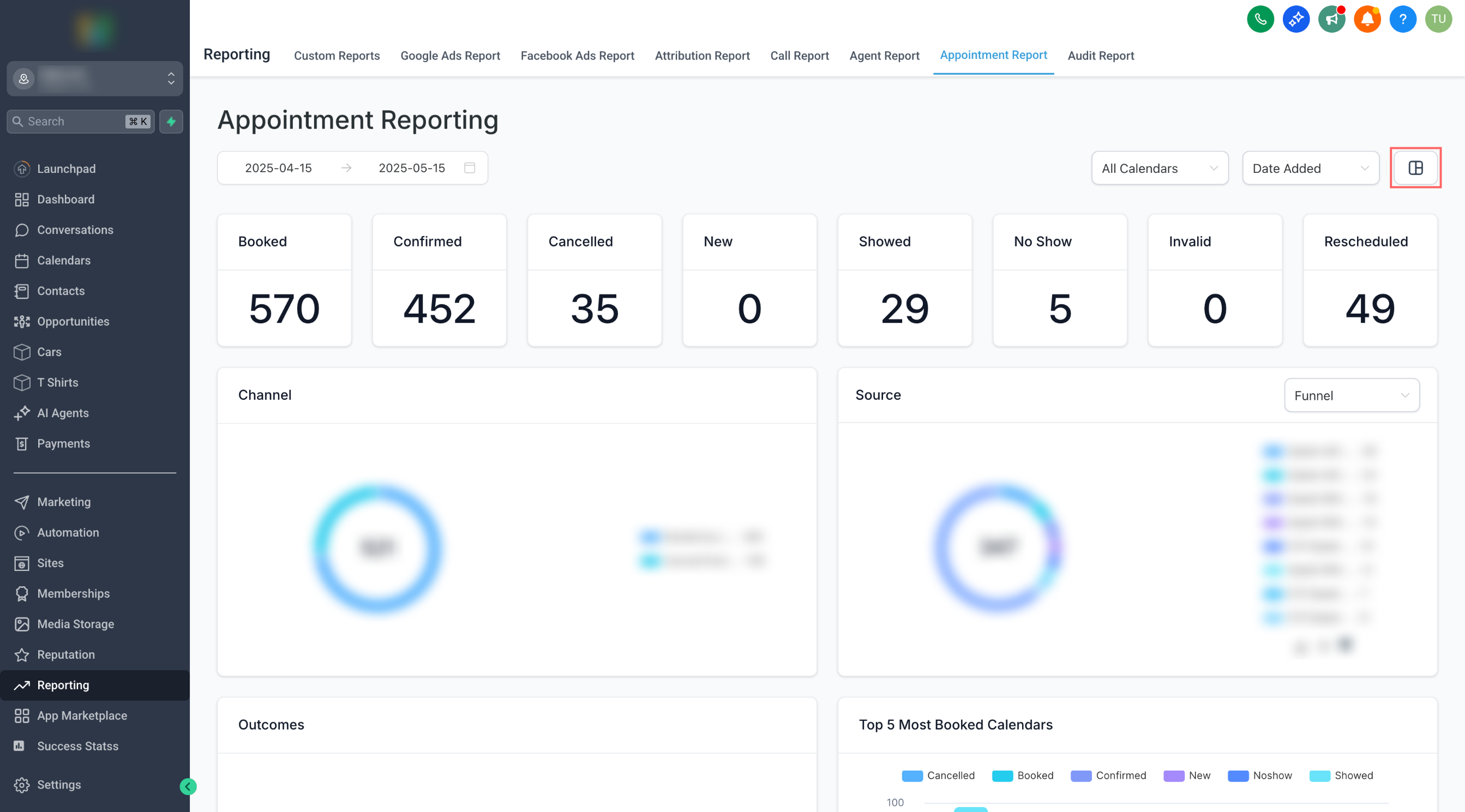
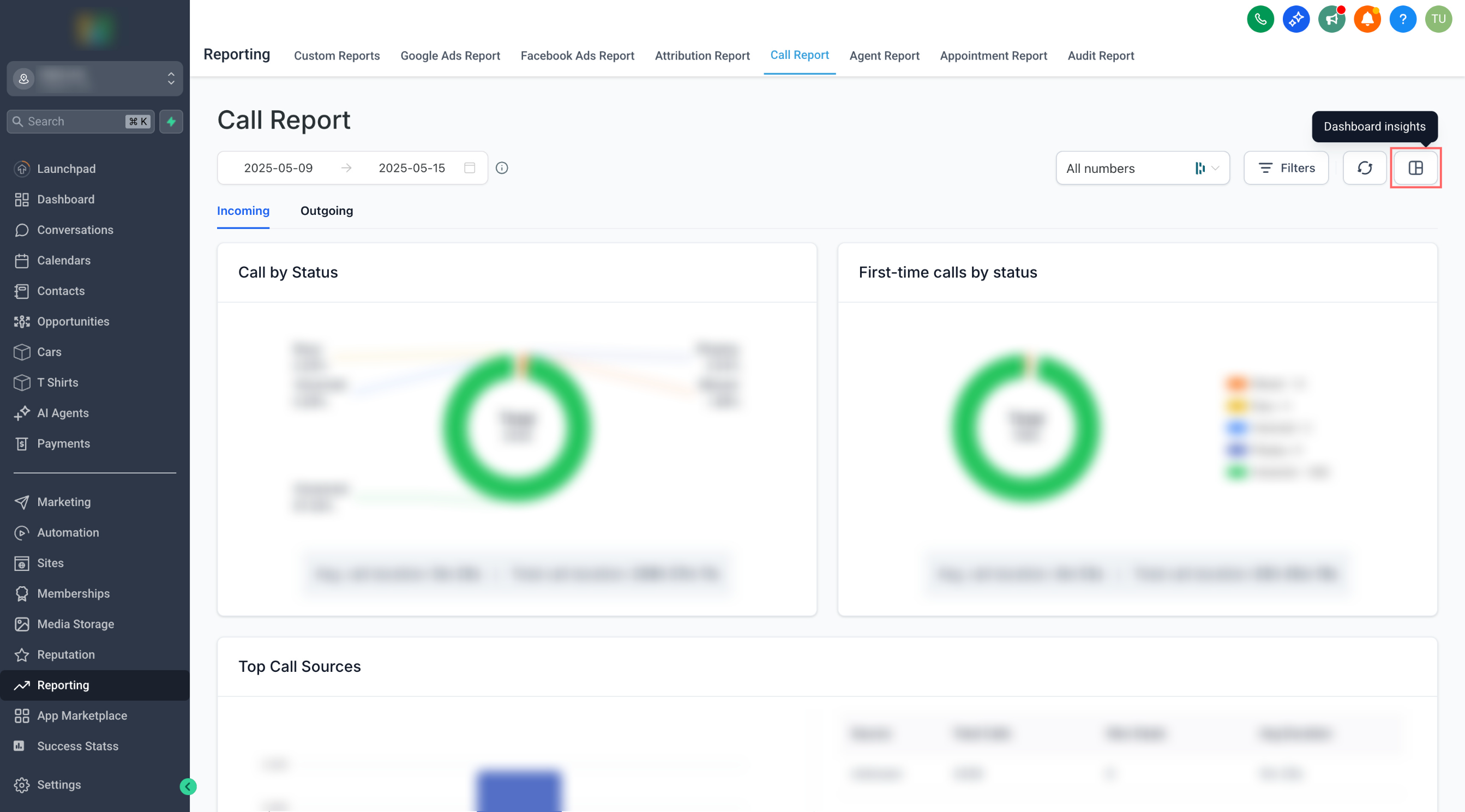
- Step 2: Click the Dashboard Insights icon
- Step 3: Select the dashboard where you want to add widgets.
- Step 4: Review the suggested widgets and confirm your selection.
- Step 5: Click Add — the widgets will be added to the chosen dashboard.
- Step 6: You can stay on the same page or go to the dashboard to view insights.
- More Pages Coming Soon!
Supported Pages
- Opportunities
- Appointment Report
- Call Report
Step 1: Navigate to a supported page (see list above).
Step 2: Click the Dashboard Insights icon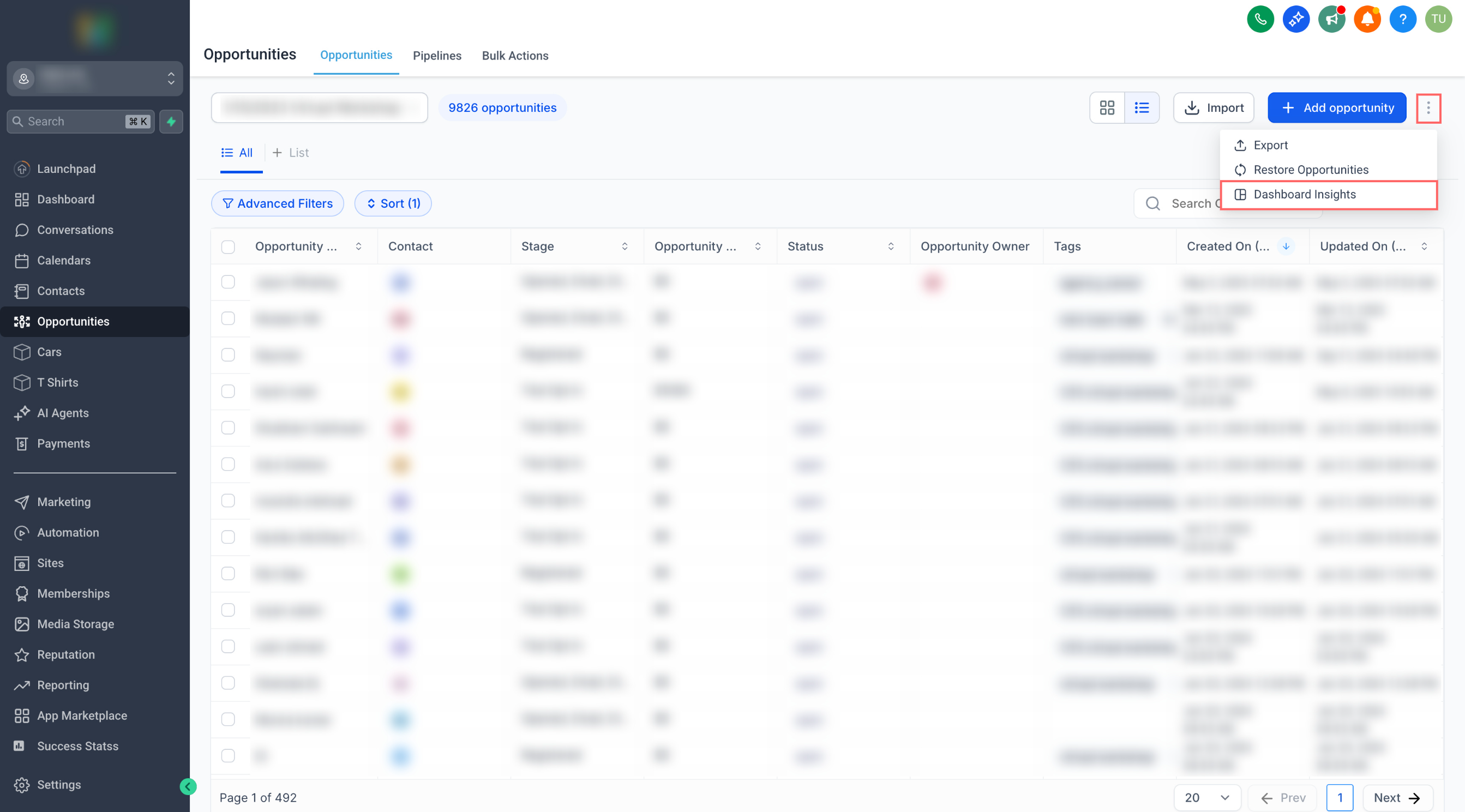
Step 3: Select the dashboard where you want to add widgets.
Step 4: Review the suggested widgets and confirm your selection.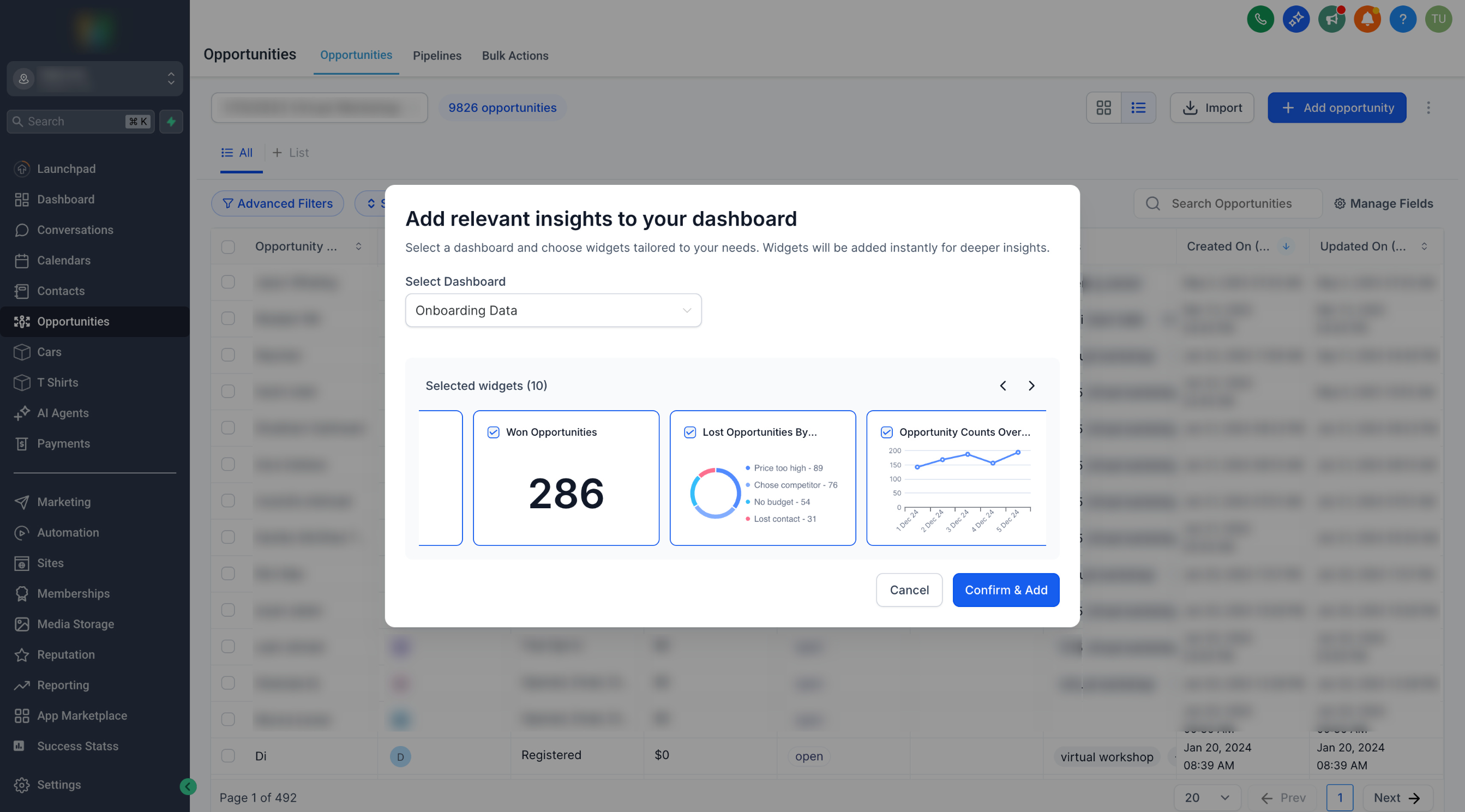
Step 5: Click Add — the widgets will be added to the chosen dashboard.
Step 6: You can stay on the same page or go to the dashboard to view insights.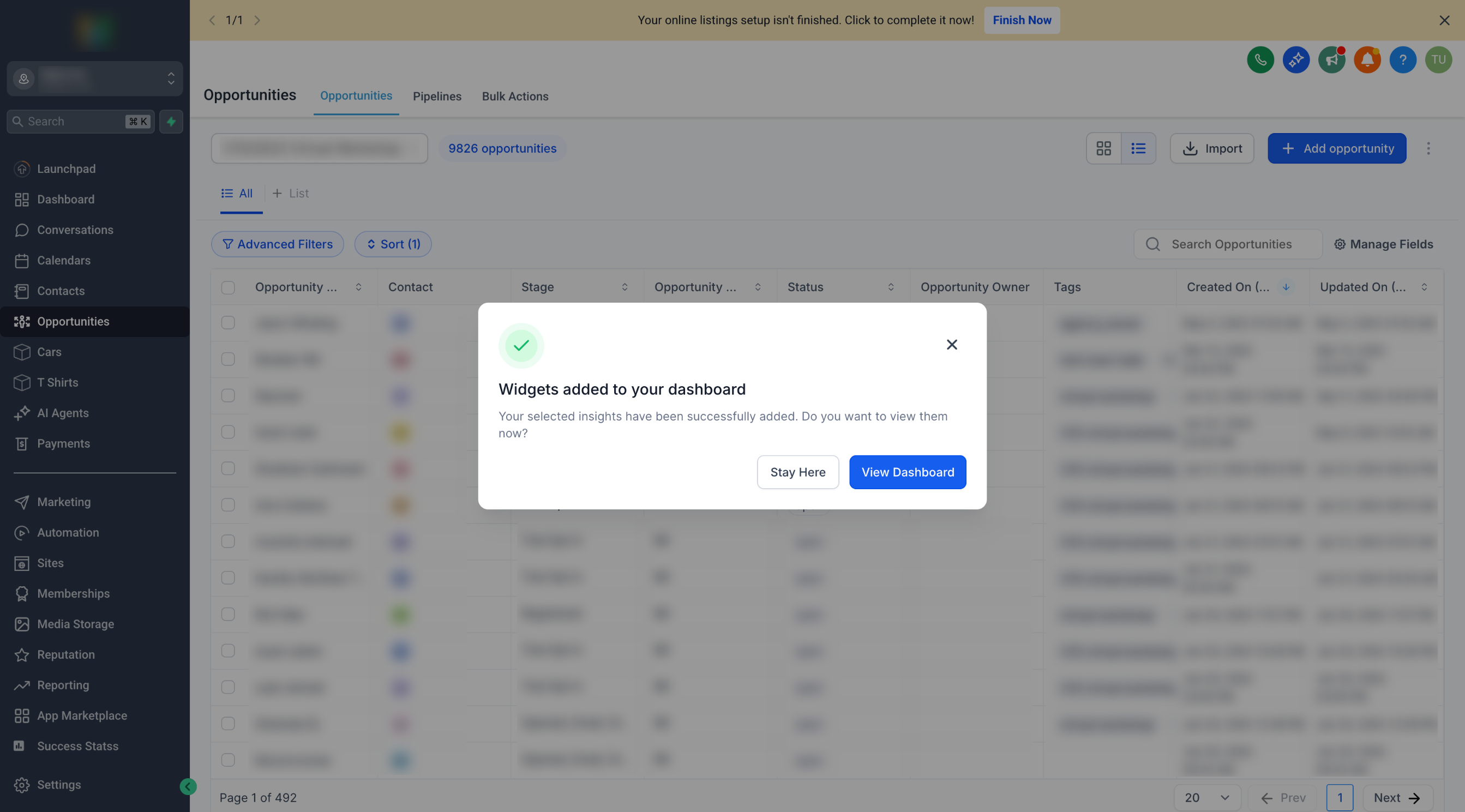
More Pages Coming Soon!
We’ll continue to expand this feature — keep checking back as we add more supported pages.