HighLevel’s new Bulk Actions feature empowers agency admins to efficiently manage multiple client accounts (sub-accounts) at once. Whether enabling SaaS mode, pausing accounts, or reviewing action history, this tool saves hours of manual effort. If you handle multiple sub-accounts and need quicker ways to configure billing and subscriptions, this guide is for you.
TABLE OF CONTENTS
Enable SaaS Mode in Bulk
Step 1: Select sub-accounts for bulk action
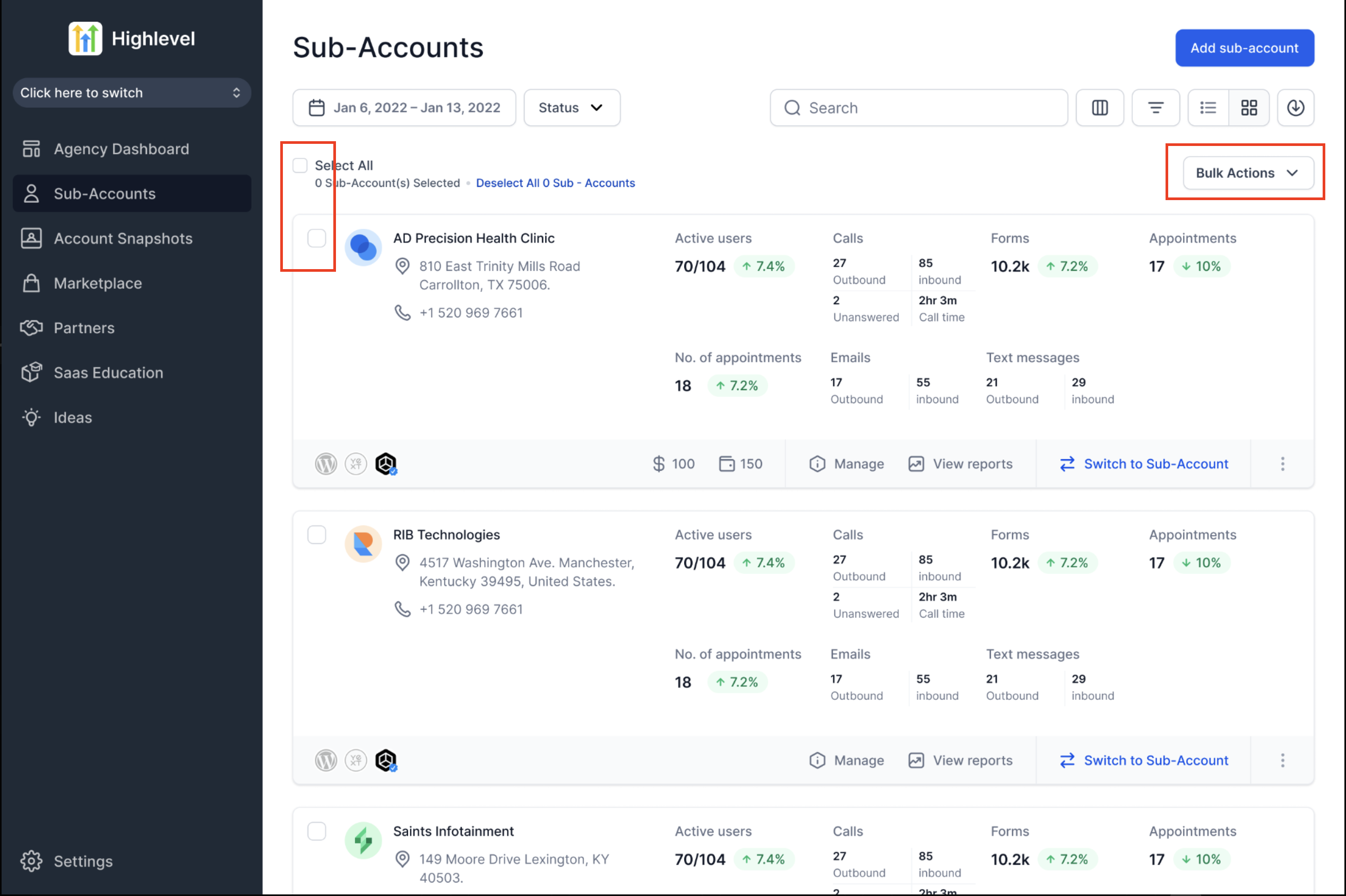
- Use the Sub-Accounts section from the Agency Sidebar Menu to view your sub-account list.
- Use filters or search to locate the desired accounts and select multiple accounts via checkboxes, or use the 'Select All' option.
- Then click on the 'Bulk Actions' dropdown and choose 'Enable SaaS'.
Step 2: Choose Payment Provider
- You’ll be prompted to pick between your default Stripe setup or Other Payment Providers.
- In case choosing Other Payment Providers, you'll have to then choose the agency sub-account that you wish to use for managing SaaS mode.
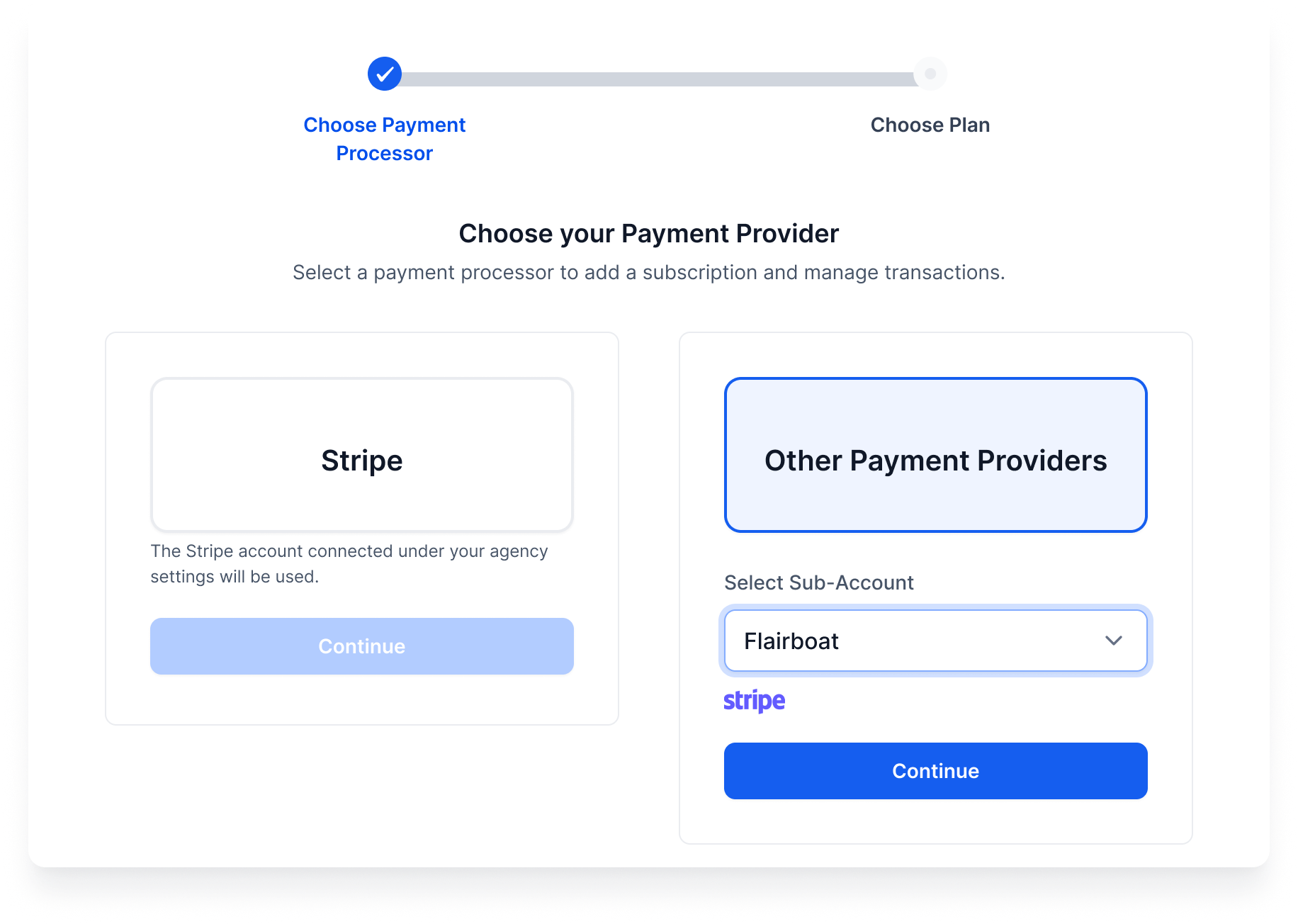
Note: If using Stripe, the connected account under agency settings will be automatically used.
Selecting this step will create new customer profiles for each sub-account selected.
Step 3: Select SaaS Subscription Plan
- Choose a SaaS plan that you’d like to apply to all selected sub-accounts.
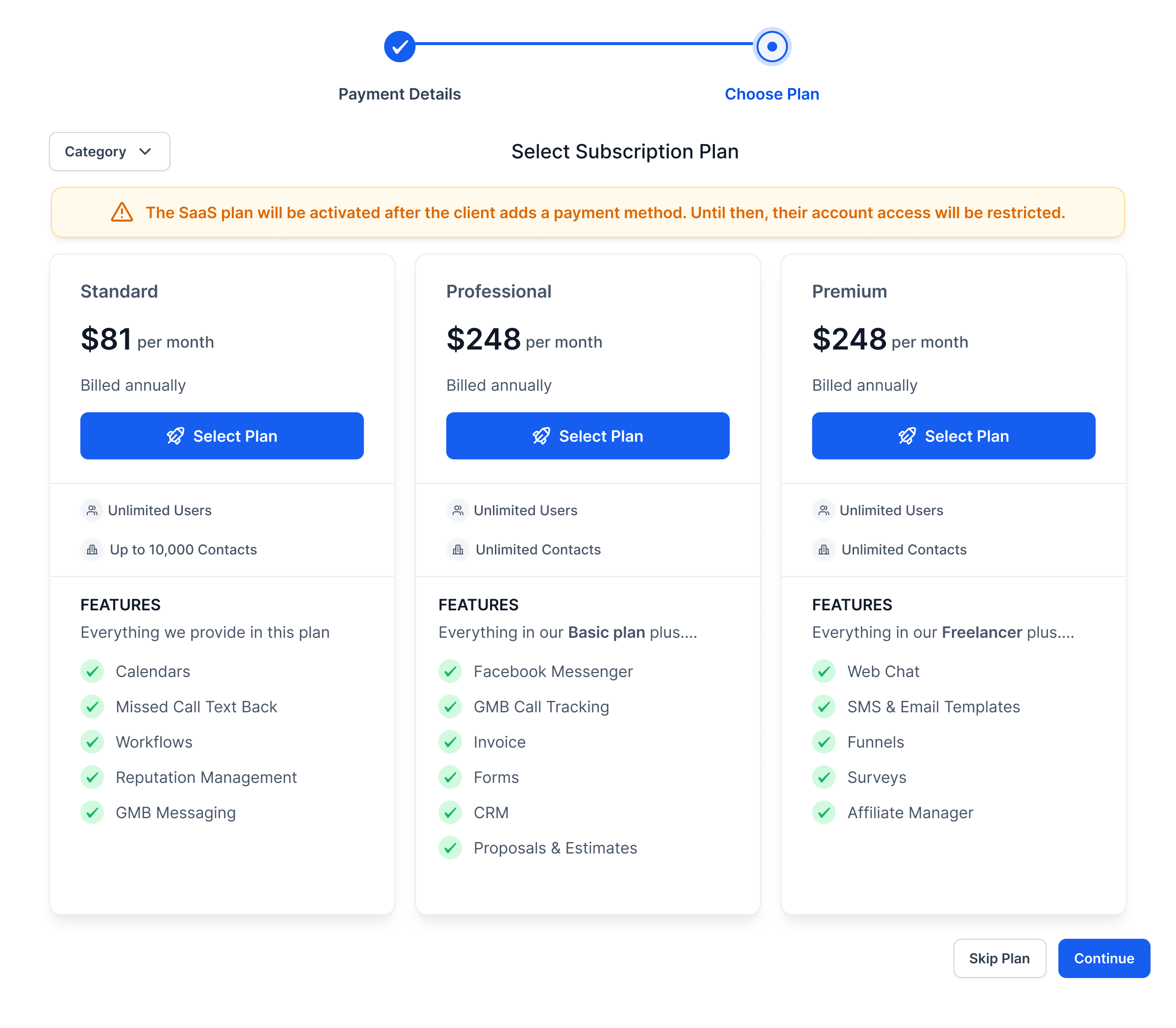
Important: A plan must be selected to activate SaaS mode. Clients must add payment methods for the plan to take full effect.
Pause Sub-Accounts in Bulk
Step 1: Select sub-accounts for bulk action & initiate pause action
- Use the Sub-Accounts section from the Agency Sidebar Menu to view your sub-account list.
- Use filters or search to locate the desired accounts and select multiple accounts via checkboxes, or use the 'Select All' option.
- Then click on the 'Bulk Actions' dropdown and choose 'Pause Sub-Accounts'.
[Use filters (like activity or plan status) to easily segment accounts for pausing.]
Step 2: Set Pause Preferences
You'll now choose how to manage SaaS subscriptions and phone/A2P campaigns for these accounts:
Pause active subscriptions: Prevent further billing.
Keep charging the clients: Pause sub-account access but keep billing.
LC Phone Numbers & A2P: Optionally disconnect and delete numbers/campaigns to avoid charges.
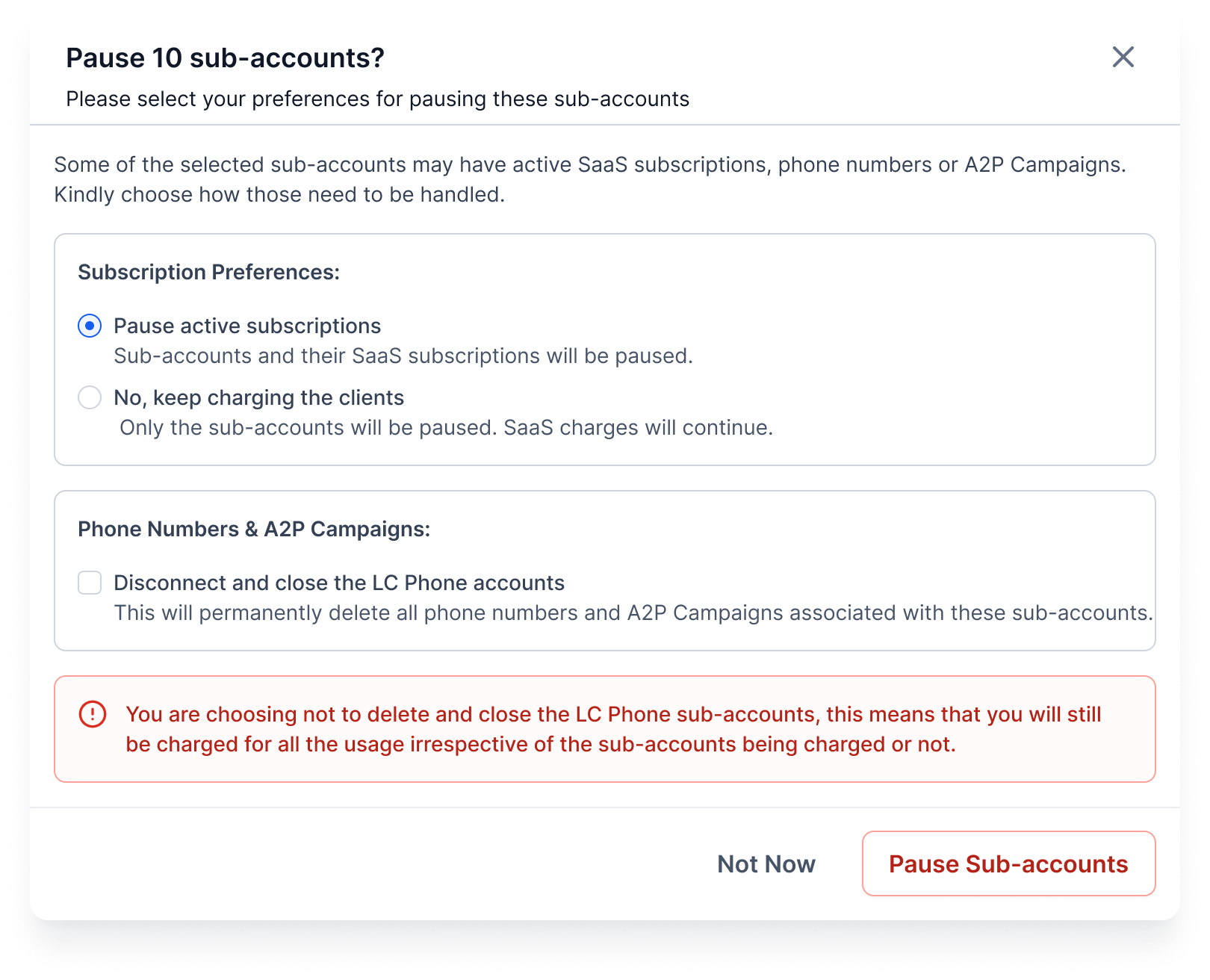
Note: If you don’t disconnect LC Phone accounts, you may still be charged for usage.
Step 3: Confirm and proceed.
View Bulk Action History
Step 1: Open Bulk Action History
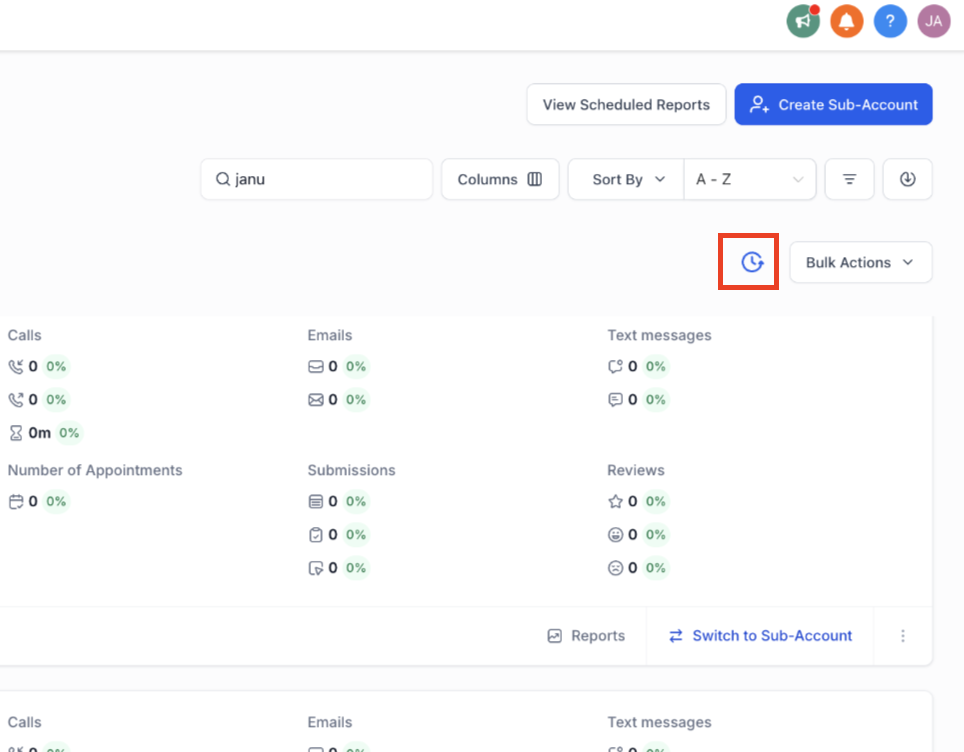
- Navigate to the Bulk Action History screen under the Sub-Accounts section.
- Here you can view all recent bulk jobs performed, including action type, date, user, and status.
Step 2: Drill into Job Details
Click on any job row to see detailed results — which sub-accounts were successfully processed, which failed, and why. This helps quickly identify any accounts needing attention.