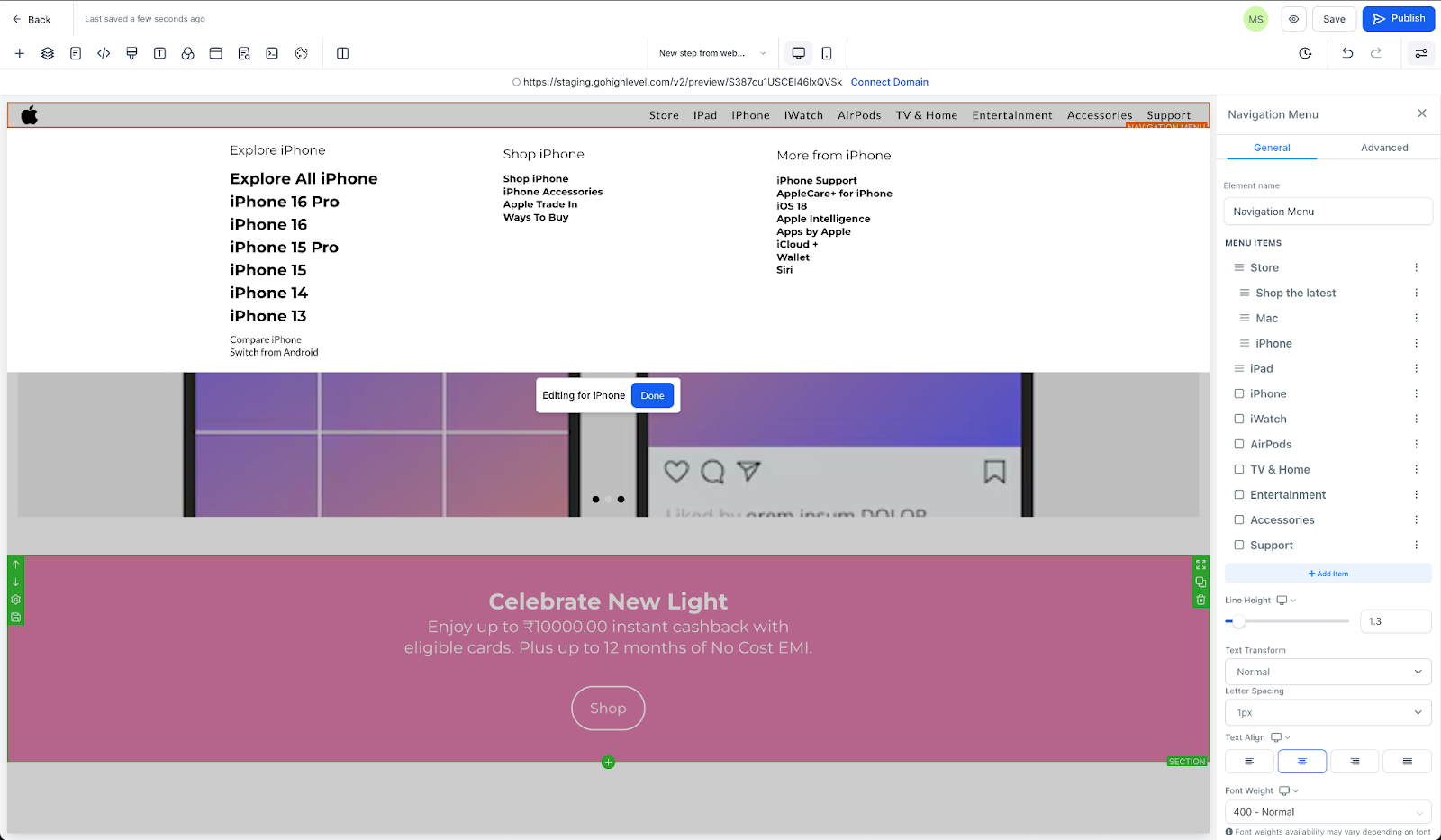
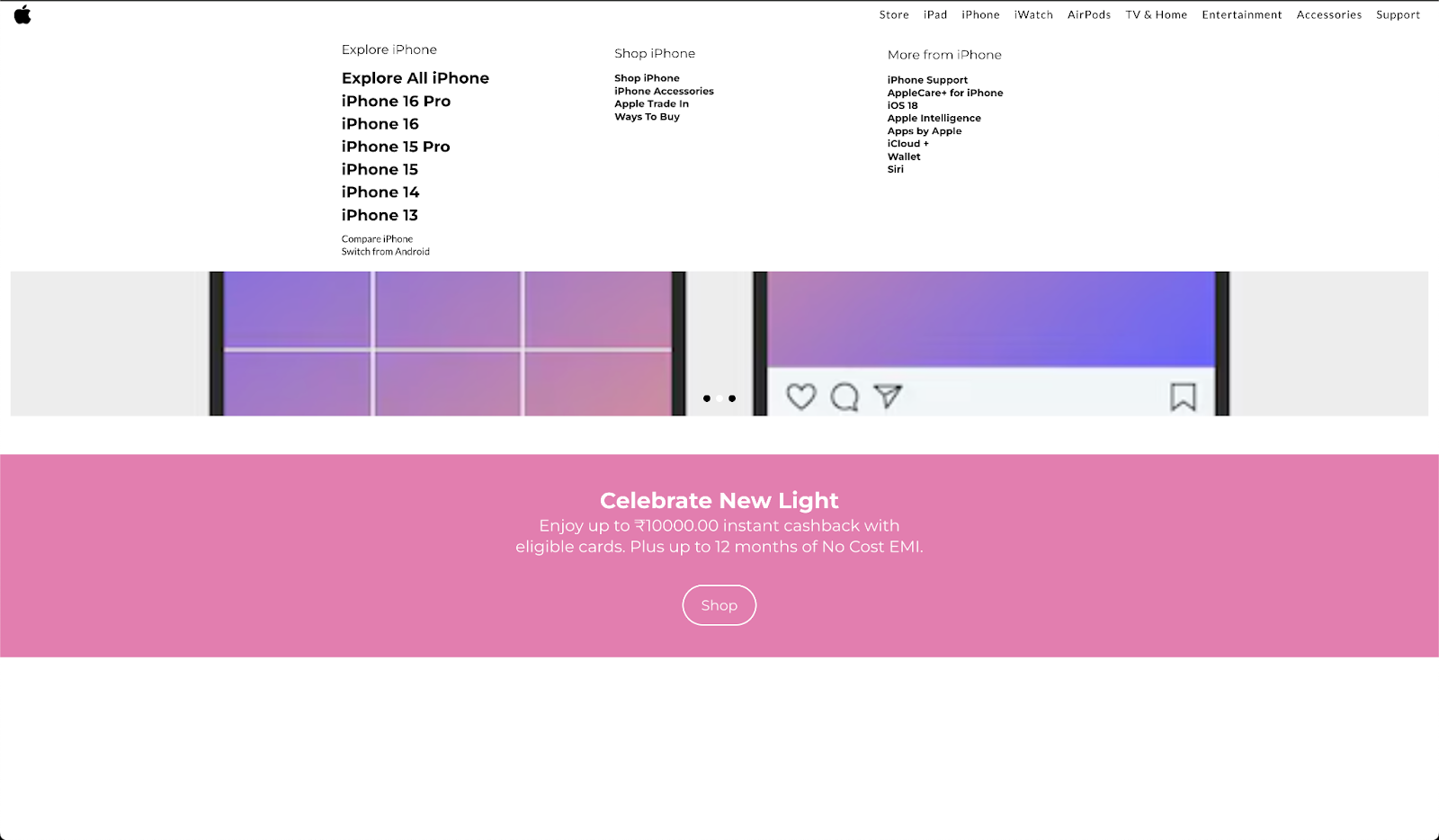
The mega menu option enables website owners to present additional information in an organized, visually appealing manner. This update streamlines menu customization and provides a more intuitive experience, enhancing user engagement and website functionality.
TABLE OF CONTENTS
What is the Mega Menu
Mega Menu Support:
Easily create and customize mega menus to organize and present large amounts of information.
Add customizable elements like images, links, and text to the mega menu.
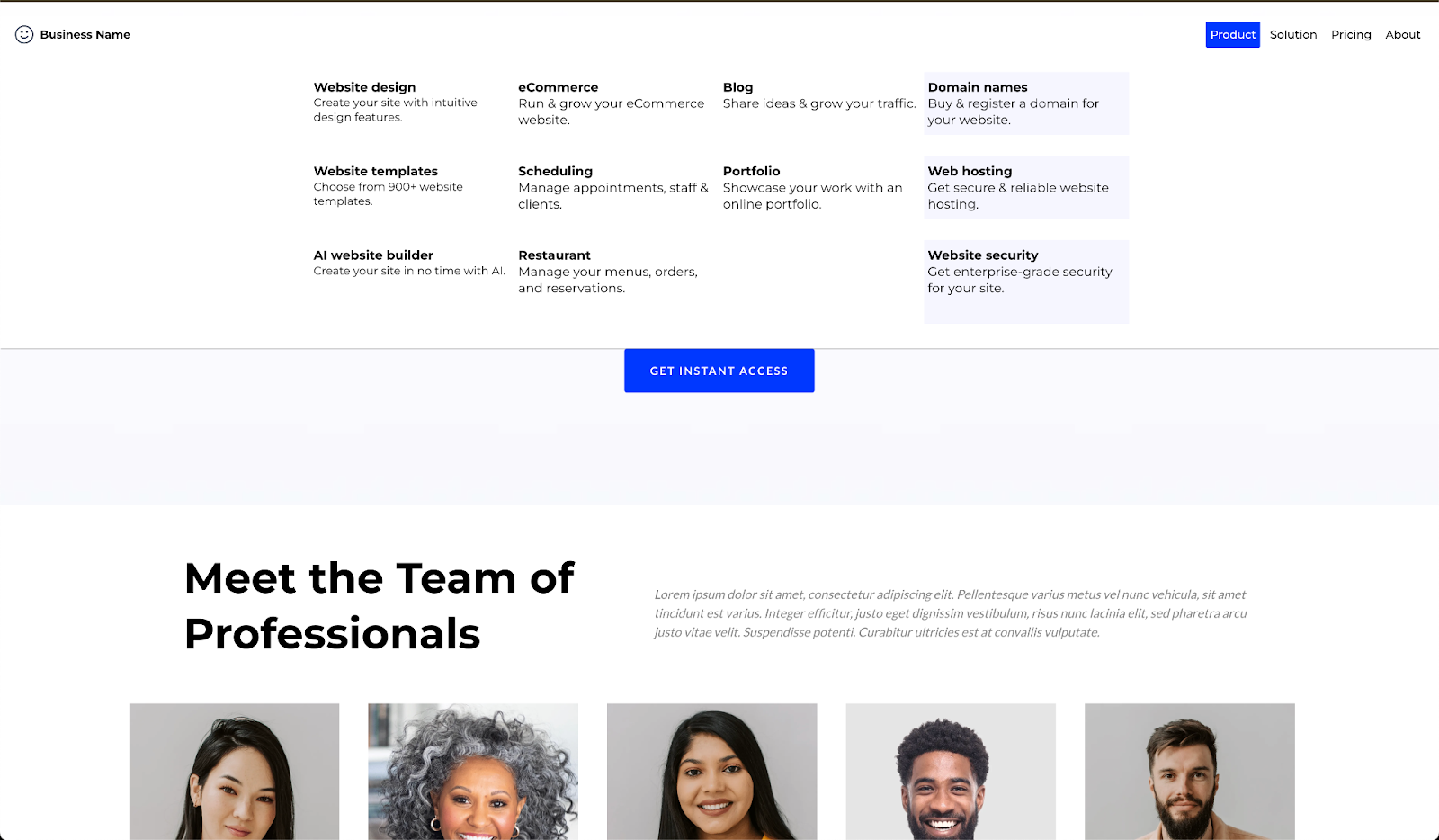
Mega menus appear when users hover over a menu item, offering a seamless navigation experience.
New Style Editor Settings:
- A revamped navigation menu editor for better organization and easier customization.
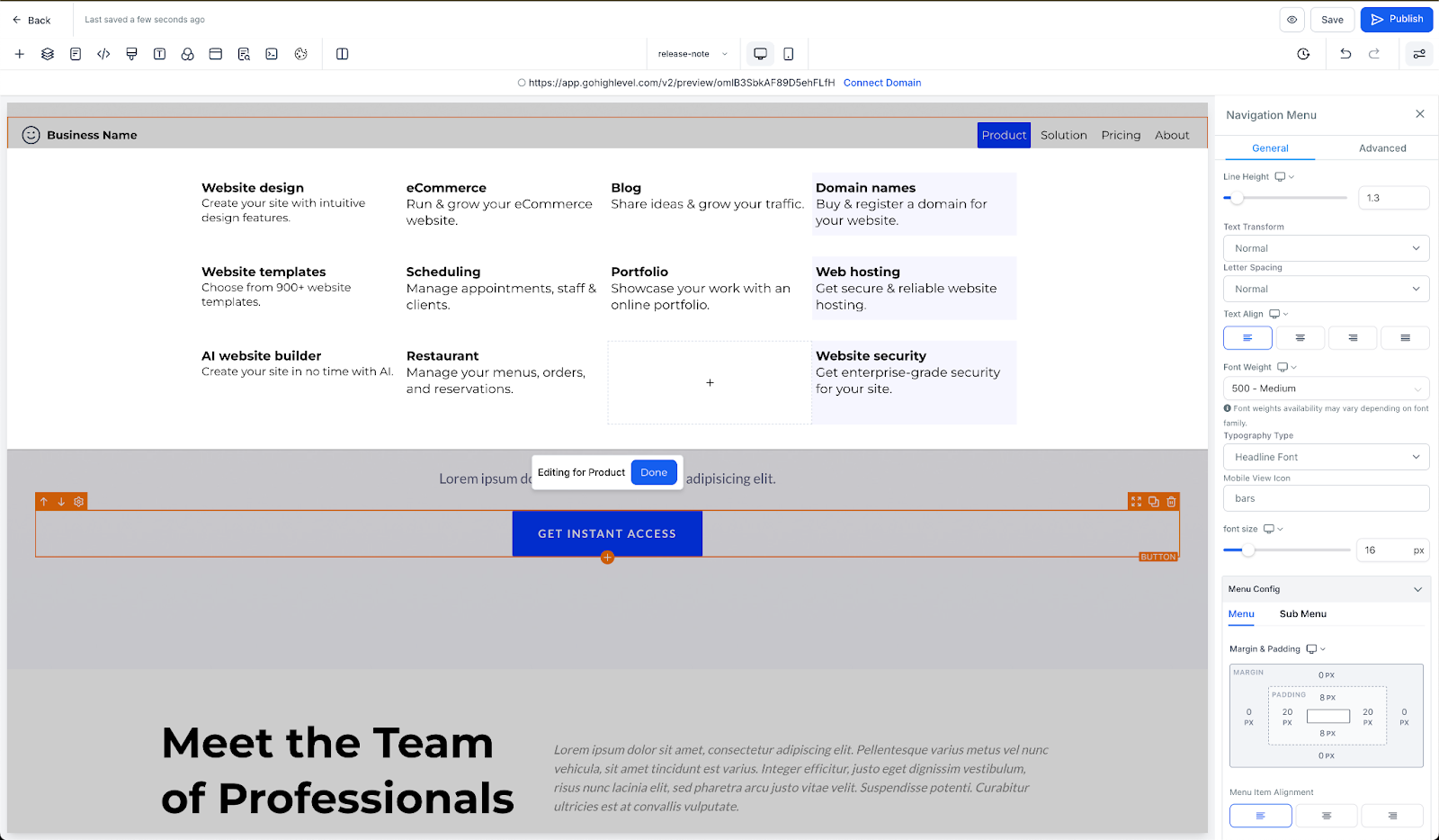
Overlay for Mega Menu Editing:
- When in mega menu edit mode, an overlay is added to reduce distractions and focus on editing.
How to use the Mega Menu
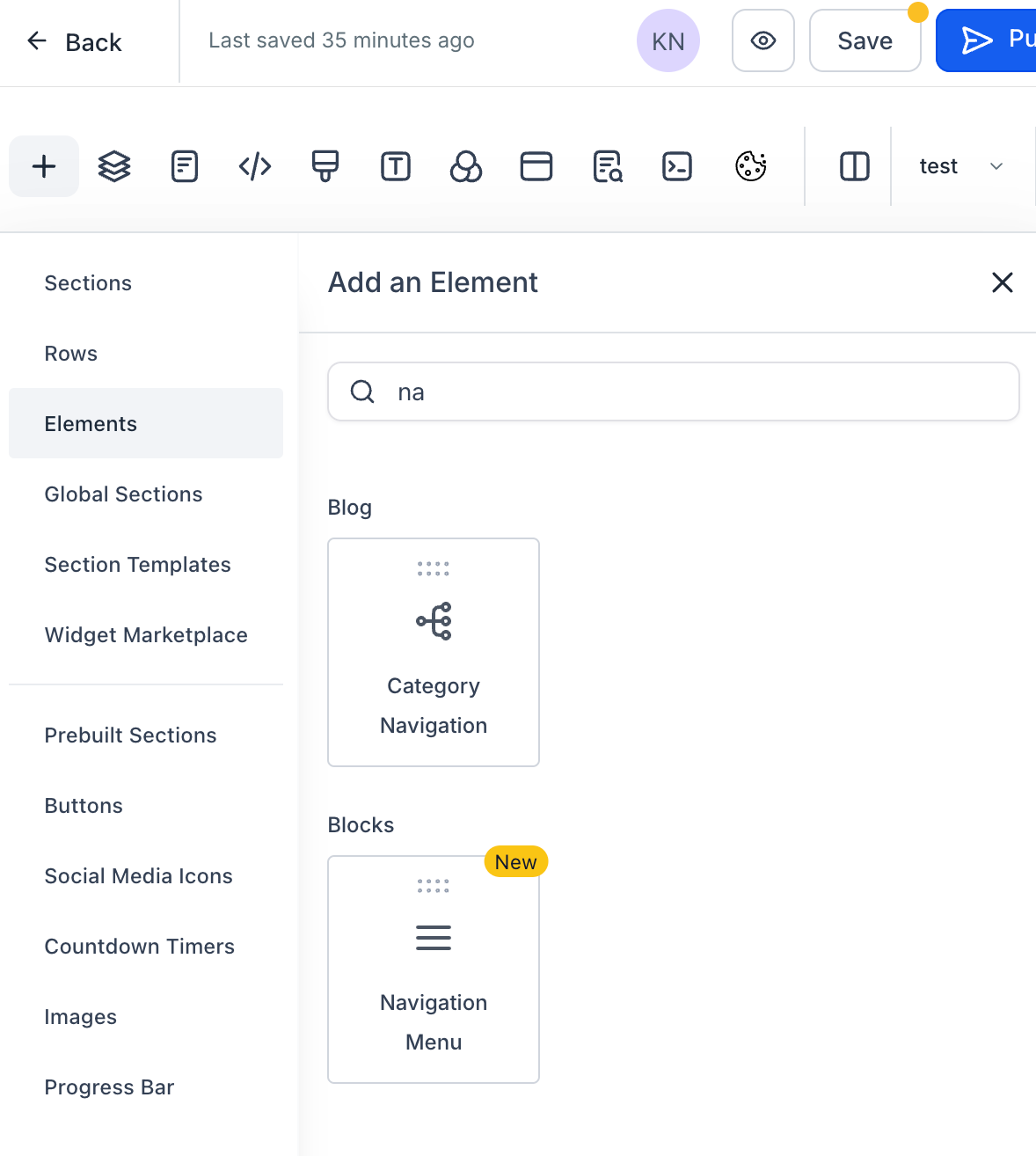
In the HighLevel funnels and websites builder, go to the left sidebar, select elements and add the new navigation menu.
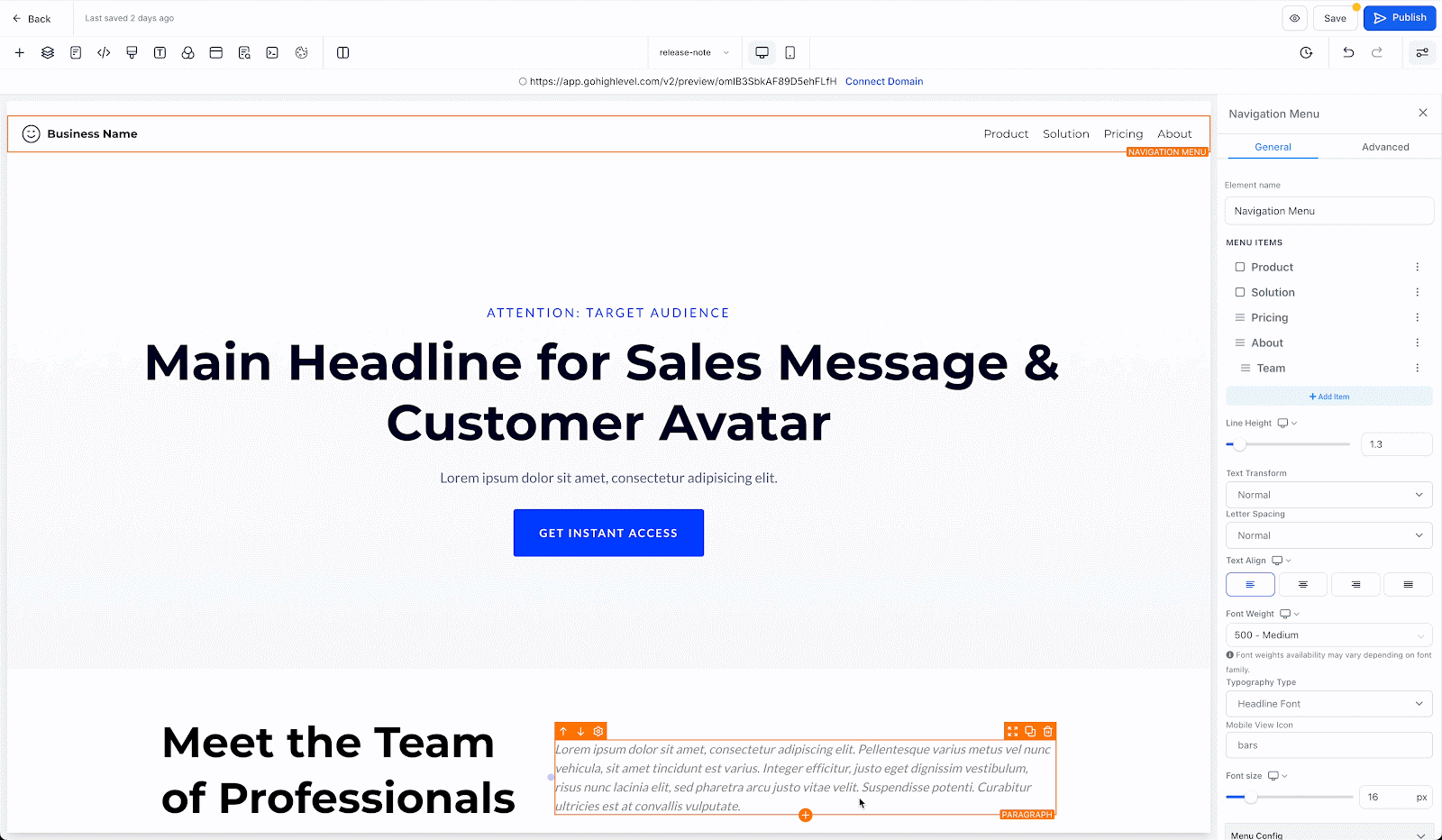
Configure the layout and styling of the navigation menu with the enhanced style editor in the right sidebar settings.
Click on Add item, followed by mega menu to add mega menu to navigation menu.
Use the live preview feature to see exactly how the mega menu will look on the live website, ensuring everything is in place before publishing.
Customize the mega menu by adding elements like images, text, and links.
Adjust background colors, fonts, spacing, and more to match your website’s branding and style. Drag and drop elements within the mega menu to easily organize content.