Customizing your dashboard with themes allows you to personalize its appearance and enhance its visual appeal. Follow these simple steps to apply a theme or create your own.
TABLE OF CONTENTS
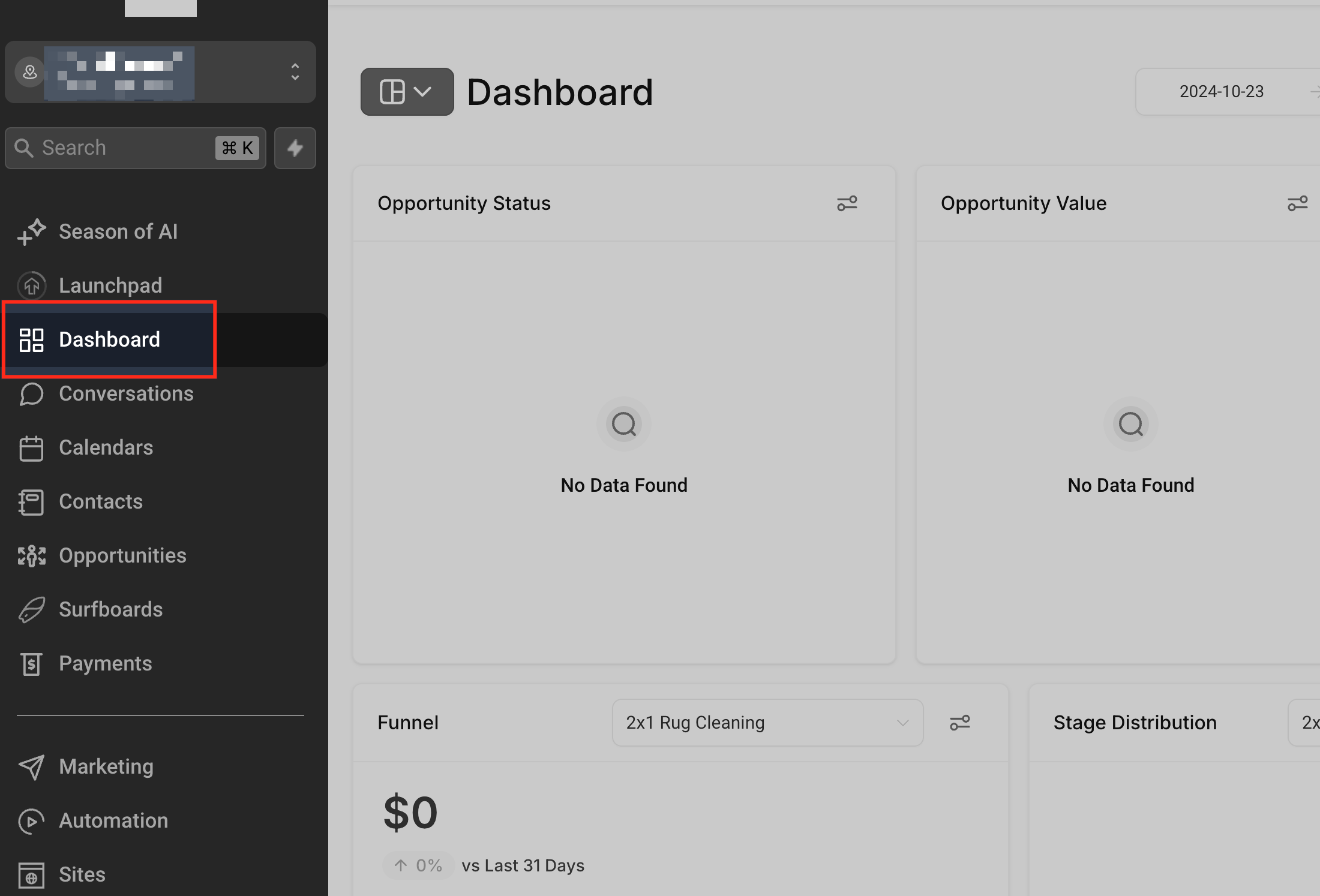
Step 1: Open Your Dashboard:
- Navigate to the dashboard you want to customize.
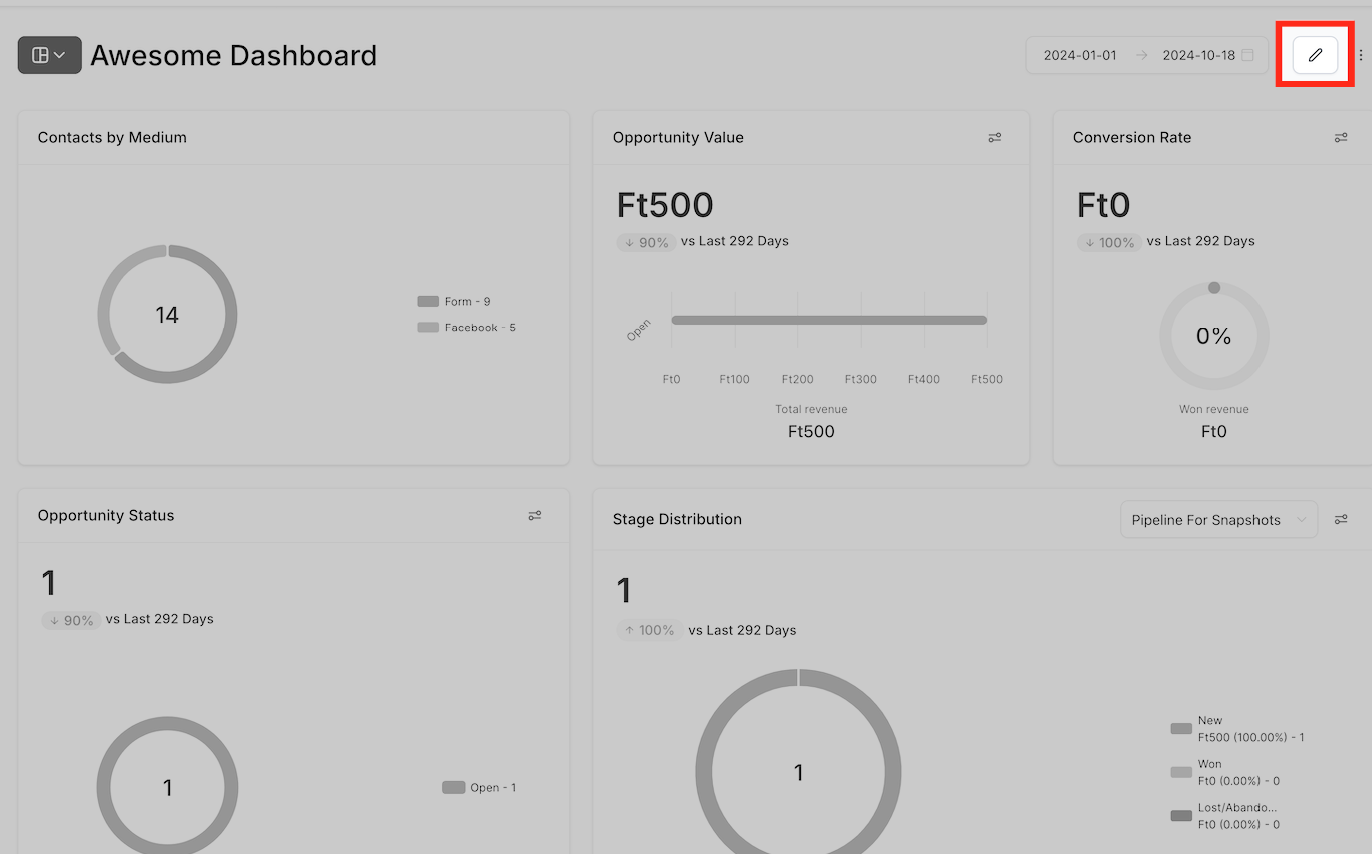
Step 2: Enter Edit Mode:
- Click on the Pencil icon in the top-right corner of the dashboard.
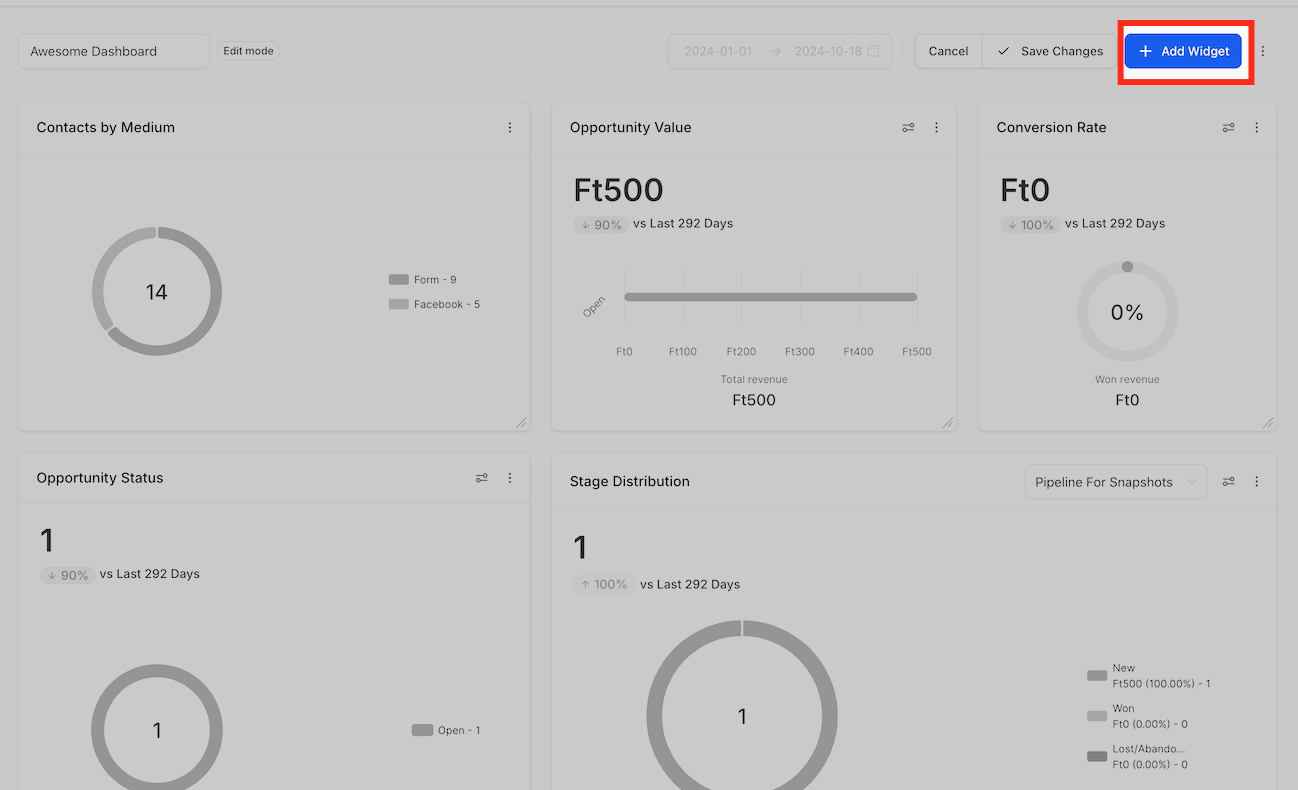
- After entering edit mode, select Add Widget to access customization options.
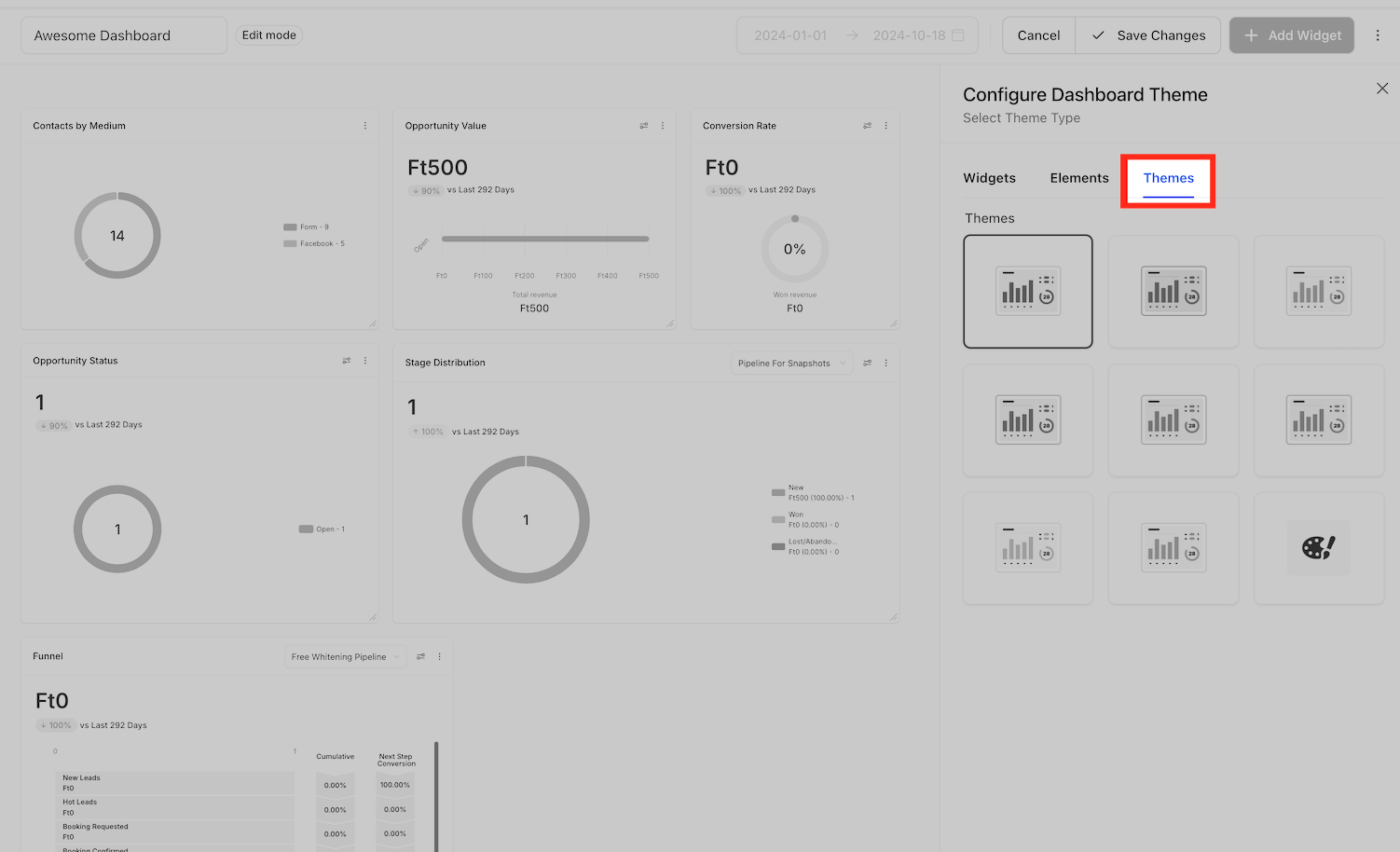
Step 3: Access the Themes Section:
- In the sidebar that appears, switch to the Themes tab.
Step 4: Choose or Create a Theme:
You can either:
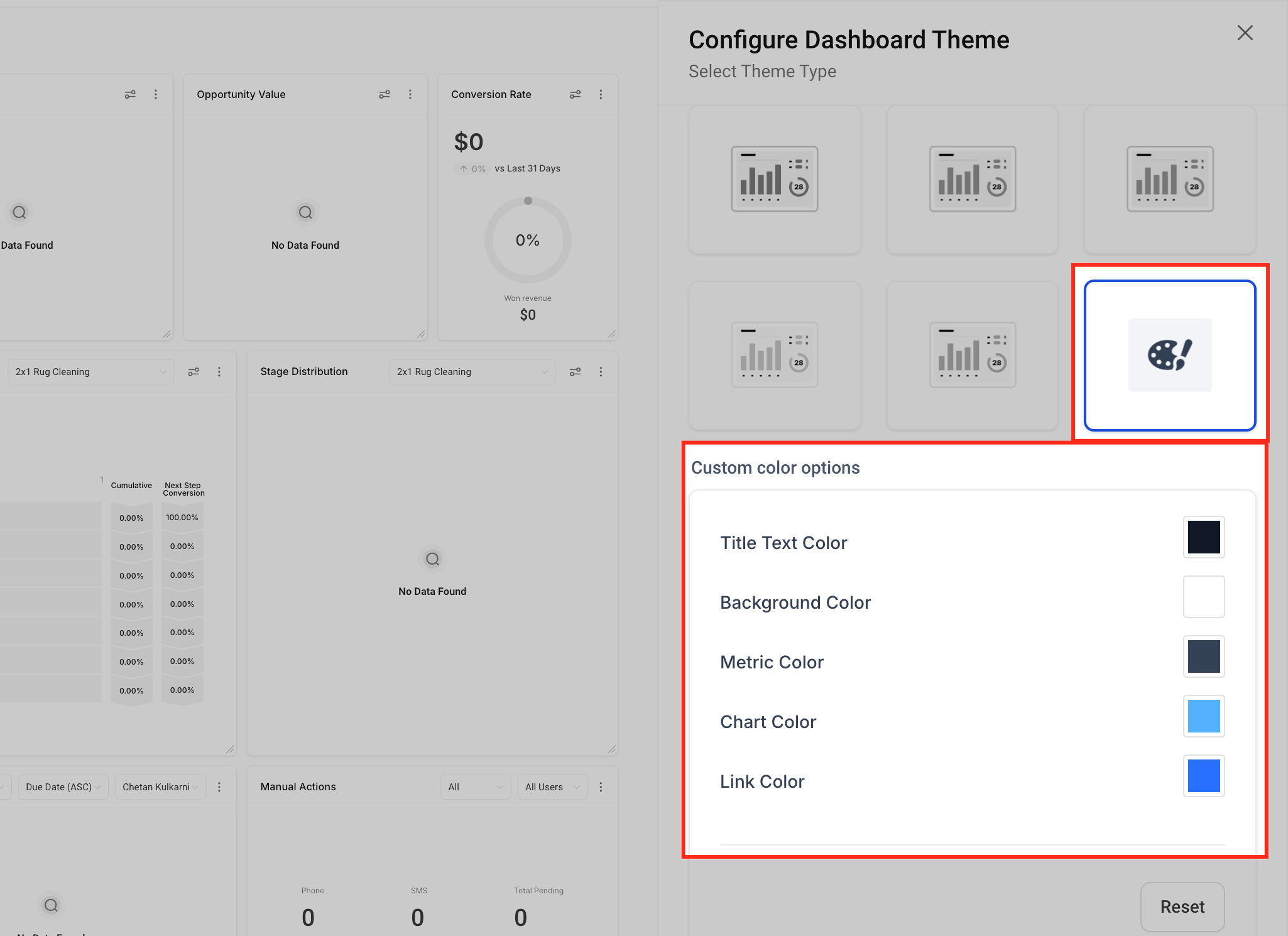
Select a predefined theme from the available options, or
Create your own custom theme by configuring each dashboard element (such as background color, text color, widget styles, etc.).
Step 5: Save Your Changes:
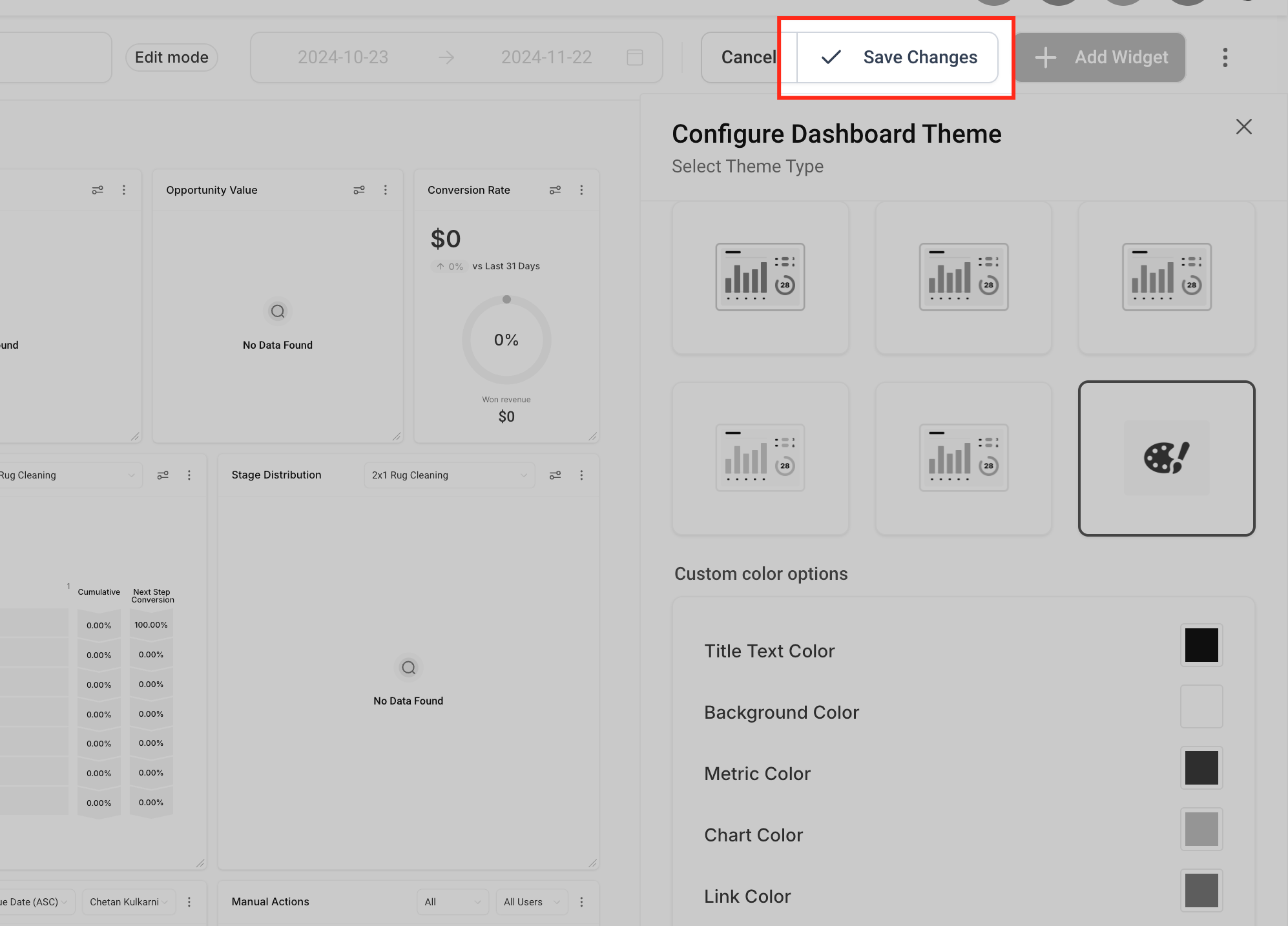
- Once you've chosen or created your theme, click Save to apply the changes to your dashboard.
Step 6: Widget Themes(Optional):
- Specific widgets can be configured with themes as well, to do this edit a widget and on the side bar switch to the the theme section.