This comprehensive guide provides steps for migrating your forms, data, and workflows from JotForm to HighLevel. The goal is to ensure a smooth transition with minimal disruption, while fully leveraging HighLevel’s integrated marketing and CRM capabilities.
TABLE OF CONTENTS
- Preparation for Migration
- Migrate Data
- Migrate Forms and Workflows
- Migrate Integrations and Notifications
- Final Checks and Training
- Decommissioning JotForm
Preparation for Migration
Step 1: Review Current JotForm Setup
- Identify Key Forms and Data: List all active forms in JotForm, including any associated data, such as submission entries, email notifications, and integrations.
- Document Form Workflows: Record details of how each form interacts with your current workflows, email notifications, and any third-party integrations.
- Assess Data Volume: Evaluate the amount of data (e.g., form submissions, contact information) to be migrated.
Step 2: Define Migration Goals
- Set Clear Objectives: Determine what you want to achieve by migrating to HighLevel, such as enhanced automation, better integration with CRM tools, or cost savings.
- Prioritize Features: Decide which forms and data are most critical to migrate first.
Step 3: Prepare Backup
- Export Data from JotForm: Export all necessary data from JotForm, including form submissions, templates, and configurations.
- Backup Data: Ensure all data is securely backed up before beginning the migration process.
Migrate Data
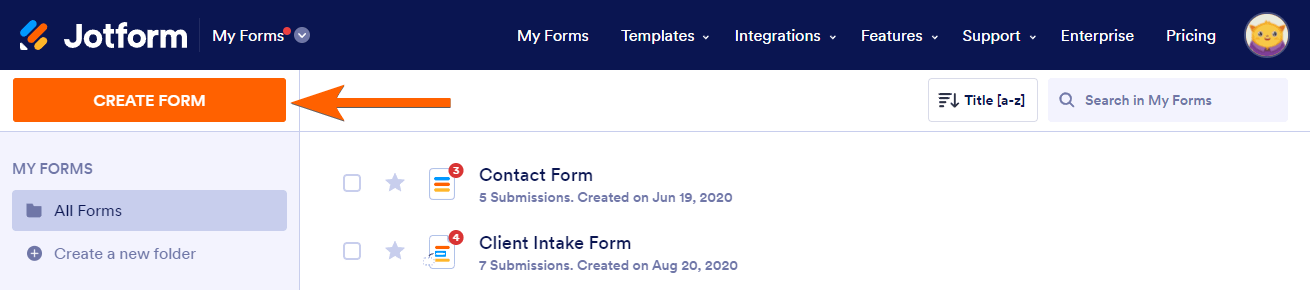
Step 1: Export Data from JotForm
- Export Form Submissions: Navigate to each form in JotForm, select the form submissions, and export them as CSV files.
- Export Form Templates: Save copies of your JotForm templates for reference during the recreation process in HighLevel.
Step 2: Import Data into HighLevel
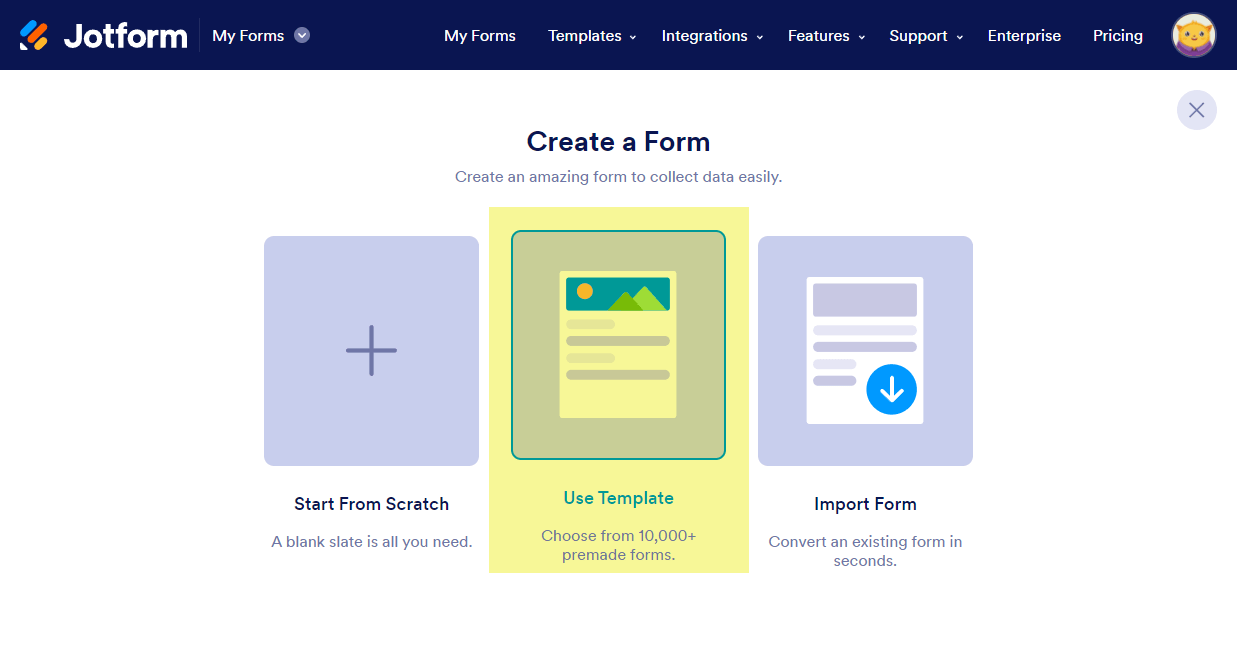
- Recreate Forms in HighLevel:
- Navigate to Sites > Formsin HighLevel.
- Use the form builder to recreate your forms, ensuring that all fields match those from JotForm.
- Use the form builder to recreate your forms, ensuring that all fields match those from JotForm.
- Navigate to Sites > Formsin HighLevel.
- Import Contacts: If you have contact information stored in JotForm, import this data into HighLevel by navigating to Contacts > Import Contacts and uploading your CSV files.
- Set Up Custom Fields: In HighLevel, create any necessary custom fields that match the data you were collecting in JotForm.
Migrate Forms and Workflows
Step 1: Review Existing JotForm Workflows
- List Active Workflows: Identify and document all workflows triggered by form submissions in JotForm, such as email notifications, data routing, and integrations with other tools.
- Evaluate Workflow Complexity: Assess the complexity of each workflow to determine how best to replicate it in HighLevel.
Step 2: Recreate Workflows in HighLevel
- Create Automation Triggers:
- In HighLevel, navigate to Automation > Workflows.
- Set up triggers for each form submission that replicates the logic from your JotForm workflows (e.g., sending notifications, updating contact records).
- In HighLevel, navigate to Automation > Workflows.
- Rebuild Actions and Conditions:
- Recreate actions such as sending confirmation emails, tagging contacts, or updating CRM records.
- Set up any necessary conditions or branching logic to mirror your existing workflows.
- Recreate actions such as sending confirmation emails, tagging contacts, or updating CRM records.
Step 3: Test Workflows
- Run Tests: Before activating workflows, conduct thorough testing to ensure they function as intended.
- Adjust Settings: Make necessary adjustments based on test results to ensure smooth operation.
Migrate Integrations and Notifications
Step 1: Recreate Integrations in HighLevel
- Identify Necessary Integrations: Determine which third-party tools you were integrating with JotForm, such as payment gateways, email marketing tools, or CRMs.
- Set Up Integrations in HighLevel:
- Use HighLevel’s built-in integrations or Zapier to connect to external applications.
- Go to Settings > Integrations to set up necessary connections.
- Use HighLevel’s built-in integrations or Zapier to connect to external applications.
Step 2: Recreate Email Notifications
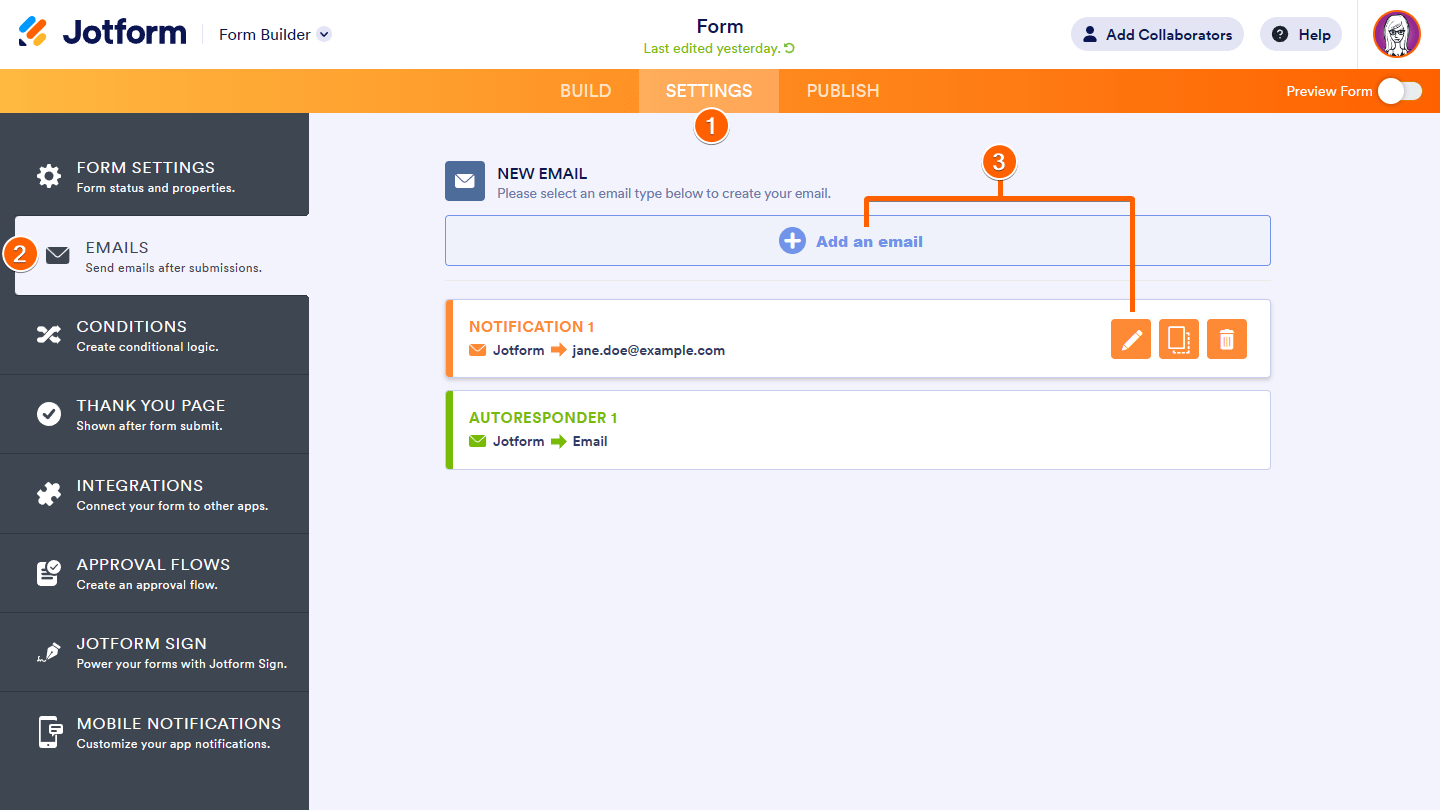
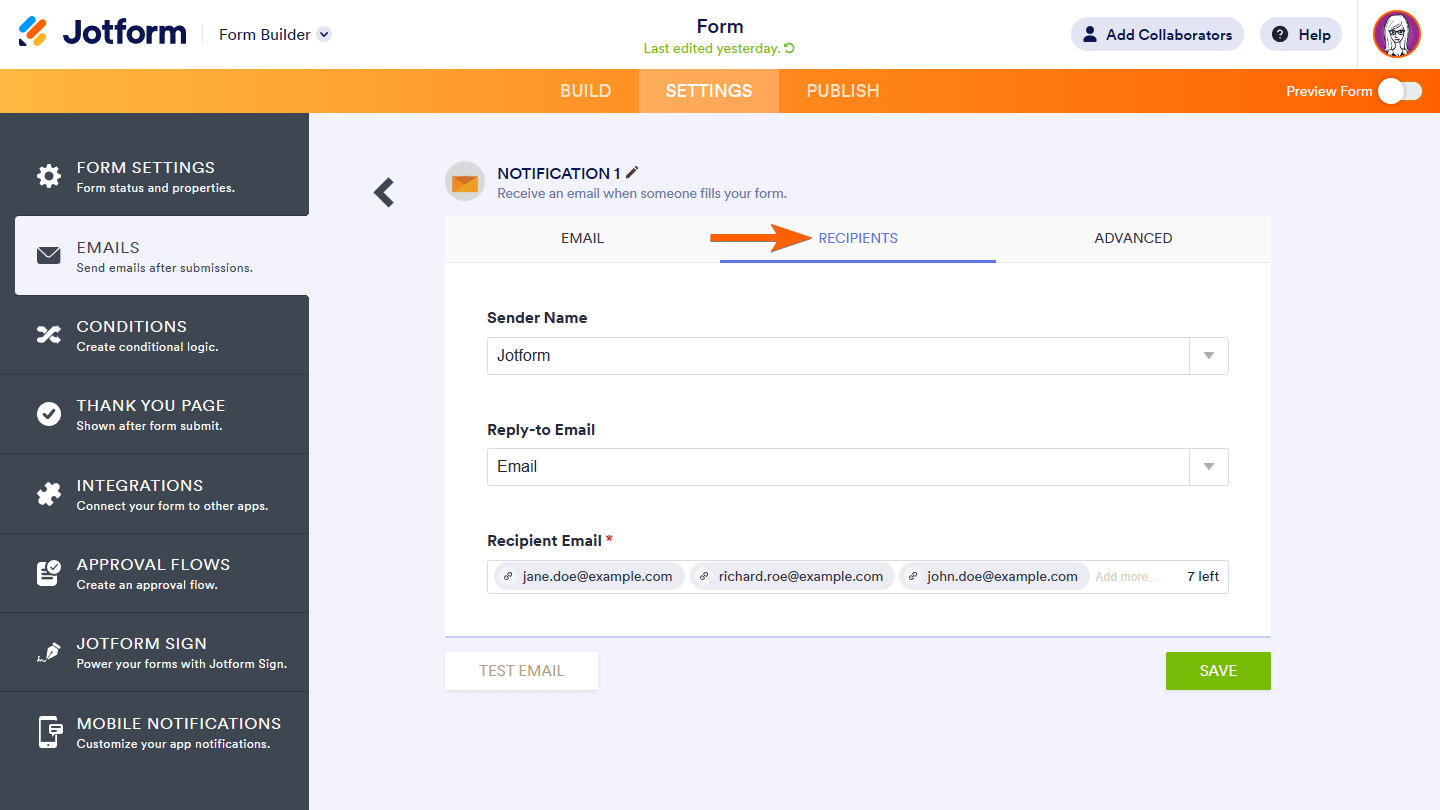
- Set Up Internal Notifications:
- In HighLevel, navigate to Automation > Workflows and set up internal notifications for when a form is submitted.
- In HighLevel, navigate to Automation > Workflows and set up internal notifications for when a form is submitted.
- Configure Autoresponders: If you were using autoresponders in JotForm, set these up in HighLevel by creating automated email sequences that trigger upon form submission.
Final Checks and Training
Step 1: Perform Final Data Validation
- Cross-Check Data: Ensure that all data has been successfully migrated and that there are no discrepancies between JotForm and HighLevel records.
- Validate Forms and Workflows: Confirm that all forms and workflows are operational in HighLevel.
Step 2: Train Team Members
- HighLevel Training: Provide training to your team on how to use HighLevel’s form builder and automation tools, focusing on the differences from JotForm.
- Utilize HighLevel Support: Encourage team members to leverage HighLevel’s support resources and community forums for ongoing learning.
Step 3: Monitor and Optimize
- Monitor Performance: Track the performance of your new setup in HighLevel, making adjustments as necessary.
- Continuous Improvement: Regularly review and refine forms, workflows, and integrations to ensure they align with business goals.
Decommissioning JotForm
Step 1: Transition Period
- Run in Parallel: Consider running JotForm and HighLevel in parallel during the transition phase to ensure no critical operations are missed.
- Gradual Phase-Out: Gradually reduce reliance on JotForm as HighLevel becomes fully operational.
Step 2: Cancel JotForm Subscription
- Final Data Backup: Before canceling your JotForm subscription, ensure all data is securely backed up.
- Official Cancellation: Follow JotForm’s process to cancel your subscription and terminate services.
Step 3: Post-Migration Review
- Review Success: Evaluate the success of the migration process and document any lessons learned.
- Continuous Monitoring: Keep monitoring the system post-migration for any potential issues.